32 | 405 TS Getting Started Guide
Create or Modify a Protocol
Select Define at the Home screen
To create or edit a protocol:
1. Select Define at the Home/Maintenance screen.
2. Press Create or highlight the protocol and press Edit.
3. Name:
l New protocols: Touch the name field to open a keyboard.
Enter a unique name for the protocol.
l Editing protocols: Press the Info button and touch the
name field to change the protocol name. This will create a
new copy of the protocol you are editing. Later you can
delete the original file, if desired.
4. Plate Type:
l New protocols: If needed, touch the plate type field to
select a different plate type.
l Editing protocols: Press the Info button and touch the
Plate Type field to change the plate type.
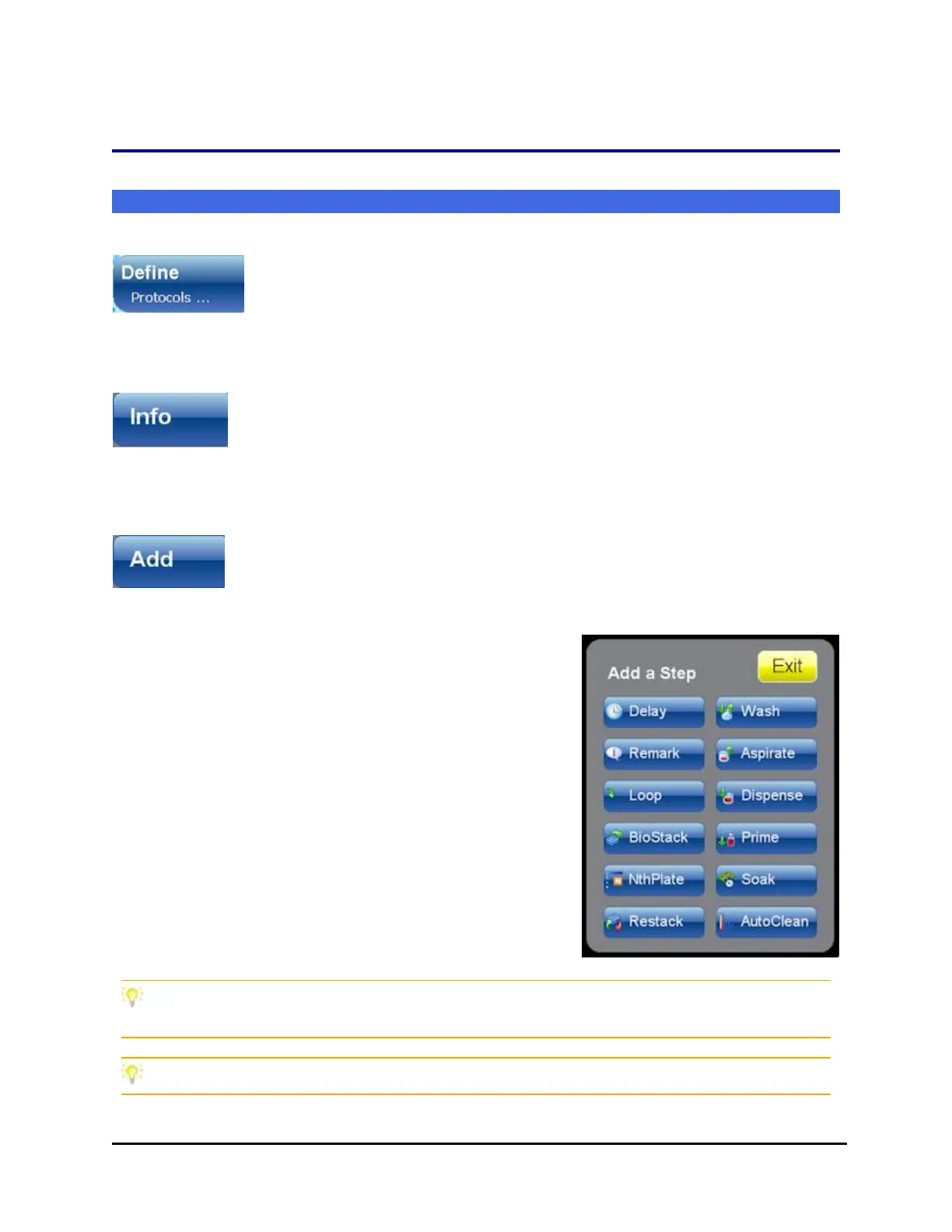
5. Add/Edit steps:
l New protocols: Add a step to the protocol
(touch the Add button), select a step and
define its parameters.
l Editing protocols: Highlight a step and
press Edit to modify its parameters.
l Adding steps: Highlight the <end of
steps> or a step to be preceded by the
new step, and press Add and the action
button to insert a step.
Copy a similar protocol and then edit it to meet different requirements or to test
different parameters.
When editing a protocol, cut and paste steps to move them to the correct position.
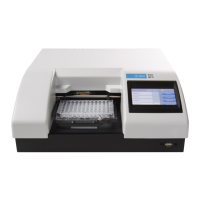
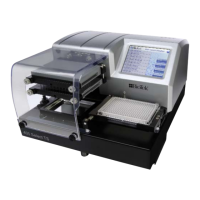
405™ TS Microplate Washer


 To Next Page