9 Wireless
82
9.9.1 Connecting to a Wi-Fi Network
To connect to a Wi-Fi network:
1
Go to Settings.
2
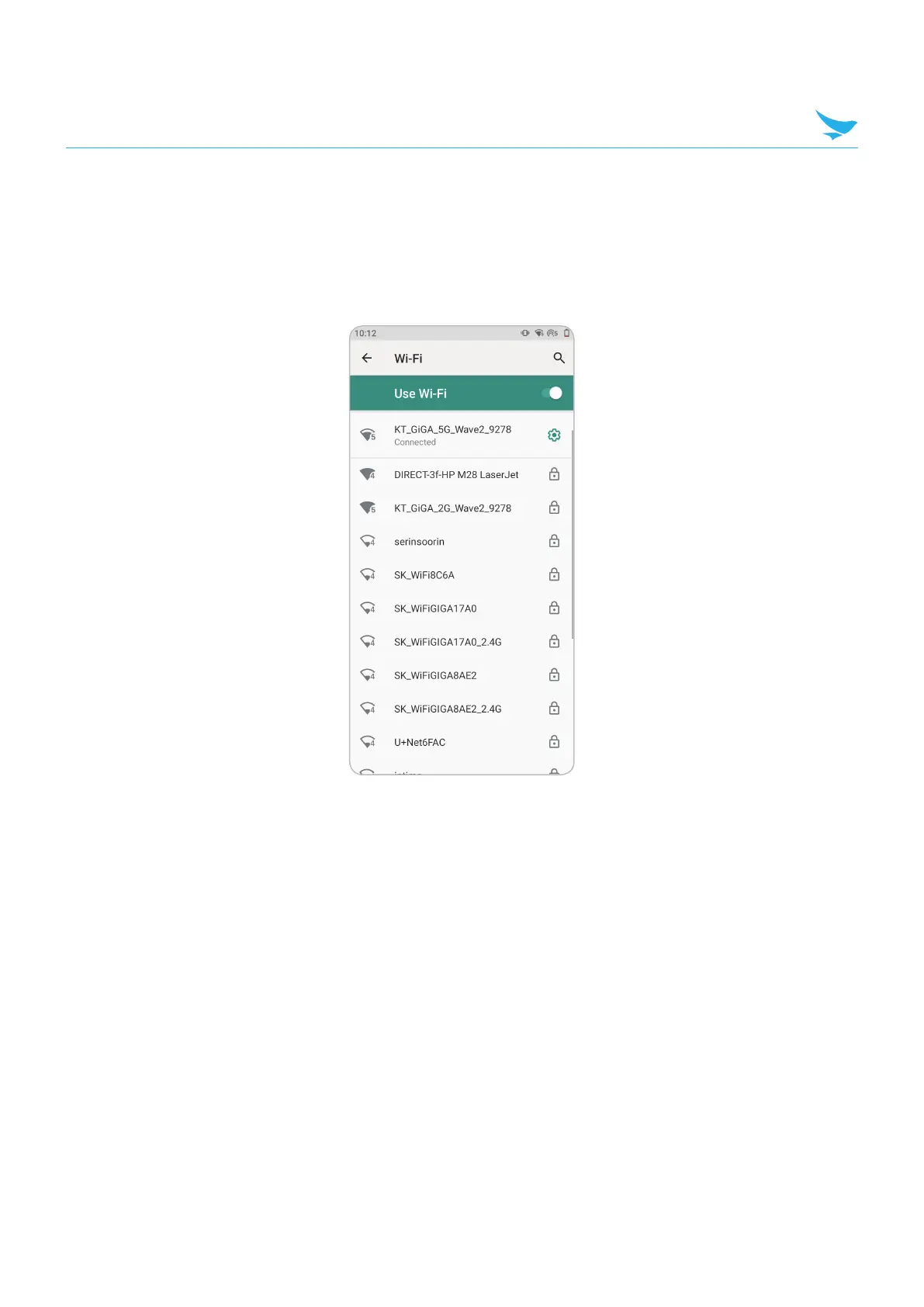
Touch Wi-Fi to open the Wi-Fi screen. The device searches for WLANs in the area and lists them.
3
Scroll through the list and select the desired WLAN network.
4
For open networks, touch profile once or press and hold and then select Connect to network or for
secure networks enter the required password or other credentials then touch Connect. See the system
administrator for more information.
The device obtains a network address and other required information from the network using the dynamic
host configuration protocol (DHCP) protocol. To configure the device with a fixed internet protocol (IP)
address, Refer to the device Integrator Guide for more information.
5
In the Wi-Fi setting field, Connected appears indicating that the device is connected to the WLAN.
9.9.2 Removing a Wi-Fi Network
To remove a remembered or connected network:
1
Go to Settings.
2
Touch Network & Internet > W-Fi.
3
Scroll down to the bottom of the list and touch Saved networks.


 To Next Page