APPLE/ MAC BASED SYSTEM
Boca Systems, Inc. has developed two programs that allow customer to the printer. One operates over USB/HID & Ethernet
interfaces and the other if a print driver is used. The below programs are found on our website under the “TECH SUPPORT/
REPAIRS” section.
For Mac use without printer driver (www.bocasystems.com/documents/boca_customer_mac.zip) customer
program is used with USB/HID & Ethernet interfaces.
For Mac use with printer drivers (www.bocasystems.com/documents/boca_customer_driver_mac.zip) customer
program is used with print drivers or USB connection.
You may download load the program that fits your needs. To use these programs you will need to download the zip file to
your Apple/Mac based host computer. The following steps will guide you through using these programs once they have
been installed on your host computer.
1. Hook the BOCA printer to the host computer that you have the Customer program loaded onto. Make sure that
the printer has stock loaded and it ready to go. A printer is ready to print when it is able to print out a self test
ticket by depressing the TEST button. If you are not able to get a self test ticket, refer to the user’s manual to
make sure you have the printer properly setup.
2. Go to your download folder and you will see the customer program you chose. Click on this folder to expand it to see
all the files.
3. You will need to click on the appropriate application file to run the program.
customer_mac for the USB/HID & Ethernet based program.
cust_driver_mac for the print driver based . Proceed to step #5
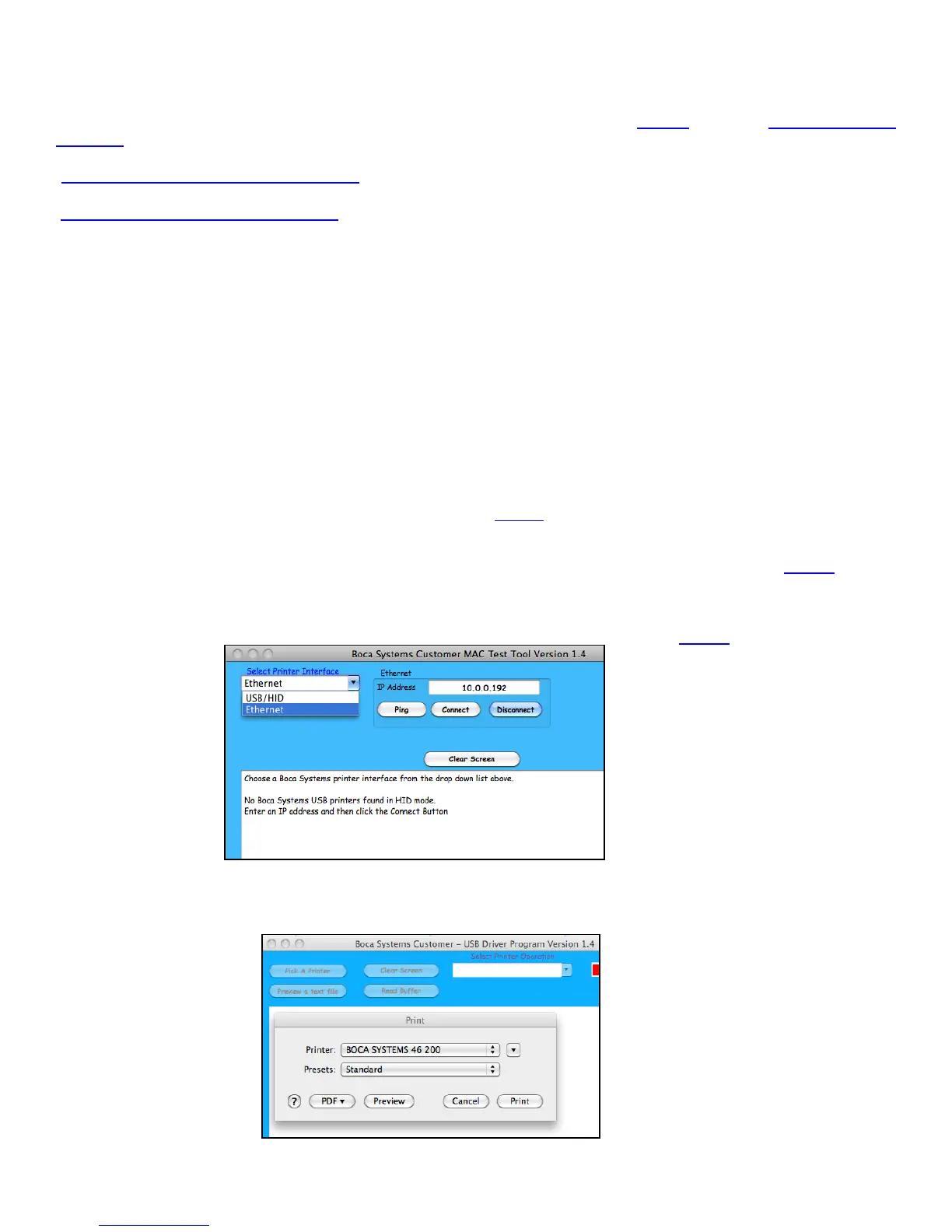
4. Once the Customer MAC Test Tool is running, click on the “Select Printer Interface” drop-down arrow. You will
want to choose the interface connection that you have the BOCA printer hooked up to then go to step #6.
If you are connecting via the Ethernet port then in the IP Address box type in the printer’s current IP address.
The printer’s current IP address is printed on the self-test ticket (when the test button is pressed). When tying in
the address don’t include the leading zeros (If IP=189.010.000.002 then type in 189.10.0.2). Click on the Connect
button. The Message section will indicate that connection has been made. Go to step #6
5. Once the Customer USB Drivers program is running, click on the “Pick A Printer” button. You will want to choose
the driver you’re using for the BOCA printer.
Your selection of drivers will vary from what is shown in above image



 To Next Page