APPENDIX J – ADHESIVE STOCK
When using the adhesive label stock in your BOCA printer the below setting changes need to be made via
the control panel to ensure proper operation of your printer. If your printer doesn’t have a LCD display
then please see the bottom section of this document.
Please follow the enclosed steps to change your label mode setting.
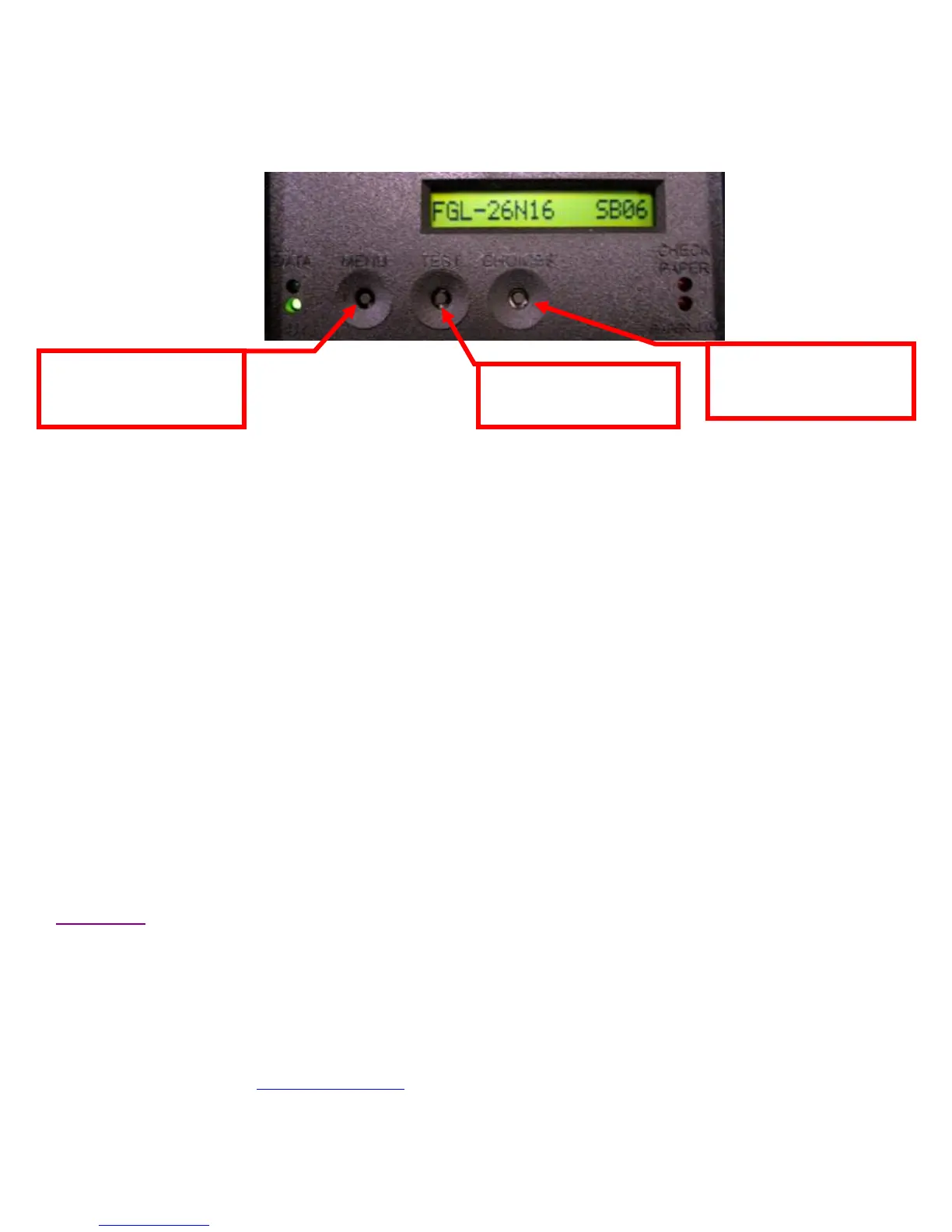
1. Depress both the MENU and CHOICES buttons while turning on the printer. Keep both buttons depressed
unit FACTORY MENU appears in the LCD window or the display starts scrolling through different topics.
2. Using the MENU button scroll down to the PRINT MODE?
3. Use the CHOICE button to select RIBBON. Once you have done this press the TEST button.
4. Using the MENU button scroll down to the SKI MODE?
5. Use the CHOICE button to select YES. Once you have done this press the TEST button.
6. The display will show EXIT AND SAVE. Press the TEST button again and the printer will reset at this time.
7. Your printer is now configured for label stock uses.
Without LCD Display
For those printers without a LCD display the following command string needs to be sent to the printer.
Appendix G explains how to do this using our configure and test program. The printer will reset upon
successful receipt of the command and it only needs to be sent to the printer once to be permanently saved.
<bce><rib><sme><bcd>
Click here to return to > Table of Contents
CHOICES: Scrolls through
choices in individual menu
topics
MENU: Selects proper
menu topic (baud rate, cut
count, etc.)
TEST: Enters new value.
Also saves new values



 To Next Page