4.0 Installation
The Lemur series printer was designed to be mounted either on a desktop or shelf (horizontal model) or vertically in
a counter top (see Appendix B for installation of vertical printers). Lemur-S model printer is not able to be mounted
vertically.
Prior to site preparation and installation, the printer should be powered up and run in the self-test mode.
Lay the printer flat on a counter top. On a Lemur-S model printer you will need to remove the side cover.
Attach the AC cord and interface cable into the proper connectors.
Install ticket hopper (if applicable) to catch the tickets. Lemur printer without a cutter won’t have a ticket
hopper.
If you have a Lemur-R model printer please see section Appendix D Lemur-R
Turn power on. The LCD will display PAPER OUT and the red CHECK PAPER led will be illuminated. You
will hear the cutter motor cycle if the printer contains a cutter.
Begin loading tickets through the entrance slot with a smooth motion until the printer automatically positions
the ticket. See section 5.0 Ticket Load Procedure.
NOTE: You want to make sure that the black timing mark is in the correct location before loading the tickets into
the paper path. See www.bocasystems.com/tickets_specs.html for black mark layout specs.
After the ticket is automatically positioned (the green READY led will be illuminated), press the TEST button
located on the control panel to print a test ticket. The next page shows sample self test ticket printouts.
Verify that the printer properly works with your system by issuing a ticket through your computer system.
You may also use out customer based program to test the printer independently of your ticketing system
(see Appendix F)
You may now install the printer in its permanent location. Adequate room should be provided behind the printer for
the smooth feeding of ticket stock. Please do not prevent the ticket hopper (horizontal models) from operating by
touching tickets during the printing cycle.
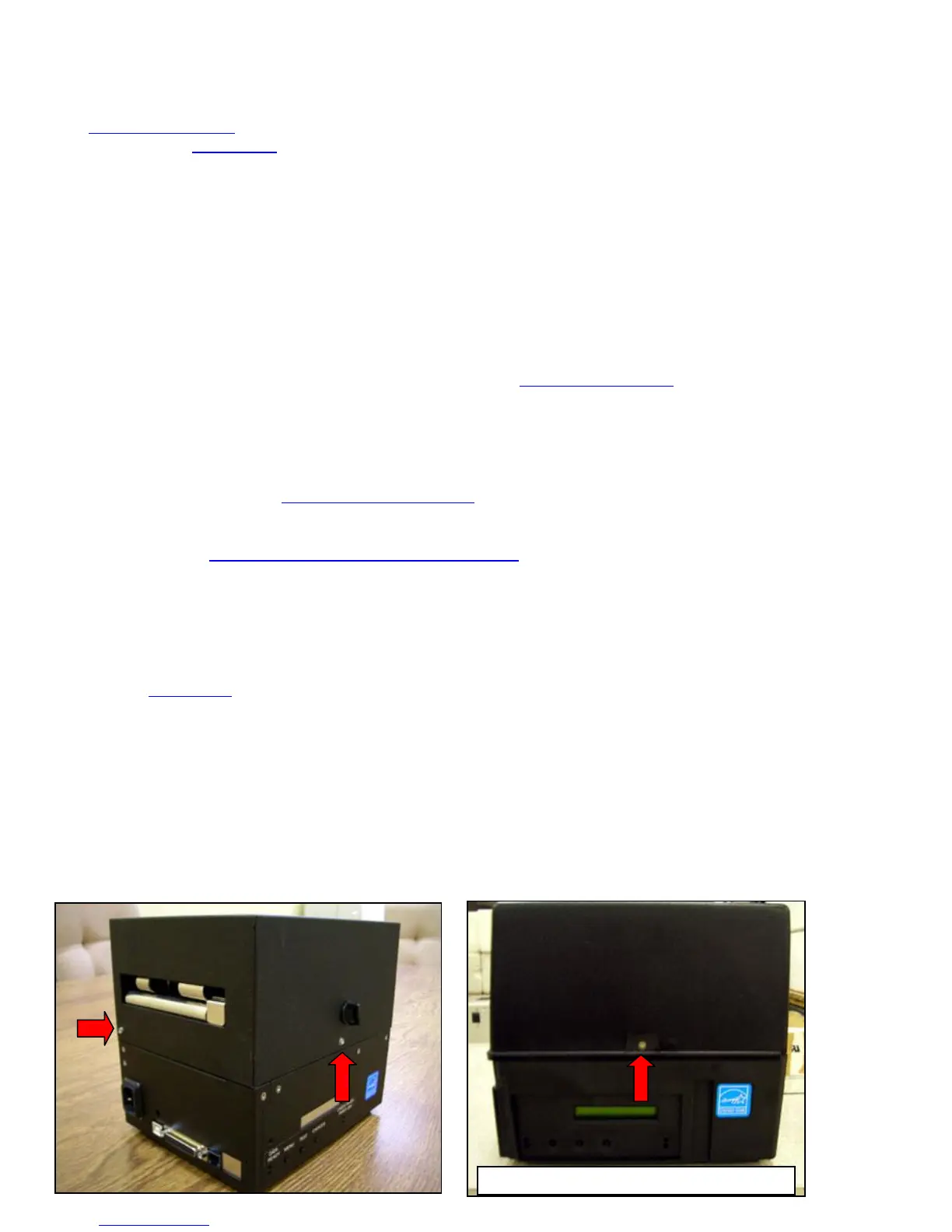
Lemur cover removal – The printer is shipped there are two securing screws installed to hold the cover in place. If
the cover needs to be removed then it will be necessary to remove these (see photo below). When you install the
cover back onto the printer it’s not necessary to reinstall these screws as the black latch (metal cabinet only) will
hold the cover in place. It’s recommended to use the printer with the cover in place.
Same screw on opposite side too



 To Next Page