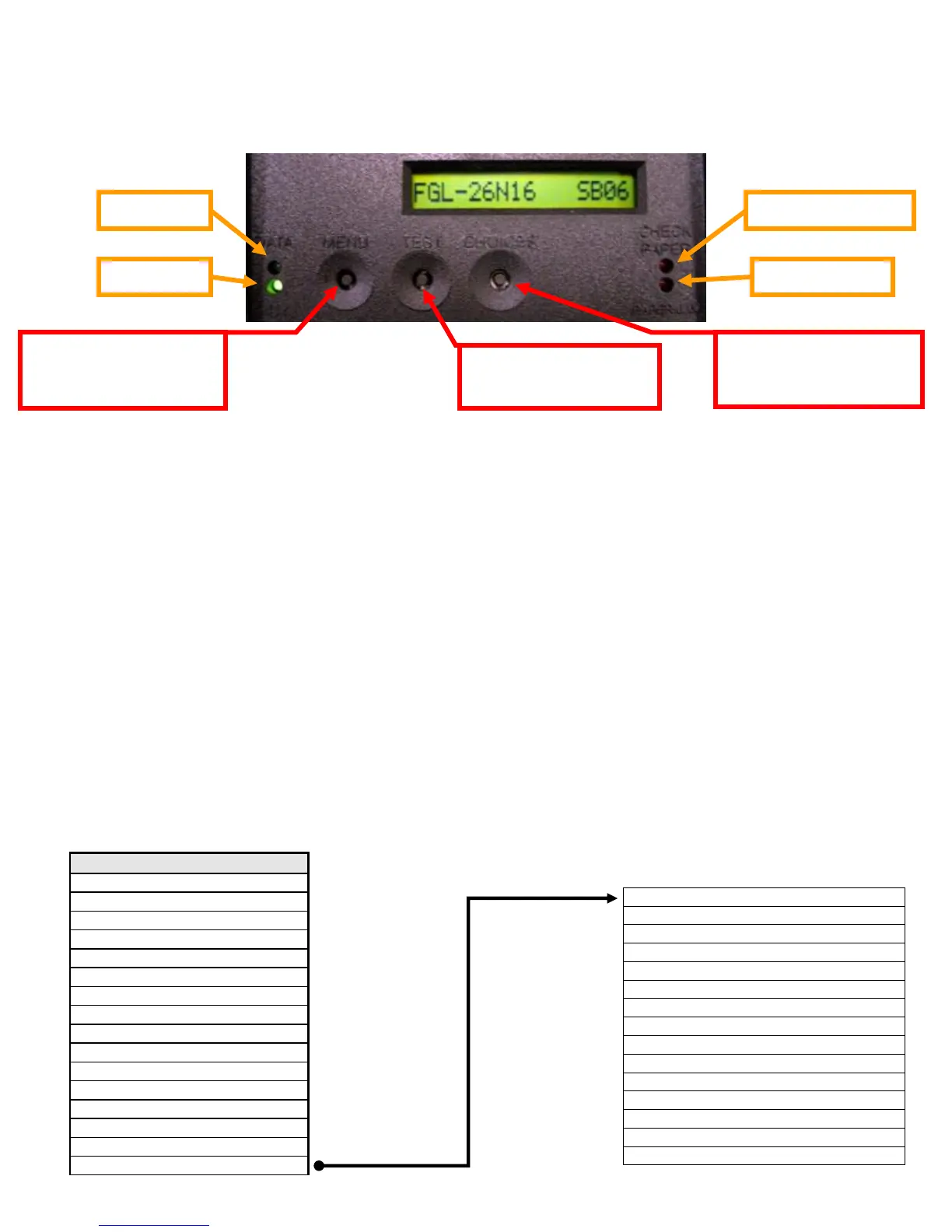
APPENDIX A - CONTROL PANEL
The FGL46 printers allow the user to adjust various printer options through the optional control panel. To access the
control panel menu, press both MENU and TEST switches simultaneously for about 3 seconds. The LCD will display the
“OPERATOR MENU!” message to indicate that it has entered the control panel menu mode. Once in this mode, please
use the following steps in the manner indicated to choose the proper menu topic and to select the proper setting.
The printer has four led lights on the control panel. All led will illuminate briefly after power up.
DATA – This led will only illuminate green when the printer is receiving data
READY – This led will illuminate green when the printer is ready. This led will be off if the printer is not ready.
CHECK PAPER – This led will only illuminate red when the printer is out of paper.
PAPER JAM – This led will only illuminate red when there is a paper jam.
To access and use the OPERATOR MENU, follow these steps:
1. Ticket stock should be loaded into the printer. The LCD window displays FGL46G# - SB# (# - number value
depends on revision level; G represents the software series level; B# is the font)
2. Press both MENU and TEST switches simultaneously for about 3 seconds. The LCD window displays OPERATOR
MENU. (To access the factory menu, press MENU and CHOICES instead of MENU and TEST.) WARNING:
Improper use of the factory menu may disable your printer.
3. To scroll through the menu topic, use MENU stopping on the topic you wish to change.
4. Press CHOICES to scroll through choices in the selected topic. NOTE: The printer displays a blinking cursor for the
values presently stored in the printer.
5. Once you have found the new value you want, press TEST. The LCD window displays EXIT AND SAVE?. If you wish
to save the new value then press TEST again.
6. If you do not wish to save the new value then press MENU. The LCD window displays JUST EXIT?. Press TEST to
exit the OPERATOR MENU without saving new values or press MENU to enter back into the OPERATOR MENU.
The chart below lists the present menu topics. These topics are subject to change.
CHOICES: Scrolls through
choices in individual menu
topics
MENU: Selects proper
menu topic (baud rate, cut
count, etc.)
TEST: Enters new value.
Also saves new values



 To Next Page