211
Copying and writing waveform data
Section 4
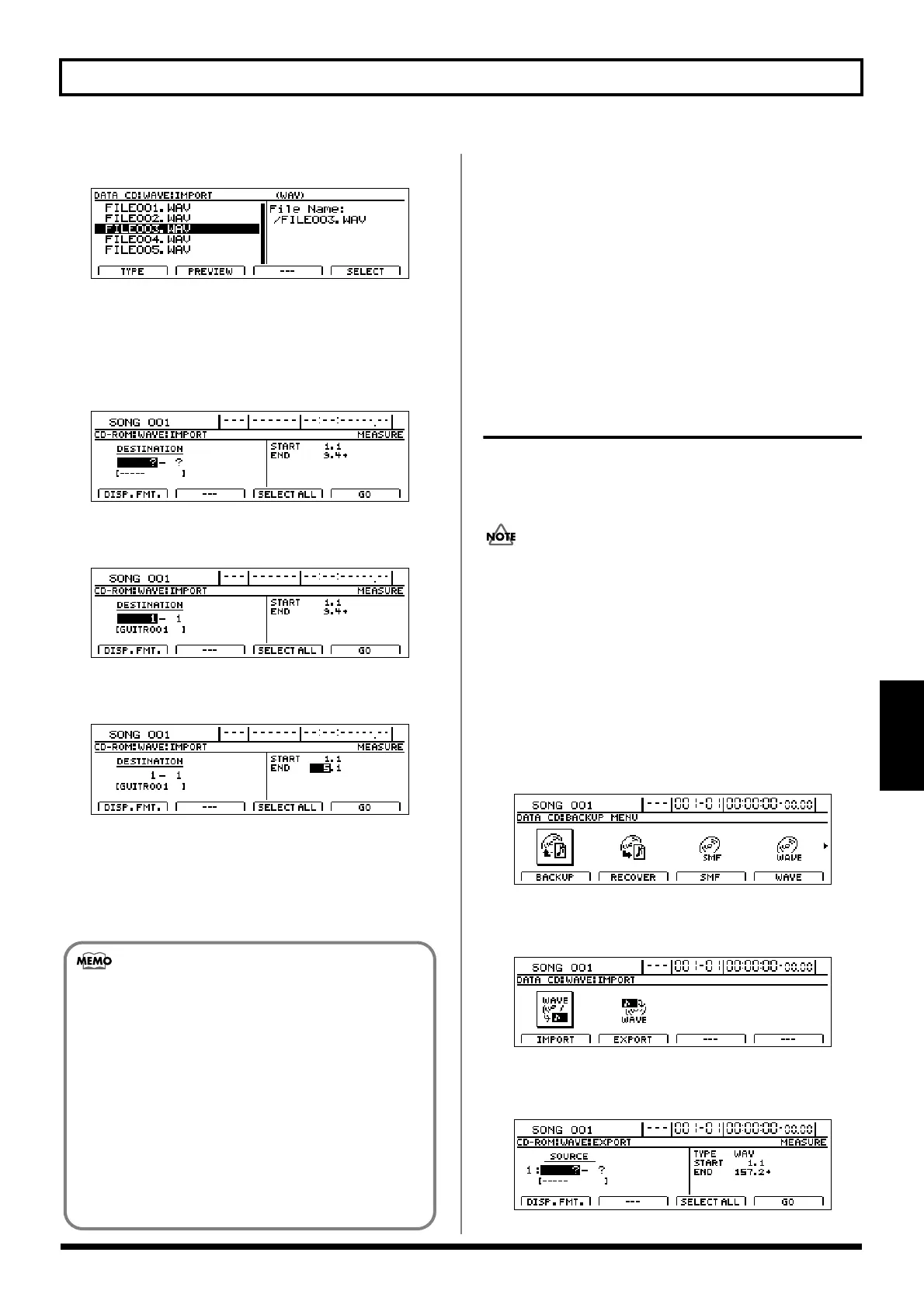
7. Move the cursor to the waveform data files you want to import.
fig.R16-08ad
At this point, you can hear what the waveform data sounds
like by pressing [F2] (PREVIEW) (WAVE Preview).
Press [ENTER/YES] again to cancel the preview.
8. Press [F4] (SELECT).
The screen for specifying the import destination appears.
fig.R16-08d
9. Use [CURSOR] and the TIME/VALUE dial to specify
the import-destination track.
fig.R16-08bd
10. Move the cursor to the right half of the screen and
specify the location of the import-destination.
fig.R16-08cd
Set the following items.
START (Start point):
Specify the starting location of the import-destination track.
END (End point):
Specify the ending location of the import-destination track.
11. When you have finished making the settings, press [F4] (GO).
Copying of the waveform data begins.
When “Complete!” appears, the import is finished.
To quit copying while the import is still in progress,
press [EXIT/NO]. When the message “Cancel?” appears,
press [ENTER/YES]; the import is cancelled (it may take
some time after you press [EXIT/NO] for the message to
appear). Files imported up to the time the process is
cancelled are usable.
Copying audio track waveform data
to computers (WAV/AIFF Export)
You can write data for specified tracks to a CD-R/RW disc as
waveform data, then import the waveform data to the
computer, using your computer to read the CD-R/RW disc.
You will be unable to use CD-R/RW discs if your
computer is only equipped with a CD-ROM or CD-R
drive. In this case, used CD-R discs.
1. Place a writable CD-R/RW disc (a blank disc) in the
BR-1600CD’s CD-R/RW drive.
The drive’s access indicator will begin to flash. Wait until
this indicator stops flashing and turns off before
proceeding.
2. Press CD-R/RW [DATA SAVE/LOAD].
The Data CD screen will appear.
fig.41-05d
3. Press [F4] (WAVE).
The WAV/AIFF screen will appear.
fig.R16-07d
4. Press [F2] (EXPORT).
The Waveform Data Export screen appears.
fig.R16-10d
• At this time, press [F1] (DISP.FMT.) to switch between
ways to specify the location (measures, time, markers).
• If, after specifying the above parameters in terms of
location you switch to the measure or marker
indication, a “+” may appear if a discrepancy between
the indicated position and the actual position arises.
When using measures or markers to make the
specification, you can use the TIME/VALUE dial in the
respective screen to eliminate the discrepancy.
• If you want the import range to be from the
beginning of the waveform data to the end, press
[F3] (SELECT ALL).




 To Next Page