58
Editing a recorded performance (Track Edit)
Moving audio data (Track Move)
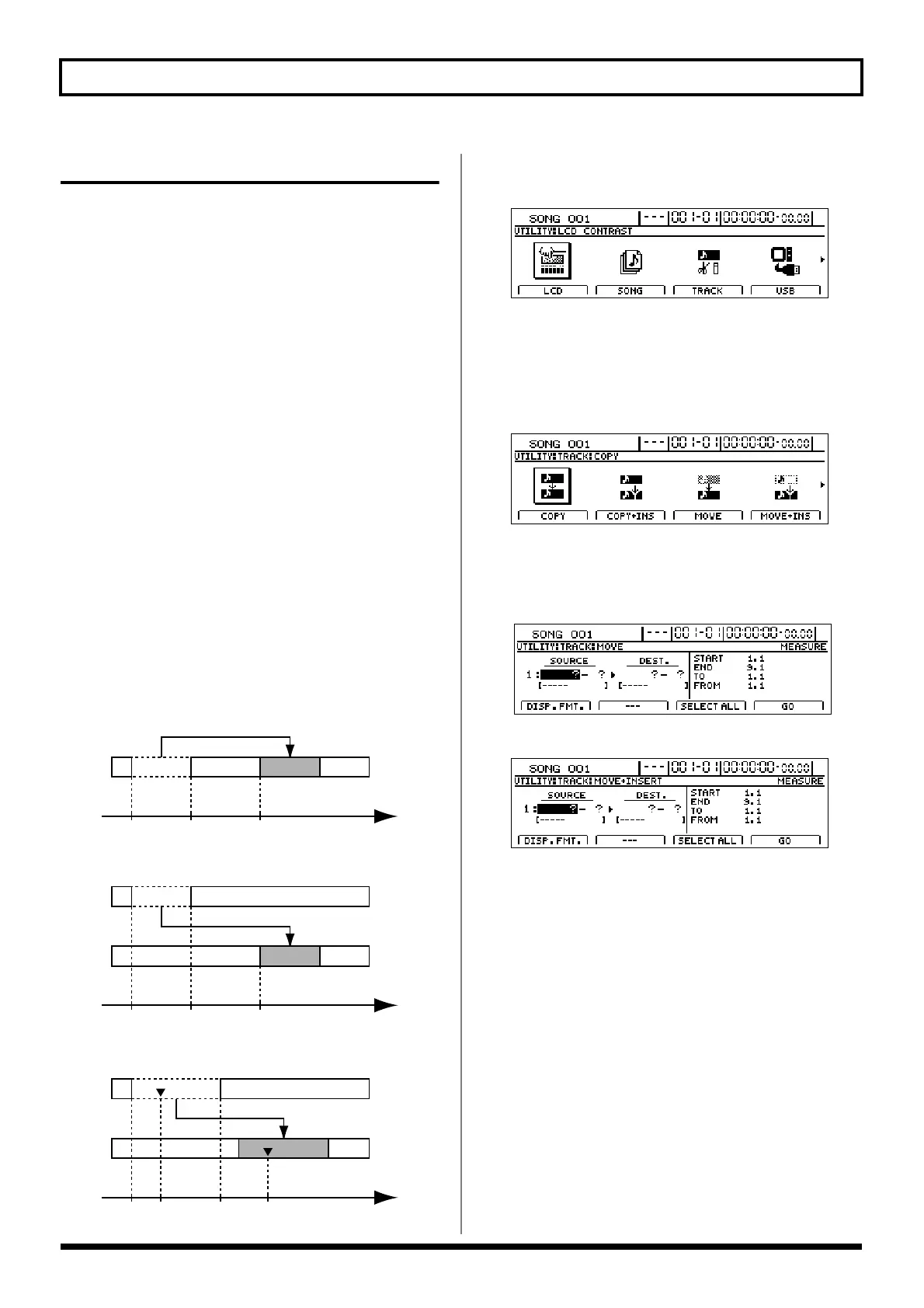
The Track Move function allows you to move a specified
section of audio data to a new location.
When audio data has been moved from its original position,
a blank space will be left behind.
You can also use this function to move audio data from a
number of tracks in a single operation.
When moving audio data, you will normally want the start
of the relocated section to be aligned with the destination
that you specify. However, it may sometimes be necessary to
align a point somewhere along the section of relocated audio
data with this destination point. The BR-1600CD allows you
to move data in this way using the “FROM” parameter.
For example, if you are moving an effect sound comprising a
ticking bomb followed by an explosion, you will probably
want to align the start of the explosion sound with the
specified destination. Normally, you would have to calculate
the length of time from the start of the sound effect until the
explosion before you could determine the correct destination.
With this function, however, you can specify the start point
of the explosion in the original data using “FROM,” and the
destination where you want the explosion to be heard using
“TO.” As a result, it is easy to move the entire sound effect
with the explosion positioned exactly where you want it.
Example 1: Moving data within a specific track
fig.15-22
Example 2: Moving data to a different track
fig.15-23
Example 3: Moving data using “FROM”
fig.15-24
1. Press [UTILITY].
The Utility Menu screen will appear.
fig.12-12d
2. Move the cursor to the TRACK icon and press [ENTER/
YES].
Alternatively, you can press [F3] (TRACK) if the TRACK
icon is currently displayed.
The Track Menu screen will appear.
fig.15-05d
3. Move the cursor to the MOVE or MOVE + INS icon and
press [ENTER/YES].
MOVE
fig.15-27d
MOVE + INS (insert)
fig.15-28d
The Track Move screen will appear, allowing you to
select the tracks and V-Tracks to be used as the source
and destination.
If you select MOVE + INS, an empty space of the
required length will first of all be inserted at the
destination, and then the source audio will be moved.
AA
START/FROM
END TO Time
B
B
START/FROM
END TO Time
C
C
START END TO Time
FROM





 To Next Page