252
Loading WAV/AIFF files in BR-1600CD tracks (WAV/AIFF Import)
You can take WAV or AIFF files on your computer, such as
files created with audio software applications, and load them
to the BR-1600CD’s tracks.
● Wave data in the following formats can be imported.
You cannot import wave data in other formats.
• WAV or AIFF format
• Mono or Stereo
• 8-bit or 16-bit
• Sampling Rate: 44.1 kHz
● Add the extension “WAV” to imported WAV files and
the extension “AIF” to imported AIFF files.
● Compressed WAV files or AIFF files cannot be loaded.
● Extremely short waveform data (less than approximately
1 sec) cannot be loaded.
● The loop point settings within an AIFF file will be
ignored.
With Windows
1. Connect your computer and the BR-1600CD with a USB
cable.
2. Confirm that the recorder is stopped, then press
[UTILITY].
The Utility Menu screen will appear.
fig.12-12d
3. Move the cursor to the USB icon and press [ENTER/
YES].
Alternatively, you can press [F4] (USB) if the USB icon is
currently displayed.
The USB screen will appear.
fig.52-05d
4. Move the cursor to the IMPORT icon and press
[ENTER/YES].
Alternatively, you can press [F3] (IMPORT).
The USB Import screen will appear.
fig.52-22d
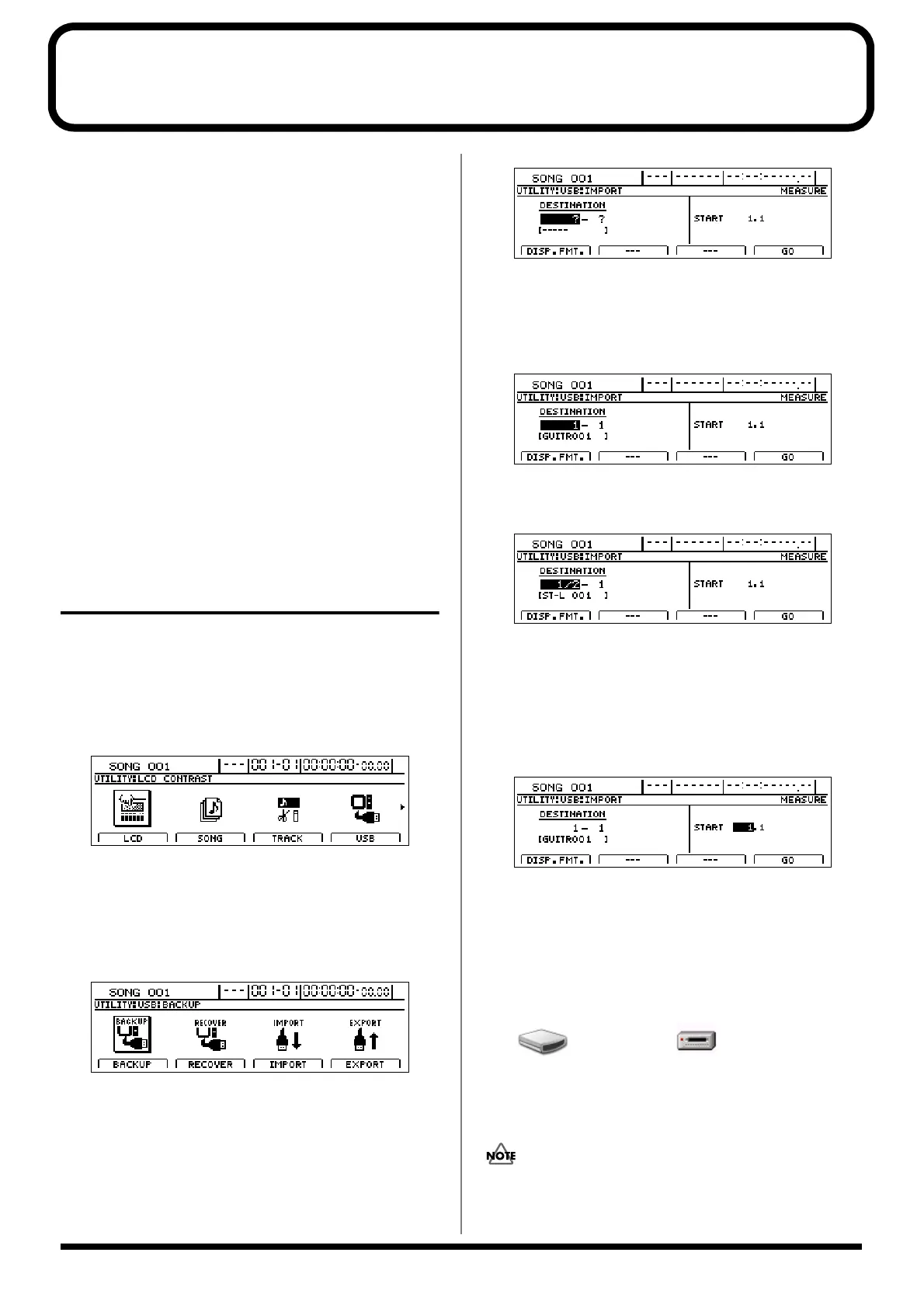
5. Use [CURSOR] and the TIME/VALUE dial to select the
track and the V-Track to be loaded.
When loading to the tracks in mono
Select the track 1–8.
fig.52-23d
When loading to the tracks in stereo
Select the track combination 1/2–15/16.
fig.52-24d
6. Use [CURSOR] and the TIME/VALUE dial to specify
the measure or position in the track from which
loading is to start.
Pressing [F1] (DISP.FMT.) at this time will allow you
switch among the specification methods for positions
(i.e., by bar, time, or marker).
fig.52-25d
7. Press [F4] (GO).
When the connection is complete, the message “Copy 1
Wave File In Computer To BR-1600CD’s USB Folder”
will appear.
After several moments, the BR-1600CD icon or the
“Removable Disk (*:)” icon will appear on the PC monitor.
fig.52-07
8. Click the BR-1600CD icon or the “Removable Disk (*:)” icon.
The files and folders from the BR-1600CD’s hard disk
will be displayed on the PC monitor.
In some cases, a certain amount of time will pass before
the hard disk is displayed.
BR-1600CD
Removable Disk (*:)
(Ex.)




 To Next Page