What to do if Brady i5100 says unknown card?
- DDalton WilliamsSep 23, 2025
If your Brady Label Maker displays 'Unknown card', the card is not formatted or the type of card is not supported. Format the card or use a different type of card.
What to do if Brady i5100 says unknown card?
If your Brady Label Maker displays 'Unknown card', the card is not formatted or the type of card is not supported. Format the card or use a different type of card.
What does voltage error mean on Brady Label Maker?
If your Brady Label Maker displays 'Voltage error', it indicates a hardware error, specifically an incorrect voltage is detected. Switch the printer off and then on. If the error recurs call service.
How to resolve write error on Brady i5100?
If your Brady Label Maker displays 'Write error', it indicates a hardware error. Repeat the write process, or reformat the card.
What to do if Brady Label Maker displays wrong revision?
If your Brady Label Maker displays 'Wrong revision', the firmware loaded is incompatible with the hardware. Obtain the correct firmware and load it.
What to do if my Brady i5100 is out of paper?
If the Brady Label Maker indicates 'Out of paper,' it means the label roll is empty or labels are missing. To resolve this, load new labels, replace the label material, or press the pause key to continue printing.
Why does my Brady Label Maker say head too hot?
If your Brady Label Maker shows 'Head too hot', and you're in Standard mode, ensure the heat setting isn't too high for your material. Let the printer cool down for a few minutes before resuming. If the issue persists, contact customer service.
How to fix cutter blocked error on Brady Label Maker?
If the Brady Label Maker displays 'Cutter blocked', switch it off, remove the material, switch it back on, restart the print job, and consider changing the material. If there is no cutter function, switch the printer off and then on. If the error recurs call service.
Why is the printhead too hot on my Brady Label Maker?
If your Brady Label Maker is displaying 'Printhead too hot', the printhead is overheated. After pausing, the print job will continue automatically. If the problem occurs repeatedly, reduce the heat level or print speed via the software.
How to fix multiple tags read error on Brady i5100?
If the Brady Label Maker displays 'Multiple Tags Read Remove Extra Tags', it means RFID tags on an IP-enabled roll of labels read incorrectly. Remove and reinstall the label spool and/or the ribbon spool. If the error does not clear, recycle power to the printer.
What to do if Brady Label Maker cutter is jammed?
If your Brady Label Maker displays 'Cutter jammed', it means the cutter can't cut labels but returns to its home position. Press Cancel and change the material.
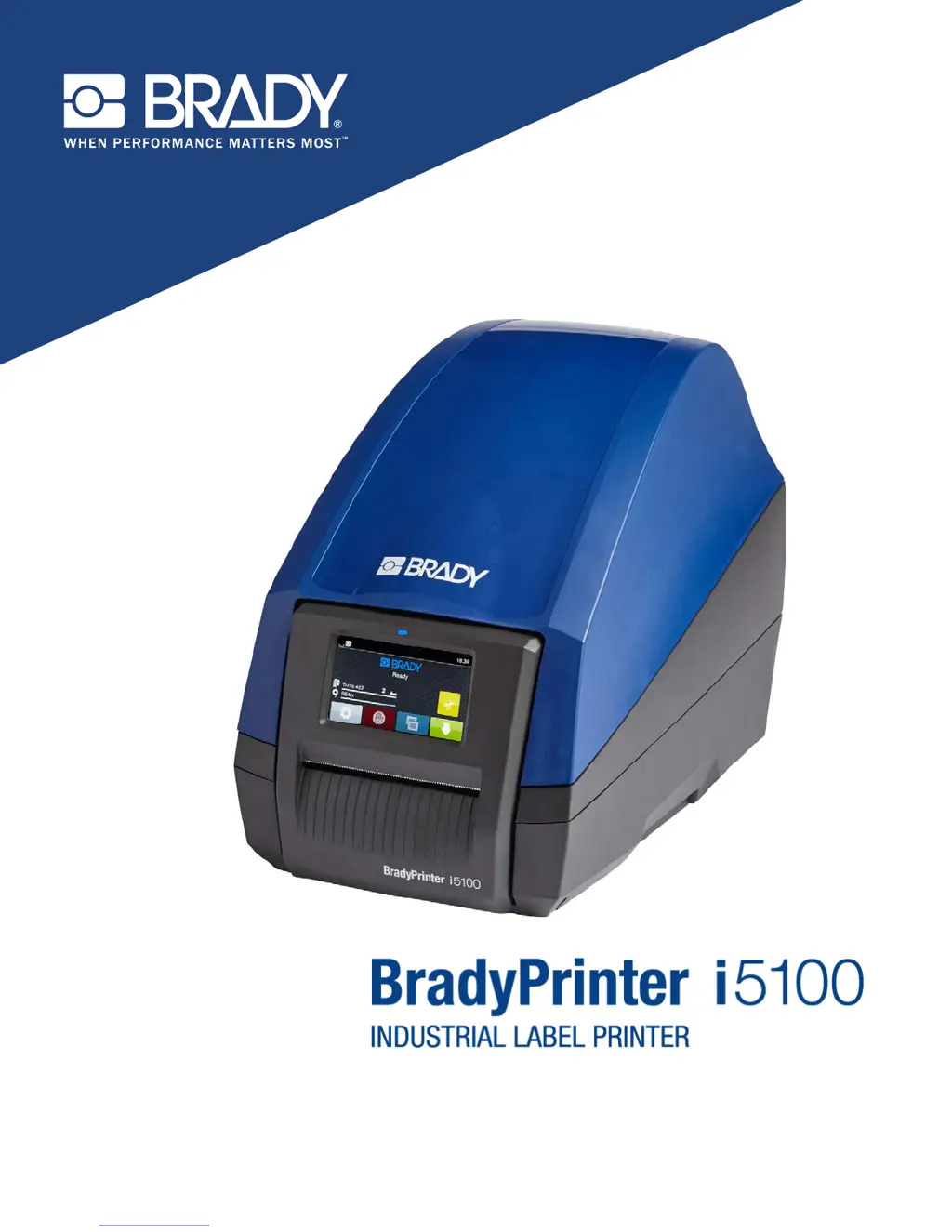
Provides an overview of the printer models and disclaims legal liability.
Details safety precautions and warnings for using the printer.
Explains the meaning of DANGER, WARNING, and CAUTION symbols in the manual.
Defines the proper and improper uses of the BradyPrinter i5100.
Describes the printer's compatibility with software and IP-enabled materials.
Warns about the danger of opening the casing and contact with power supply.
Provides guidance on recycling obsolete devices and batteries.
Informs about Prop 65 compliance information availability.
Outlines Brady's support services for troubleshooting, setup, and repair.
Lists global contact information for Brady's technical support by region.
Provides contact details for inquiring about application engineering services.
Lists all components included with the BradyPrinter i5100.
Offers free setup assistance in North America via phone.
Identifies the main external components of the printer.
Details the components within the print module of the printer.
Identifies the ports and power switch located on the back of the printer.
Details how to safely connect the printer to a power source.
Explains how to connect the printer via USB, RS-232, or Ethernet.
Refers to the configuration manual for driver installation.
Describes the elements displayed on the printer's home screen.
Details the function of each icon available on the home screen.
Explains the function of common buttons used for setting parameters.
Explains the benefits of Brady Mode using IP-enabled supplies.
Details the automatic setup and information benefits of Brady Mode.
Describes manual setup and operation for non-IP-enabled supplies.
Explains the recommended order for loading label media and ribbon.
Instructions for removing existing label rolls and ribbon.
Step-by-step guide to remove a label roll from the holder.
Instructions for removing the ribbon supply and take-up spindles.
Steps to load a label roll onto the holder, including margin adjustments.
Guide to inserting the loaded roll holder into the printer.
Steps to position the ribbon supply roll correctly.
Steps to install the ribbon take-up spindle.
Describes the Gap Sensor and Reflect/Notch Sensor functions.
Detailed steps to set the Gap Sensor using IP-enabled labels.
Instructions for setting the Gap Sensor for non-IP-enabled labels.
Instructions for setting the Reflect/Notch Sensor for non-IP-enabled labels.
Lists crucial requirements to protect the printhead and ensure longevity.
Steps to calibrate the printer's sensors to the label media.
Explains how to manually tear labels after printing.
Details the functionality of the auto-cut feature for labels.
Combines DANGER and ATTENTION notes for safe maintenance.
Specifies the part number for approved cleaning swabs.
Guides for cleaning print roller and printhead.
Warns about the sharp blade edges of the cutter.
Explains how error messages are displayed and navigated.
Lists available buttons for error message actions and their functions.
Details common error messages, their causes, and corrective actions.
Illustrates and lists dimensions for label media characteristics.
Lists EU directives the printer complies with.
Details FCC compliance and operational conditions.
Informs about Prop 65 compliance information availability.
Provides information on Canadian agency approval for Class A digital apparatus.
Details RoHS compliance with EU directives.
Mentions WEEE directive and local recycling requirements.
| Print Resolution | 300 dpi |
|---|---|
| Print Technology | Thermal Transfer |
| Cutter | Automatic |
| Connectivity | USB, Ethernet |
| Display | Color touchscreen |
| Media Sensors | Black Mark, Continuous |
| Max Label Length | 99 inches |
| Label Width | 0.5 inch to 4.25 inches |
| Supported Materials | Vinyl, polyester, polypropylene |