84 Software User Guide Rev. 1.0 Kolibri cranial/ENT Ver. 2.7
Activating Surface Matching Registration
Adjusting Threshold Settings
Overview The correct display of the skin surface is essential for optimal matching results. In the
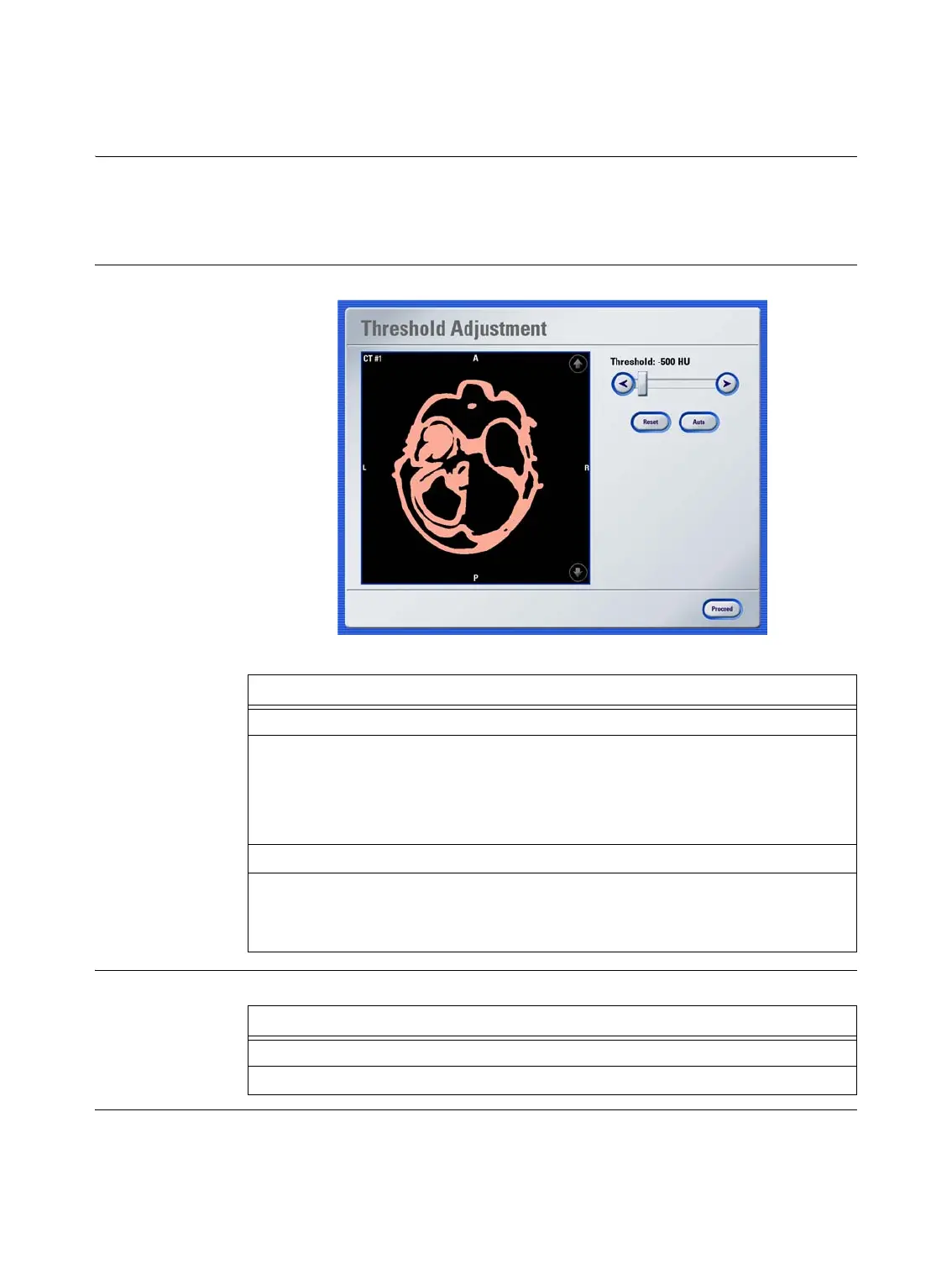
Threshold Adjustment
dialog, you can define a density value (Hounsfield units for CT im-
age sets and gray values for MR image sets) for soft tissue by adjusting the threshold slider
until the complete skin surface is displayed.
How to Adjust the
Threshold
Figure 24
Additional Options
Steps
1. Press
Adjust Threshold
in the
Patient Registration
dialog.
2. In the
Threshold Adjustment
dialog, use the slider bar to adjust the values so that
the required skin surface can be clearly seen.
Reduce unwanted information in image set by increasing the threshold.
The image data taken into account is shown in color.
3. Use the up/down arrows to scroll through the slices to check the settings.
4. Press
Proceed
to apply changes.
The software recalculates the three dimensional reconstruction in the
Patient
Registration
dialog.
Options
To optimize values for MR or CT, press
Auto
.
To restore settings to those stored the last time you left this dialog, press
Reset
.



 To Next Page