31
7. Revert button: If changes made to the settings on this screen are not desired,
pressing this button will revert back to saved settings.
8. Save button: Pressing this button will save all parameters on the screen.
5.5.2 Naming Dispenses on the User Spinner Configuration Screen
The dispenses may be named to reflect the material in each dispense. This name is
then displayed on the Spin Diagnostics screen and the Dispense Select screen used
while writing a recipe. To name a dispense, press the desired dispense in the dispense
Name column.
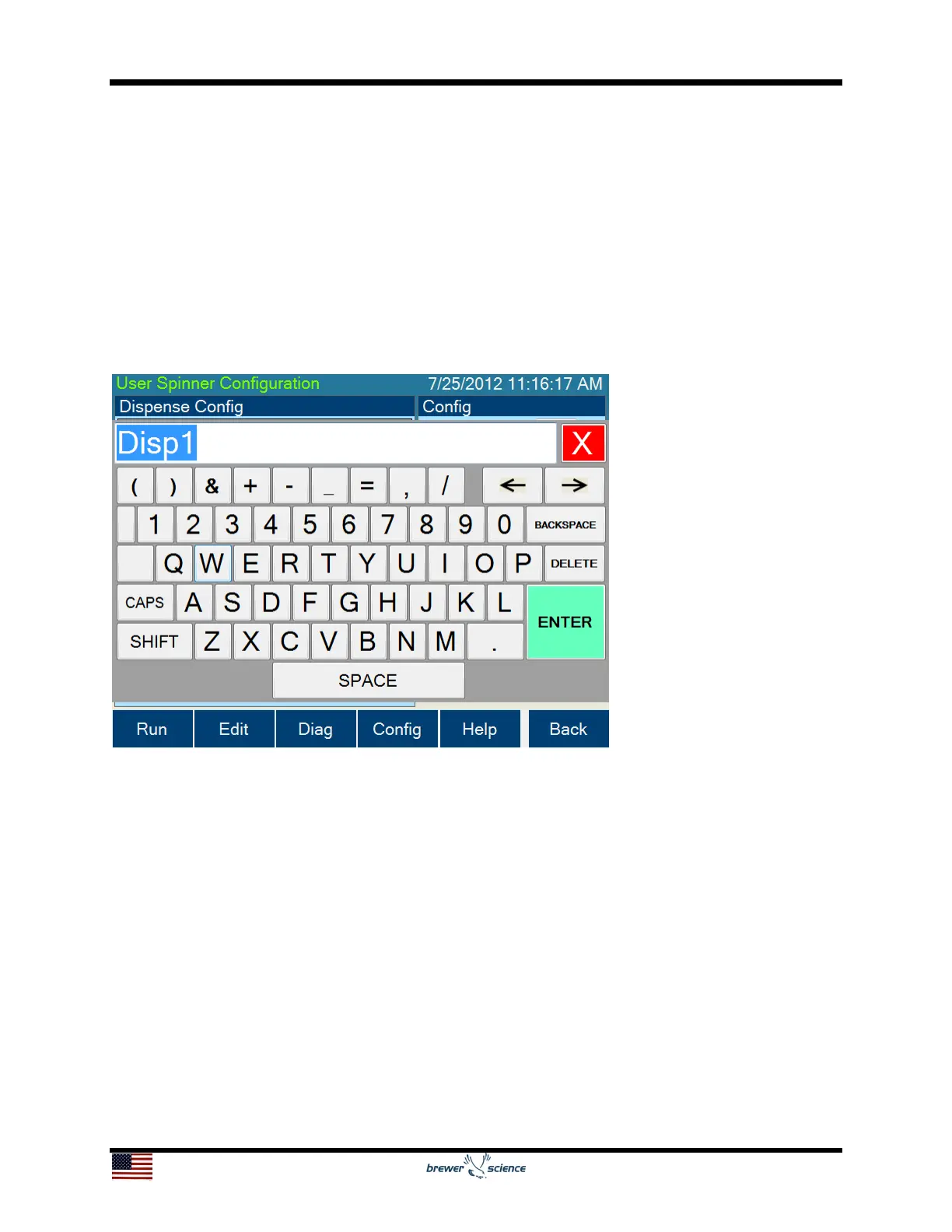
Pressing the dispense step in the Name column will bring up an on-screen keyboard for
name entry. Once the desired name is entered, press ENTER to close the keyboard
and store the name in the dispense Name column. To save the new name, press the
Save button (8). To undo the name change, press the Revert button (7).
5.5.3 Selecting Empty Sensors on the User Spinner Configuration Screen
A sensor may be used to indicate when dispense material has run out. The sensor
number tied to each dispense is displayed on the Spin Configuration screen. These
configurations are usually set at the factory and need no adjustment. However, if the
material containers need to be switched or you no longer wish to use a sensor for a
dispense, the empty sensors can be set here. Simply press the desired dispense
location in the Has Empty column. A dropdown box will show the available sensors and
a None setting. Select the new sensor that you want to use. To save the new empty
sensor setting, press the Save button (8). To undo the change, press the Revert
button (7).


 To Next Page