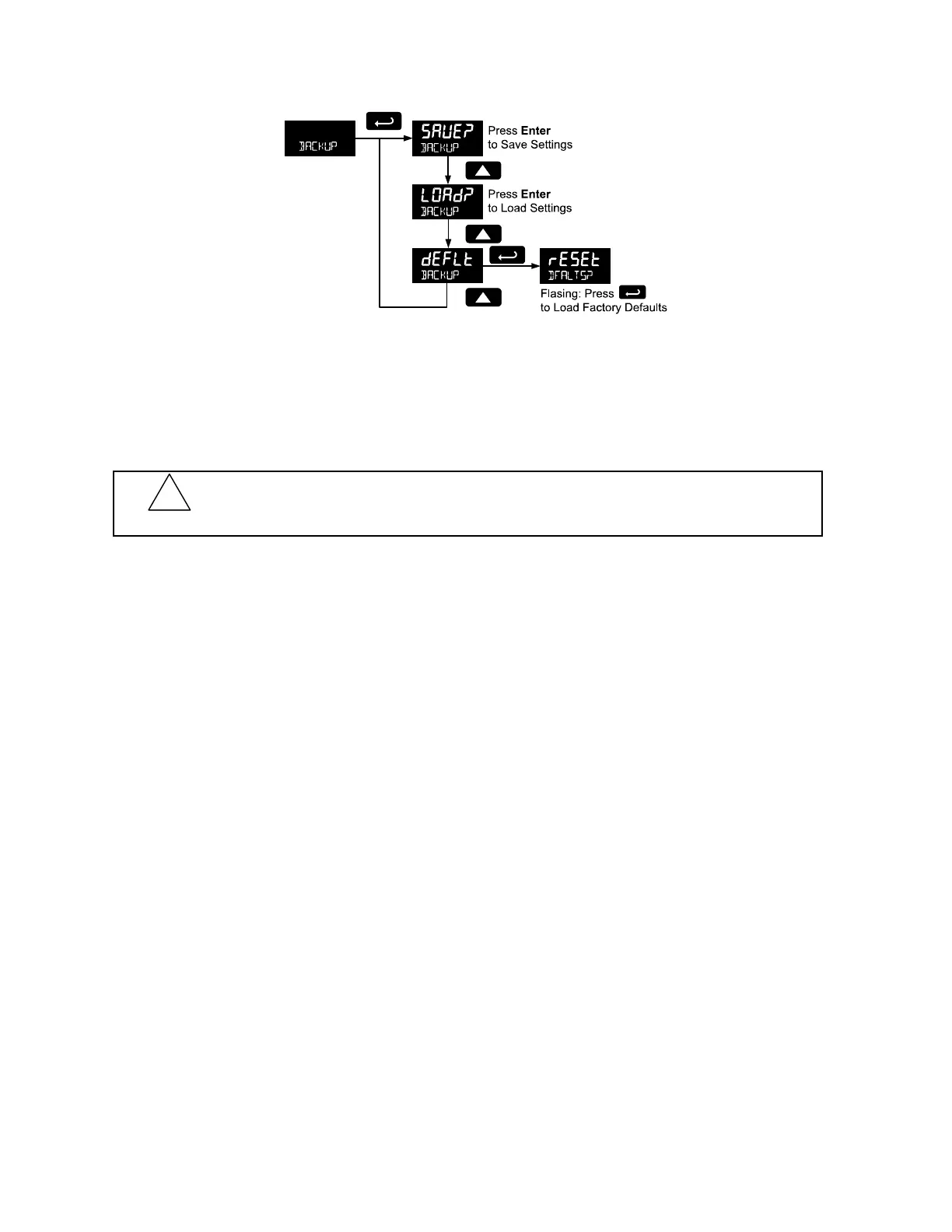
The save feature (SAvE?) saves all current parameter settings into the memory of the backup restore.
The backup restore feature is loaded with factory default settings until a new configuration is saved.
The load feature (load?) restores all parameters to the programmed values stored in backup restore
memory. The load feature will not affect the current password settings, or allow the editing of permanently
locked parameters due to the enabling of the non-resettable grand total feature. See Non-Resettable
Grand Total described on page 62.
The default feature (deflt) restores all parameters to the factory default values. Factory default reset does
not change the saved backup restore settings, override passwords, or edit parameters locked by a
permanent non-resettable grand total. See Non-Resettable Grand Total, as described on page 62.
Battery Power Symbol Alert (BAT SYM)
The Battery Power Symbol Alert menu is used to enable or disable the battery alert symbol on the
display. This is a useful way to be aware of a power failure to a model with battery backup.
When enabled, the battery symbol will appear whenever the meter is powered as a battery backup. This
is detected when the meter being powered from DC or loop-power experiences power loss, subsequently
switching over to battery power.
The indicator will not appear if the meter is powered on via battery power, only when there is applied
power to the DC or loop-power lines, followed by power loss. This prevents the batter indicator from
appearing at all times for a primarily battery powered application.
The battery symbol will flash in a low battery condition regardless of the setting of this parameter.
Information (INFO)
The Information menu is part of the System features menu. It shows software identification number,
version number, and extended model number. To view this information:
Go to the Information menu (INFO) and press Enter button.
Continue pressing Enter to scroll through the displays.
Following the information display, the meter will exit the Advanced features menu and return to run mode.
!
CAUTION
Once meter parameters have been saved to memory by the backup restore feature there is no
recovering the previously saved settings.
Once parameters have been loaded into the meter from the backup restore feature there is no recovering
the previously programmed settings.


 To Next Page