EDITING A LABEL
34
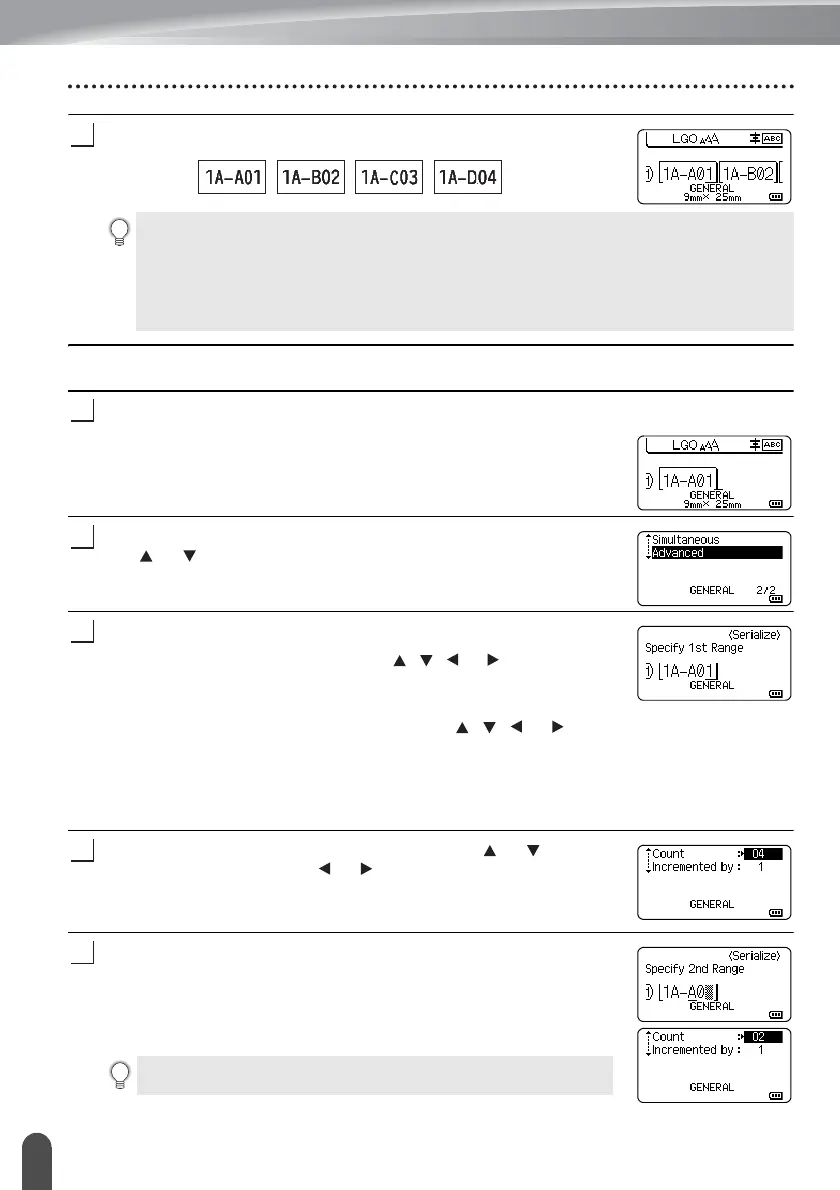
Entering a Serialise Label
Press the OK or Enter key to display the screen that you set.
Example:
Advanced
Enter text.
Example: Create labels 1A-A01, 1A-A02, 1A-A03, 1A-A04 and
1A-B01, 1A-B02, 1A-B03, 1A-B04 from 1A-A01 by using this
function.
Press the Shift and Serialize keys and select “Advanced” using
the or key and press the OK key.
Specify the first range of characters that you want to increment.
• To specify one character, use the , , or key to position
the cursor under the character and press the OK or Enter key
twice.
• To specify a range of characters, use the , , or key to
position the cursor under the first character in the range and
press the OK or Enter key. Then, position the cursor under the
last character in the range and press the OK or Enter key.
Example: Select 1 of A01.
Select “Count” and “Incremented by” using the or key and
set the value by using the or key.
Example: When you want to increment the number by one four
times, set “Count”: 04, “Incremented by”: 1.
Repeat steps 3 and 4 to specify the second range of characters
that you want to increment, the increment value, and the count
value.
Example: Select A of A01. To increment the number by one
twice, set “Count”: 02, “Incremented by”: 1.
• When you press the Shift and Serialize keys, you can change the settings. After changing
the settings, the message “OK to Overwrite the Data after This Position?” appears. If you
want to overwrite the settings, press the OK key.
• You can select “All”, “Current”, or “Range” when printing if there are multiple pages of
labels.
• To print labels refer to “Printing a Label” on page 38.
You cannot select the greyed-out characters.












 To Next Page