USING THE P-TOUCH SOFTWARE
58
Using P-touch Transfer Manager (For Windows)
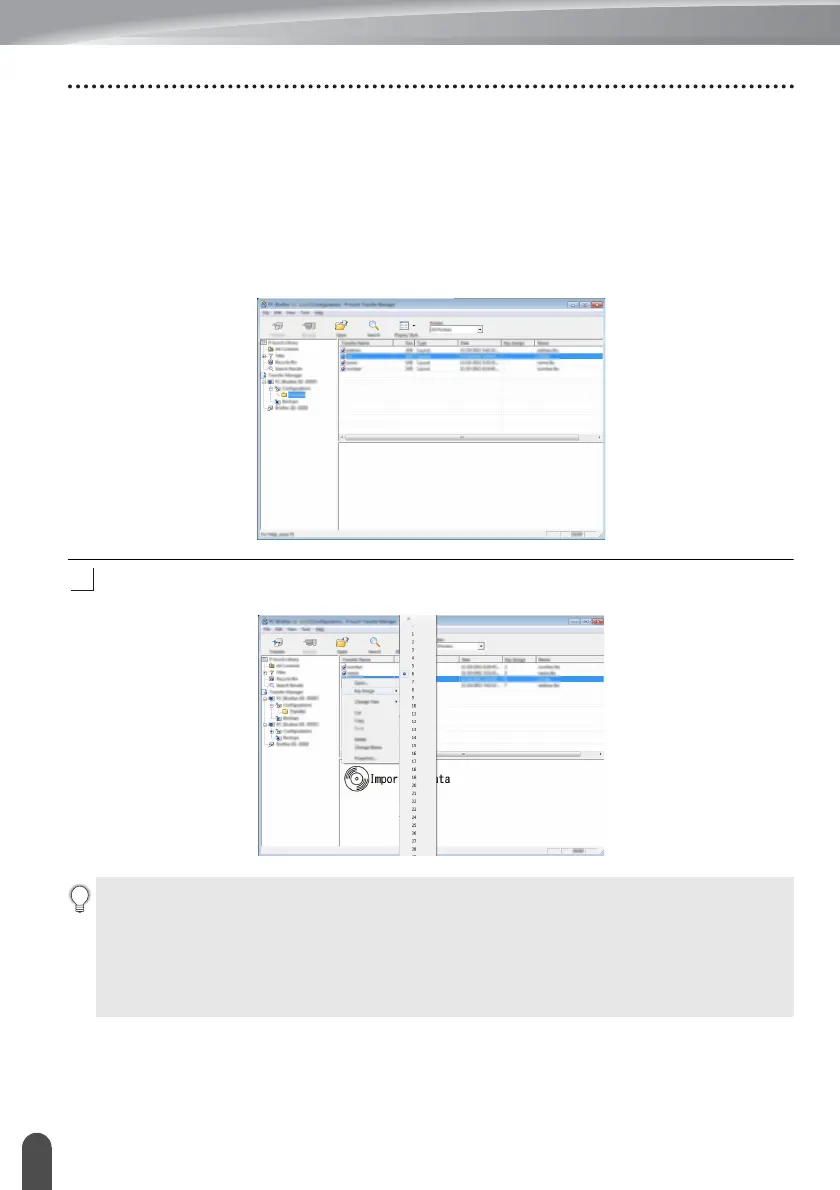
You can view the templates and other data by selecting the folder in the [Configurations]
folder, selecting [All Contents] or by selecting one of the categories under [Filter], such
as [Layouts].
When transferring multiple templates or other data, drag all the files that you want to
transfer and place them in the new folder.
Each file is assigned a key number (memory location in the printer) when it is placed in
the new folder.
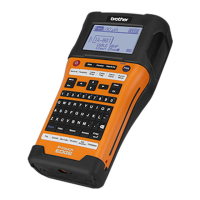
To change the key number assigned to an item, right-click the item, select [Key Assign],
and then select the key number you want.
• All data transferred to the printer is assigned a key number.
• If the template or other data transferred to the printer has the same key number as another
template already saved in the printer, the new template will overwrite the old one. You can
confirm the templates key number assignments saved in the printer by backing up the templates
or other data (refer to “Backing Up Templates or Other Data Saved in the printer” on page 60).
• If the printer memory is full, remove one or more templates from the printer non-volatile
memory (see “Backing Up Templates or Other Data Saved in the printer” on page 60).












 To Next Page