How to Use P-touch Editor
40
6
2-colour Printing Configuration 6
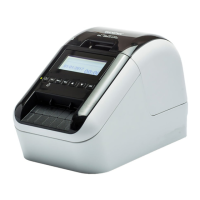
The printer is capable of 2-colour printing.
Configuration with P-touch Editor
Standard mode 6
• The brightness, contrast and threshold (range of red) can be adjusted through the driver setting.
• The Black/Red Print density can be adjusted through the Printer Setting Tool.
1 Select [Paper], then the Two-colour Mode appears.
2 Select [BK-RD] for [Print Colors] and [ON] for [Two-color Mode].
3 Select [Text] to edit the text.
4 Select [Color] to edit the colour of the text.
5 Click , then the edit tools below appear.
•Use [Changes the colour of the line] to edit the colour of the line.
•Use [Changes the fill colour] to edit the colour to fill an enclosed area with.
•Use [Changes the background colour of the object] to edit the background
colour of the object.



 To Next Page
 Loading...