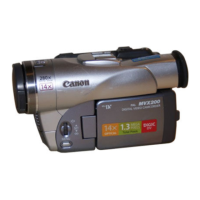
DC10 E, DC20 E
GENERAL DESCRIPTION OF PRODUCT
29
6-10 Other functions
6-10-1 Automatic stop function When forward still image playback is continued for approx. 5 minutes, or reverse still image
playback is continued for approx. 5 minutes. When the disc end or beginning is reached.
6-10-2 Power automatic stop function When Recording Pause continues for approx. 5 minutes. When the battery voltage falls below a
specified value.
6-10-3 Copy between media This function copies disc still images (JPEG compression) to a card or card still images (JPEG
compression) to a disc. With still image all copy function.
6-10-4 World clock display Set reference city (city of time clock setting) and select name of city when shooting. Date and
time are automatically adjusted to local date and time, and recorded in data code.
6-10-5 Speaker Built-in, volume adjustment provided
6-10-6 Battery charging function When the Canon Compact Power Adapter CA-570 is connected, the battery pack installed in the
battery pack compartment can be charged. (During charging, the charge lamp flashes [Charging
level : One flash per second for a charge level of 0% to approximately 50%, two flashes per
second for a charge level of 50% to 95%, and the lamp lights for a charge level of 95% or more]).
Charging time BP-208: Approx. 165 minutes
6-10-7 File transfer
USB file transfer Still images recorded on memory cards and discs can be uploaded to a PC in the camcorder by
connecting the included IFC-300PCU interface cable between a USB port on the PC and the
USB port of the camcorder. Still images from a PC can be downloaded to memory cards in the
camcorder. However, writing to the disc is not possible.
6-10-8 Analog / Digital conversion Not possible
6-10-9 Playback zoom If the zoom lever is flipped to the Tele side during still image playback from the card or disc, the
image being played back can be enlarged up to 5 times its size (The initial setting of the playback
zoom switch is 2× playback zoom, and this can be changed to 1× to 5× using the zoom lever).
Playback zoom is cancelled by holding the zoom lever to the Wide side until the frame display no
longer appears. Zoom not possible during movie playback.
Position of the enlarged section during enlarged screen view can be changed by the cross key
(On the LCD monitor, a frame is displayed to show the zoom-in area, and this frame can be
moved using the four direction operations of the cross key).
6-10-10 PRINT/SHARE button Supported. This button lights up when the camcorder is connected to a PictBridge-compatible
printer or PC (ZoomBrowser 4.6x or higher must be installed). The button can then be pressed to
send print images on the printer or send images to the PC.
When the supplied “MyDVD for Canon” software is installed (Windows XP only) and a 12 cm
DVD (-R/-RW) black disc is loaded in the PC, this button turns on. Pressing the button enables
burning of the 12 cm DVD in the PC (one-operation burning function). Discs in the DC10 E,
DC20 E need to be finalized. The 12 cm DVDs on the PC side are also finalized.
6-10-11 Built-in lithium battery Built-in. When the battery is not used for about three months, the power may be discharged and
the date and time settings will be lost. The date and time need to be reset after either connecting
a power supply or installing batteries and charging. It takes approximately 24 hours for a full
charge.
7 Terminals
7-1 DV terminal None
7-2 Multi-pin Multi 10-pin (AV, S), output only
7-3 External microphone input terminal None
7-4 Headphone terminal None
7-5 USB terminal mini-B Receptacle, (USB 2.0 Hi-Speed class compliant)
7-6 Memory card terminal Special multi-pin
7-7 Battery terminal Special 3-pin
7-8 DC input terminal φ 3.4 mm jack



 To Next Page