7-7
Using the Scan Functions
E-mailing Scanned Documents
Attach scanned documents to e-mails and send them to a
specified destination.
This section describes the basic procedure.
Note
Preparing to Use the E-mail Functions
You can send scanned documents to your e-mail application. You
can convert scanned documents into TIFF files and send them to
the destination (e-mail application) as e-mail attachments.
Please read “Network Settings” in the e-Manual and configure your
e-mail settings before using the e-mail function.
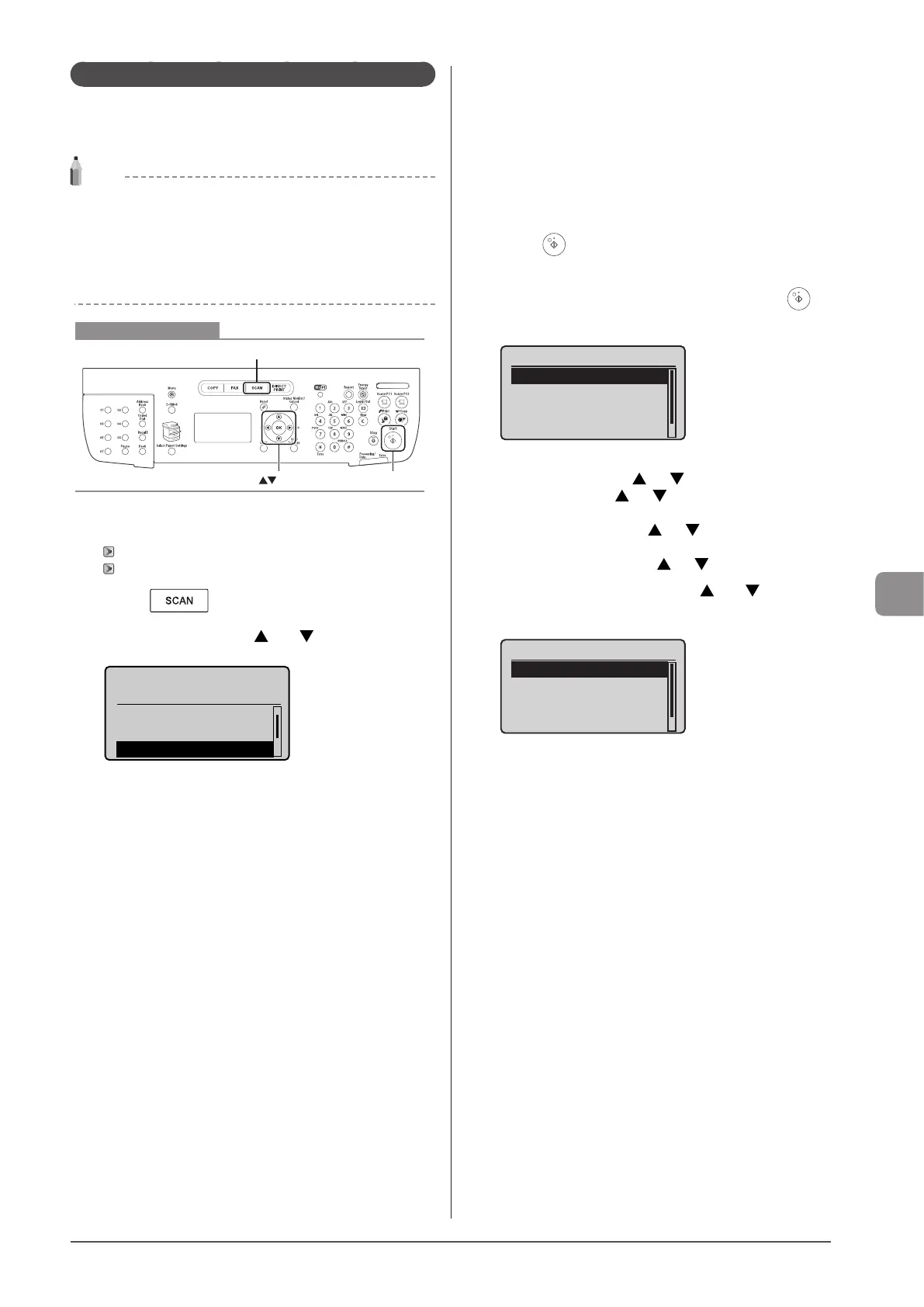
Keys to be used for this operation
OK Start
SCAN
1 Place your document.
“Loading Paper” (→P. 2-9)
“Supported Document Types” (→P. 2-2)
2 Press [ ].
3 Select <E-Mail> using [ ] or [ ] and press [OK].
Select the scan type.
Remote Scanner
Memory Media
E-Mail
4 Specify the destination.
Specify destinations in the following ways.
For details on the setting procedure, see “Scanning” in the e-Manual.
• input directly
• by selecting a one-touch key
• by selecting a coded dial code
• from the Address book
• under sequential broadcasting
5 Specify the scan settings based on your purpose
of the scan.
The following settings can be changed.
For details on the setting procedure, see “Scanning” in the e-Manual.
• Scan size
• Color Mode
• File Format
• Density
• Original orientation
• Original Type
• 2-Sided Original
• Sharpness
• Data Size
The settings specified here are effective only for the current task. To
make the settings effective for all e-mail send
operations, see “Scanning” in the e-Manual.
6 Specify the e-mail settings as needed.
The following settings can be changed.
For details on the setting procedure, see “Scanning” in the e-Manual.
• Subject/Body
• Reply-to
• Priority
The settings specified here are effective only for the current task.
To make the settings effective for all e-mail send operations, see
“Scanning” in the e-Manual.
7 Press [ ] (Start).
Scanning starts.
8 To continuously scan the document, press [ ]
(Start).
<Start Sending>
<Cancel>
Destinations: 1
No. of TX Pages: 1
To Cancel the scan
(1) Select <Cancel> using [ ] or [ ] and press [OK].
(2) Select <Yes> using [ ] or [ ] and press [OK].
To confirm the destination
Select <Destinations: > using [ ] or [ ] and press [OK].
To confirm the number of transferred pages
Select <No. of TX Pages> using [ ] or [ ] and press [OK].
9 Select <Start Sending> using [ ] or [ ] and
press [OK].
<Start Sending>
<Cancel>
Destinations: 1
No. of TX Pages: 1
The E-mail is sent.








 To Next Page