5-3
Registering Destinations in the Address Book
You can perform the following tasks.
• Registering one-touch keys
• Editing one-touch keys
• Deleting one-touch keys
Registering and Editing from the
Operation Panel
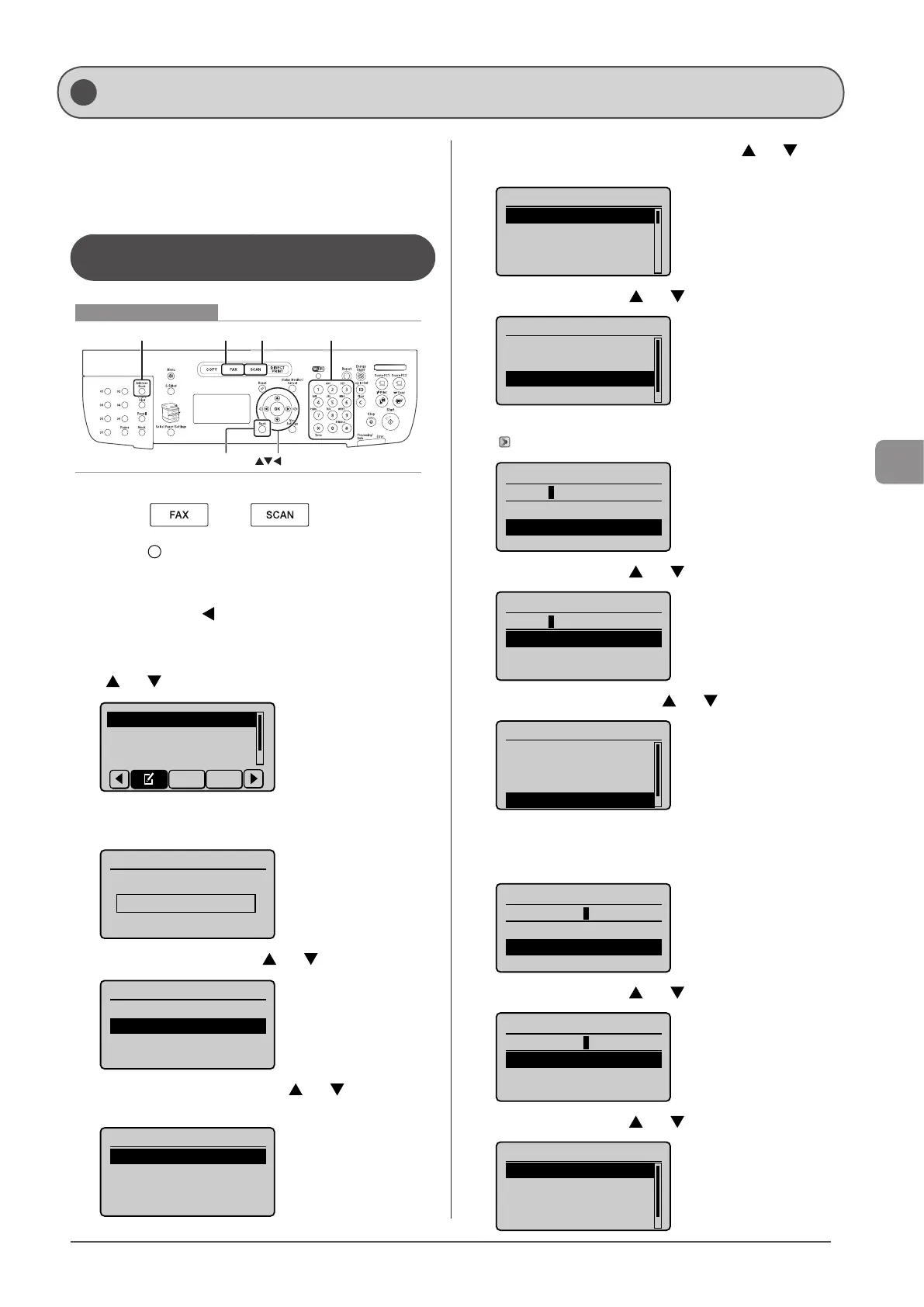
Keys to be used for this operation
FAX SCAN Tone, Numeric keysAddress Book
OK
Back
1 Press [ ] or [ ].
2 Press [ ] (Address Book).
● To Registering a new one-touch key
(1) When destinations are already registered in the one-
touch key, press [
].
To register a destination for the first time, proceed to Step
(2).
(2) Select <Register New Destination to Address Book> using
[ ] or [ ] and press [OK].
Register New Destina
Edit Address Book
Address Book Details
All A-Z
When the address book PIN is selected
Use the numeric keys to enter the PIN and press [OK].
Address Book PIN
(Apply: Press OK)
*******
(3) Select <One-Touch> using [ ] or [ ] and press [OK].
Register Location
Coded Dial
One-Touch
(4) Select <Fax> or <E-Mail> using [ ] or [ ] and press
[OK].
Destination Type
Fax
E-Mail
Group
(5) Select the number to be registered using [ ] or [ ] and
press [OK].
01 Not Registered
02 Not Registered
03 Not Registered
04 Not Registered
(6) Select <Name> using [ ] or [ ] and press [OK].
Fax
<Apply>
Type: Fax
Name:
Destination:
(7) Use the numeric keys to specify <Name>.
“Entering Text” (→P. 1-9)
Name (Max 16 char.)
CANON
<Apply>
Entry Mode: A
(8) Select <Apply> using [ ] or [ ] and press [OK].
Name (Max 16 char.)
CANON
<Apply>
Entry Mode: A
(9) Select <Destination> using [ ] or [ ] and press [OK].
Fax
<Apply>
Type: Fax
Name: CANON
Destination:
(10) Use the numeric keys to specify <Destination>.
If you select <Fax> in Step 4, press [OK] to specify
<Set Details> if necessary.
Destination (Max 40)
0123456789
<Apply>
Set Details
(11) Select <Apply> using [ ] or [ ] and press [OK].
Destination (Max 40)
0123456789
<Apply>
Set Details
(12) Select <Apply> using [ ] or [ ] and press [OK].
Fax
<Apply>
Type: Fax
Name: CANON
Destination: 012345
...
Registering and Editing One-Touch Keys








 To Next Page