3-5
Copying
Copy Settings
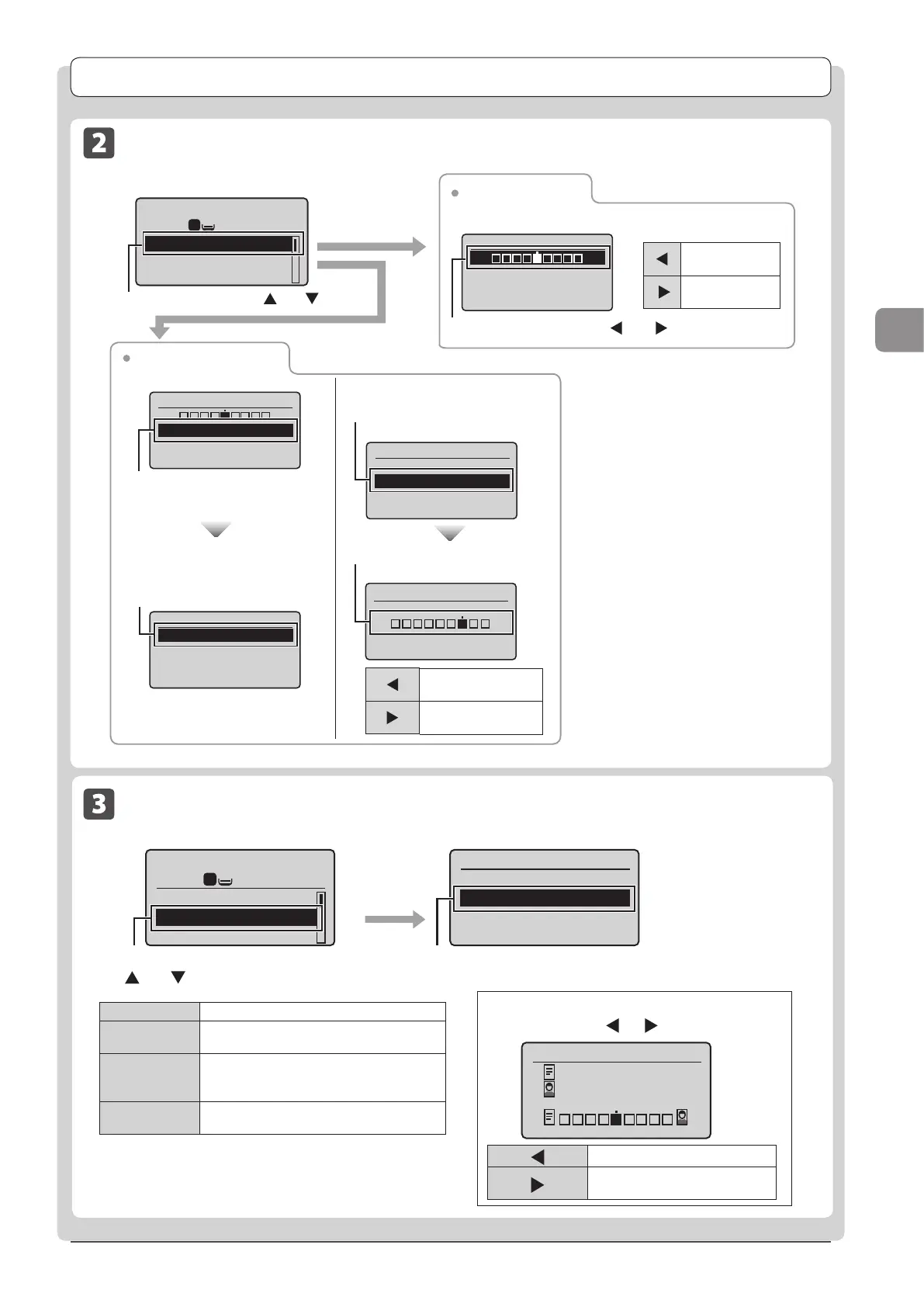
Adjusting the Density
1
1
+
-
Copy: Press Start
100% LTR
Density: 0
Original Type: Text
...
2-Sided: Off
Adjust the density using [ ] or [ ] → [OK]
Copy mode screen
Density adjustment
Setting screen
[ ]
Decrease the
density.
[
]
Increase the
density.
Select <Density> using [] or [] → [OK]
Density
- +
Background: Default
Background
Auto
Adjustment
Adjustment
- +
Background
Auto
Adjustment
Density
- +
Background: Default
Background Adjustment
Setting screen
Select <Background> using
[▲] or [▼] → [OK]
Select <Auto> using [▲] or [▼]
→ [OK]
(1) Select <Adjustment> using
[▲] or [▼] → [OK]
[ ]
Makes the background
density lighter.
[
]
Makes the background
density darker.
Automatic adjustment
Manual adjustment
(2) Adjust background color
using[
▲
] or [
▼
] → [OK]
Selecting the Document Type
Original Type
Text
Text/Photo
Text/Photo (Quality)
Photo
Copy mode screen Setting screen
When selecting <Text/Photo (Quality)>
1
1
Copy: Press Start
100% LTR
Density: 0
Original Type: Text/
2-Sided: Off
+
-
Select <Original Type> using
[] or [] → [OK]
Select the appropriate document type
using [▲] or [▼]→[OK]
Adjust priority using [ ] or [ ]→[OK]
Adjust Level
Text Priority
Photo Priority
<Text> Best suited for text-only documents.
<Text/Photo>
Suited for documents that contain text and
photos.
<Text/Photo
(Quality)>
Suited for documents that contain text
and photos. You can set its priority, text or
photos.
<Photo>
Suited for documents that contain magazine
photos.
[ ]
Prioritize text readability.
[
]
Prioritize illustration readability
such as photos.








 To Next Page