1-11
Before Using the Machine
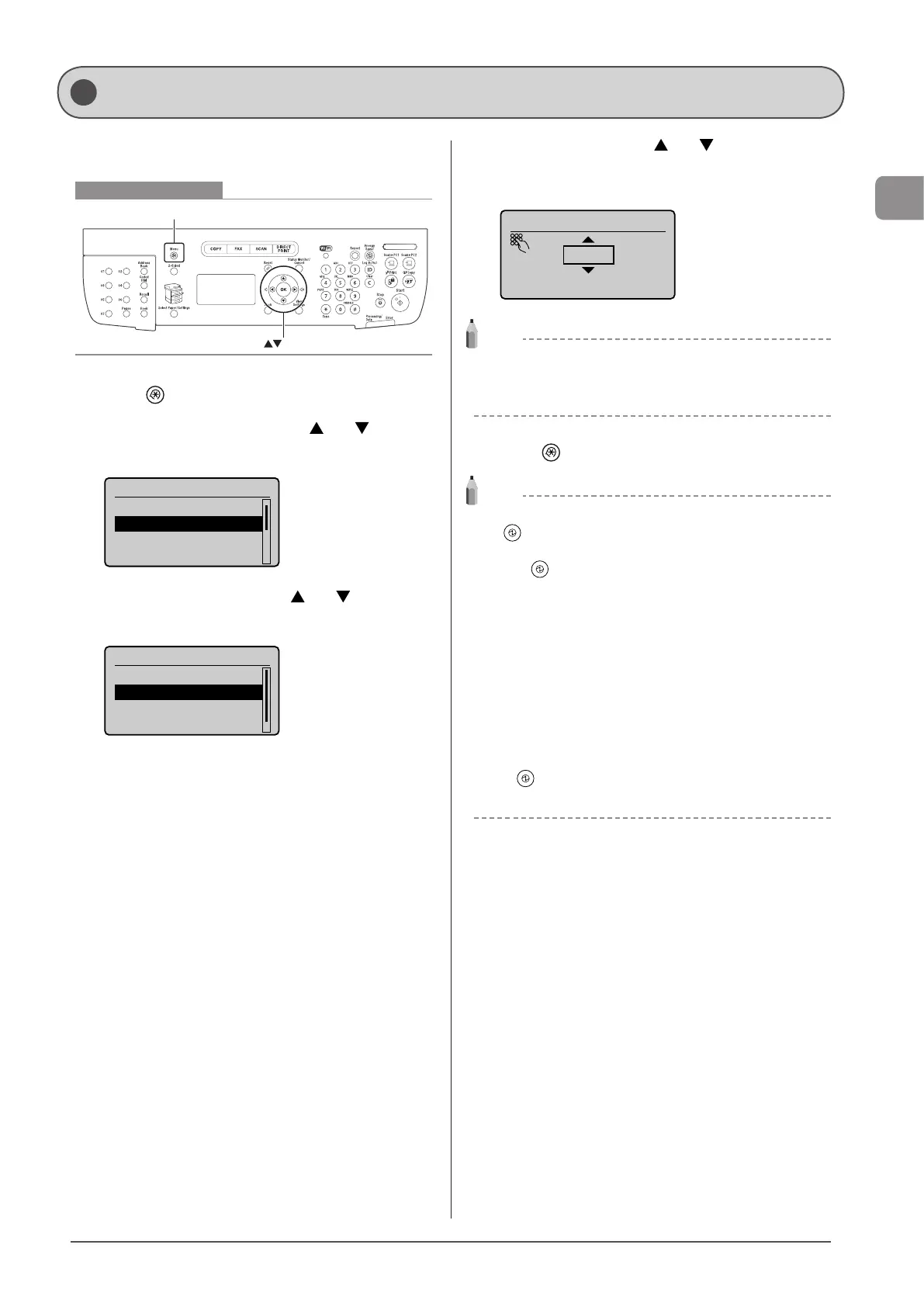
Setting the Sleep Timer
The machine automatically enters the sleep mode after it has
been idle for a specified length of time.
Keys to be used for this operation
OK
Menu
1 Press [ ] (Menu).
2 Select <Timer Settings> using [ ] or [ ] and
press [OK].
Menu
Preferences
Timer Settings
Common Settings
Copy Settings
3 Select <Sleep Timer> using [ ] or [ ] and press
[OK].
Timer Settings
Time & Date Settings
Sleep Timer
Auto Reset Timer
Screen After Auto R
...
4 Specify the time using [ ] or [ ] and press [OK].
* You can also enter values using the numeric keys.
* We recommend that you use the default timer setting.
Sleep Timer
5 min.
(3-240)
NOTE
To set the auto sleep timer
You can set the auto sleep timer between <3> and <240> minutes,
in one minute interval. The default is <5> minutes.
5 Press [ ] (Menu) to close the menu screen.
NOTE
When the machine enters the sleep mode
[ ] (Energy Saver) lights green.
To enter the sleep mode manually
Press [ ] (Energy Saver).
The machine does not enter the sleep mode when
• the machine is in the middle of operation
• the Processing/Data indicator lights or is blinking
• a message appears on the screen and the Error indicator is
blinking (except when <Prepare toner cartridge.> and <Output
Tray Full> is displayed, or when <No Paper> is displayed when
there are no jobs).
• the machine is in the middle of adjustment or cleaning
• a paper jam occurs
• the handset of the external telephone is left unhooked
The machine returns from sleep mode when
• [ ] (Energy Saver) is pressed
• the external telephone is taken off the hook








 To Next Page