5-5
Registering Destinations in the Address Book
Registering and Editing One-Touch Keys
using the Remote UI
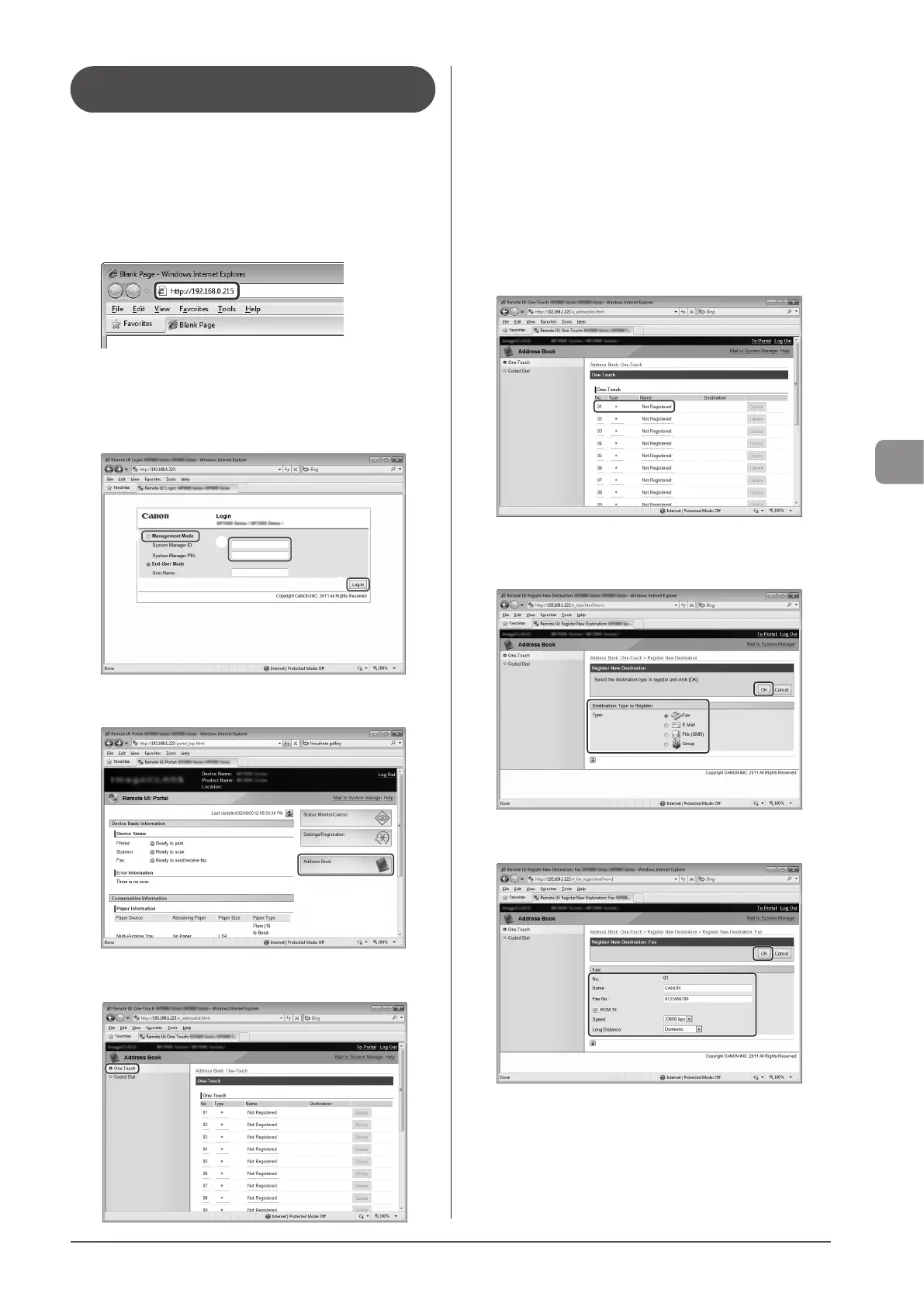
1 Start the Web browser.
2 Enter “http://IP address of the machine/” in
the address field and press the [ENTER] key on
keyboard.
Input Example: “http://192.168.0.215/”
3 Log on to the Remote UI.
(1) Select [Management Mode].
(2) Enter [System Manager ID] and [System Manager PIN].
(3) Click [Log In].
(1)
(2)
(3)
4 Click [Address Book].
5 Click [One-Touch].
To register a one-touch key
Proceed to Step 6.
To edit the registered one-touch key
(1) Click [No.], [Type] or [Name].
(2) Click [Edit].
(3) Specify the required settings in the edit screen and click [OK].
To delete the registered one-touch key
(1) Click [Delete] of the destination which you want to delete.
6 Click the unregistered [No.], [Type] or [Name].
7 Select [Destination Type to Register] and click
[OK].
8 Specify the required settings and click [OK].








 To Next Page