1-4
Before Using the Machine
Operation Panel
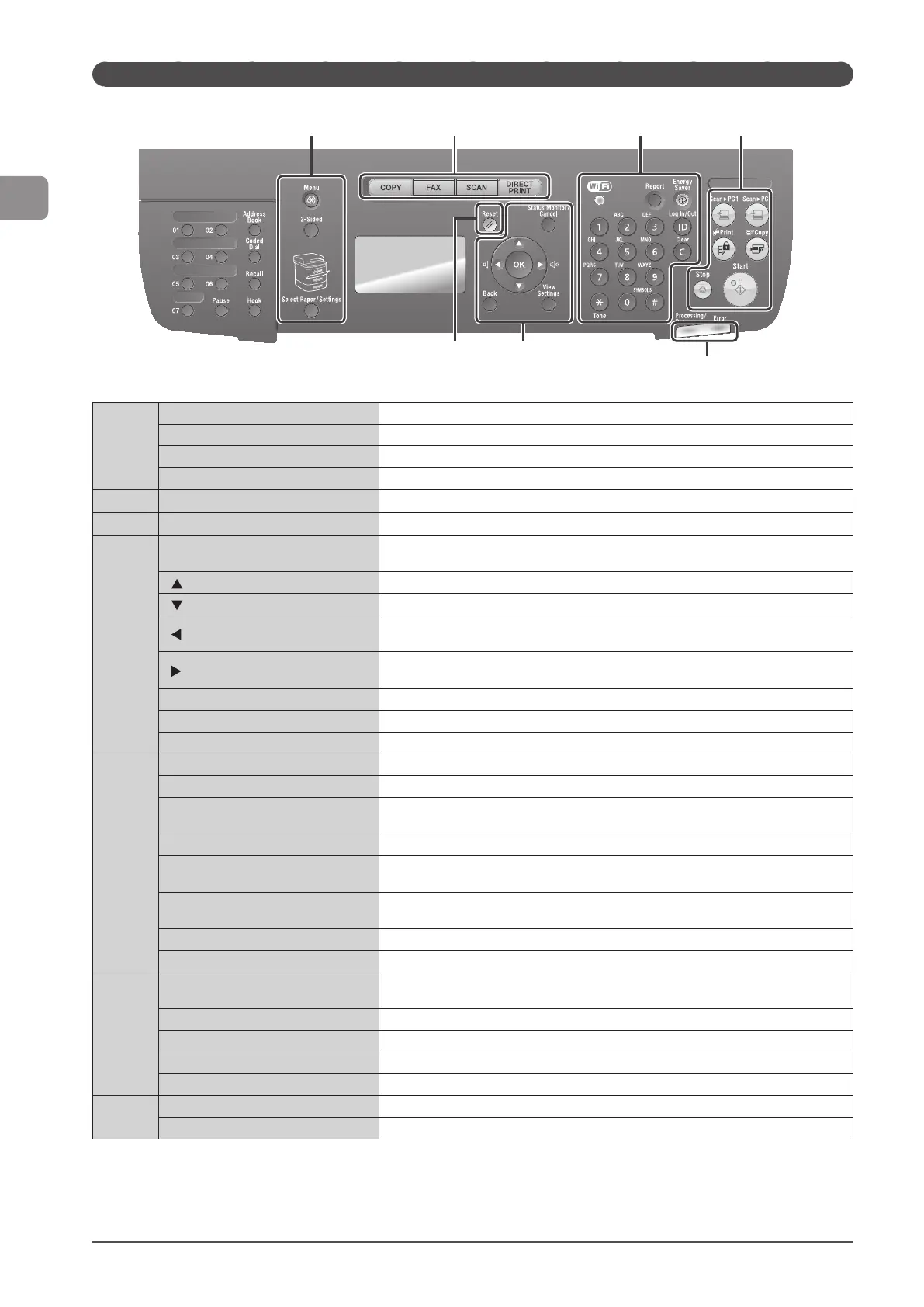
(1)
[Menu] key Press to specify or register various settings.
[2-Sided] key You can set 2-sided printing.
[Select Paper] indicator Selected paper source turns on.
[Select Paper/Settings] key Press to specify the paper size and type to load in the paper drawer or multi-purpose tray.
(2)
Mode switch keys Press to switch the mode to copy, fax, scan or USB direct print.
(3)
[Reset] key Resets the settings. (Resets the copy/scan/fax/USB direct print mode.)
(4)
[Status Monitor/Cancel] key
Press to check the status of jobs or cancel jobs. You can also check the status of the
network and machine.
[ ] Key Press to scroll up or to increase the value.
[ ] Key Press to scroll down or to decrease the value.
[ ] Key
Press to return to the previous screen or move the cursor to the left.
Press to decrease the volume while the fax ring tone sounds.
[ ] Key
Press to proceed to the next screen or move the cursor to the right.
Press to increase the volume while the fax ring tone sounds.
[OK] key Press to confirm an action or setting.
[Back] key Press to return to the previous screen.
[View Settings] key You can check the settings.
(5)
[Wi-Fi] indicator (MF5950dw Only) Turns on when the machine is connected to Wireless LAN.
Numeric keys ([0]-[9]) Enter characters and numbers.
[*] key
Press to switch the character entry mode, and press to switch between pulse and tone
dialing to send a fax.
[#] key Press to enter symbols.
[Report] key
Press to manually print reports and lists. You can also specify whether to print a report
automatically.
[Energy Saver] key
Press to manually set or cancel the Sleep mode. The Energy Saver indicator lights green
while in the sleep mode.
[ID] key Press to display the Department ID login window.
[Clear] key Deletes characters and numbers.
(6)
[Scan > PC1] key/[Scan > PC2] key
When registering destinations etc., you can send the documents by scanning with one-
touch.
[Secure Print] key Used for secure print.
[Paper Save Copy] key Reduce multiple documents to copy onto one sheet.
[Stop] key Press to cancel jobs.
[Start] key Press to start copying, scanning, sending a fax or USB direct print.
(7)
[Error] indicator Blinks when an error occurs.
[Processing/Data] indicator Blinks during transmission and turns on when the machine has waiting jobs.
(7)
(4)
(1) (2) (5) (6)
(3)








 To Next Page