2-17
Document and Paper Handling
Specify whether to print only on the front side of paper for
1-sided printing so that the odd pages are always
printed on the front side for both 1-sided and 2-sided printing.
The print side for 1-sided printing varies depending on the
setting specified. To use preprinted paper, read
“Paper Loading Orientation” (→P. 2-13) carefully to place the
paper stack in the correct orientation.
IMPORTANT
Paper Size and Paper Type
If you select unsupported paper size or paper type for 2-sided
printing, the settings applied in this section will be invalid.
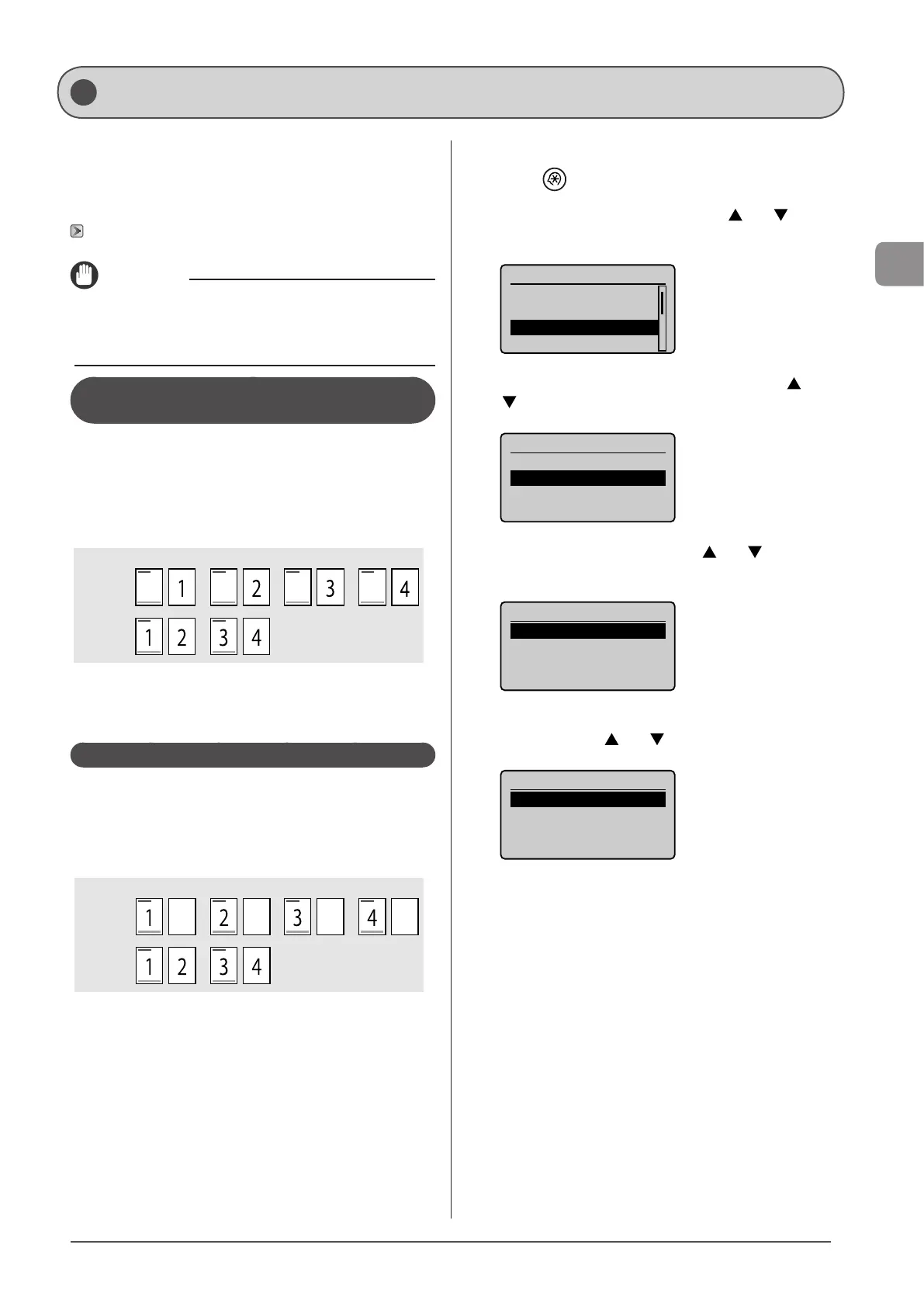
When <Print Speed Priority> is selected
(the default setting)
All pages (odd and even) are printed on the back side for
1-sided printing while the odd pages are printed on the first
side for 2-sided printing, as shown below.
* Make sure to place the stack correctly to use preprinted
paper, as the side to be placed face up varies between
1-sided and 2-sided printing.
1-sided
printing
2-sided
printing
Front Back
Select this setting when
• using paper types other than preprinted paper
• using preprinted paper only for 1-sided printing
When <Print Side Priority> is selected
All pages are printed on the first side for 1-sided printing so
the odd pages are always printed on the first side for both
1-sided and 2-sided printing, as shown below.
* The side to be placed face up is the same between 1-sided
and 2-sided printing, even when using preprinted paper.
1-sided
printing
2-sided
printing
Front Back
Select this setting when
• using preprinted paper for both 1-sided and 2-sided
printing
1 Press [ ] (Menu).
2 Select <Common Settings> using [ ] or [ ] and
press [OK].
Menu
Preferences
Timer Settings
Common Settings
Copy Settings
3 Select <Switch Paper Feed Method> using [ ] or
[ ] and press [OK].
Common Settings
Drawer Auto Selection
Switch Paper Feed Met
4 Select the paper source using [ ] or [ ] and
press [OK].
Paper Feed Method
Multi-Purpose Tray
Drawer 1
5 Select <Print Speed Priority> or <Print Side
Priority> using [ ] or [ ] and press [OK].
Multi-Purpose Tray
Print Speed Priority
Print Side Priority
Selecting the Print Side








 To Next Page