2-15
Document and Paper Handling
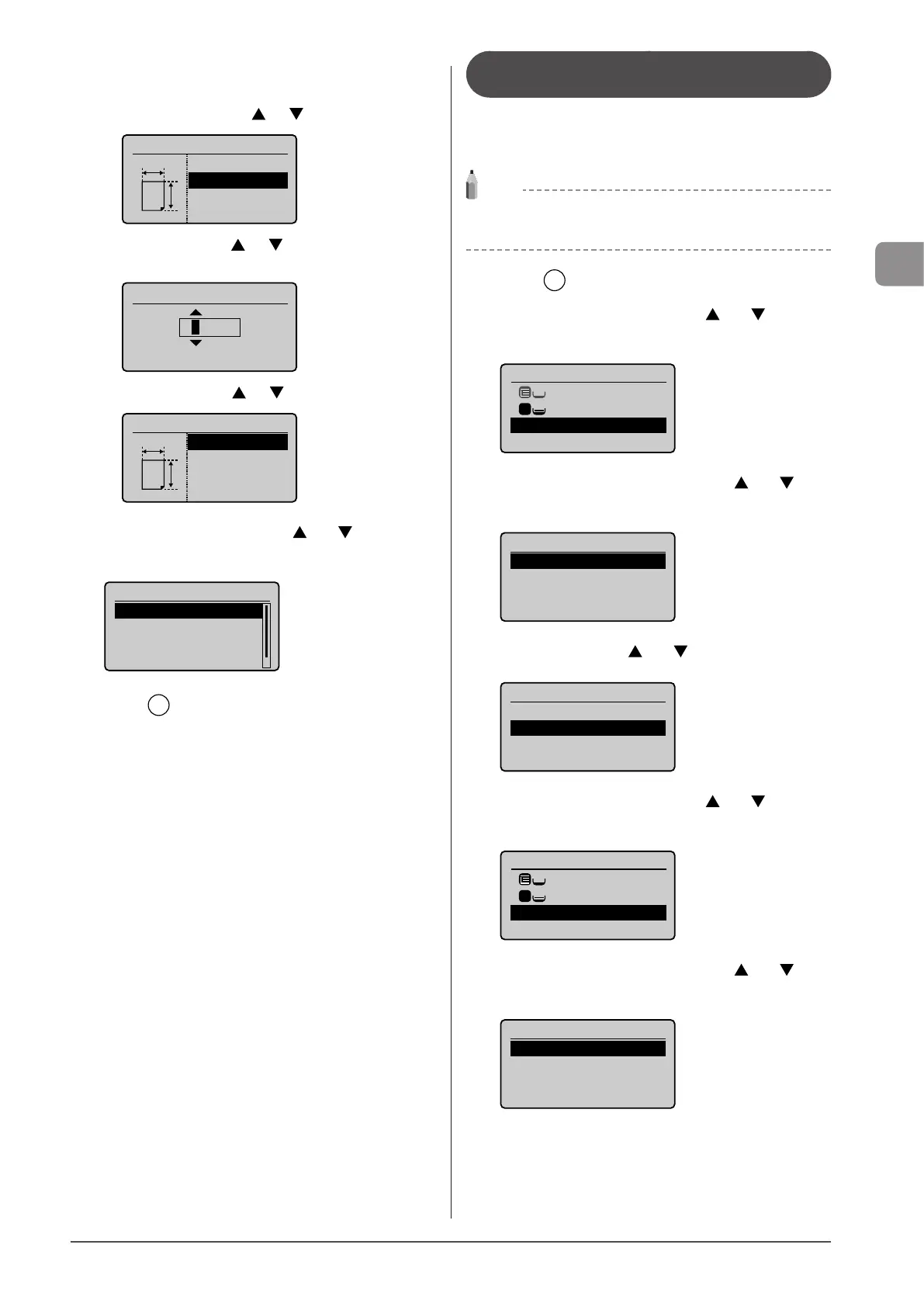
5 Specify the size of <X: “> direction and <Y: “>
direction.
(1) Select the direction using [ ] or [ ] and press [OK].
Specify Size
<Apply>
X: 0 "
Y: 0 "
X
Y
(2) Specify the size using [ ] or [ ] and press [OK].
You can also enter values using the numeric keys.
Set Length for X
(3-8_1/2)
3_0/0 "
(3) Select <Apply> using [ ] or [ ] and press [OK].
Specify Size
<Apply>
X: 3 "
Y: 5 "
X
Y
6 Select the paper type using [ ] or [ ] and press
[OK].
Paper Type
Plain (16 lb Bond-23
Plain L (16 lb Bond
...
Recycled
Color
7 Press [ ] (Select Paper/Settings) to close the
<Select Paper> screen.
Registering the Default Paper Settings
for the Multi-purpose Tray
If you want to always load the same paper in the multi-
purpose tray, register the default paper using the following
procedure.
NOTE
If the default paper is registered
The setting screen is not displayed when paper is loaded.
1 Press [ ] (Select Paper/Settings).
2 Select <Paper Settings> using [ ] or [ ] and
press [OK].
Select Paper
MP Tray
LTR:Plain
Paper Settings
1
3 Select <Multi-Purpose Tray> using [ ] or [ ] and
press [OK].
Paper Settings
Multi-Purpose Tray
Drawer 1
4 Select <On> using [ ] or [ ] and press [OK].
Register Default Set.
Off
On
Set Details
5 Select <Paper Settings> using [ ] or [ ] and
press [OK].
Select Paper
LTR:Plain
LTR:Plain
Paper Settings
1
6 Select <Multi-Purpose Tray> using [ ] or [ ] and
press [OK].
Paper Settings
Multi-Purpose Tray
Drawer 1








 To Next Page