3-4
Copying
Copy Settings
Combination of Copy Settings
You can combine and use various copy settings.
This applies to Mode Memory registration and default settings (→P. 3-13) as well.
However, the following limitation is found in the setting combination.
<No. of Copies> Nothing special.
<Density> When <Background> is set to <Auto>, <Original Type> is changed to <Text>.
<Original Type>
If <Original Type> is set other than <Text> when <Background> is set to <Auto>, the <Auto> setting in <Background>
will be cancelled.
<2-Sided>
• Depending on its paper size (selected paper drawer), 2-sided copy is not available.
• Depending on its paper size or paper type in the selected paper source, 2-sided copy is not available.
“e-Manual → Specifications → Paper → Supported Paper Types”
• This feature cannot be combined with <ID Card Copy>.
<Copy Ratio>
• When you want to copy documents in a reduction ratio different from its default setting for <4 on 1>/<2 on 1>, secify
the <Copy Ratio> later.
• <Copy Ratio> is fixed at 100 % for <ID Card Copy>.
• The frame width specified at <Erase Frame> increases/decreases according to the <Copy Ratio> setting.
<Paper> Depending on its paper size (selected paper source), 2-sided copy is not available.
<4 on 1>/
<2 on 1>
• If you want to copy a document in a copy ratio different from its default reduction ratio, specify the <Copy Ratio> later.
• This feature cannot be combined with <Erase Frame>.
<ID Card Copy>
• <Copy Ratio> is fixed at 100%.
• This feature cannot be combined with either 2-Sided Copy or <Erase Frame>.
<Collate> Nothing special.
<Erase Frame>
• This feature cannot be combined with N on 1 (<4 on 1> / <2 on 1>, <ID Card Copy>).
• The specified erase frame width increases/decreases according to the <Copy Ratio> setting.
<Sharpness> Nothing special.
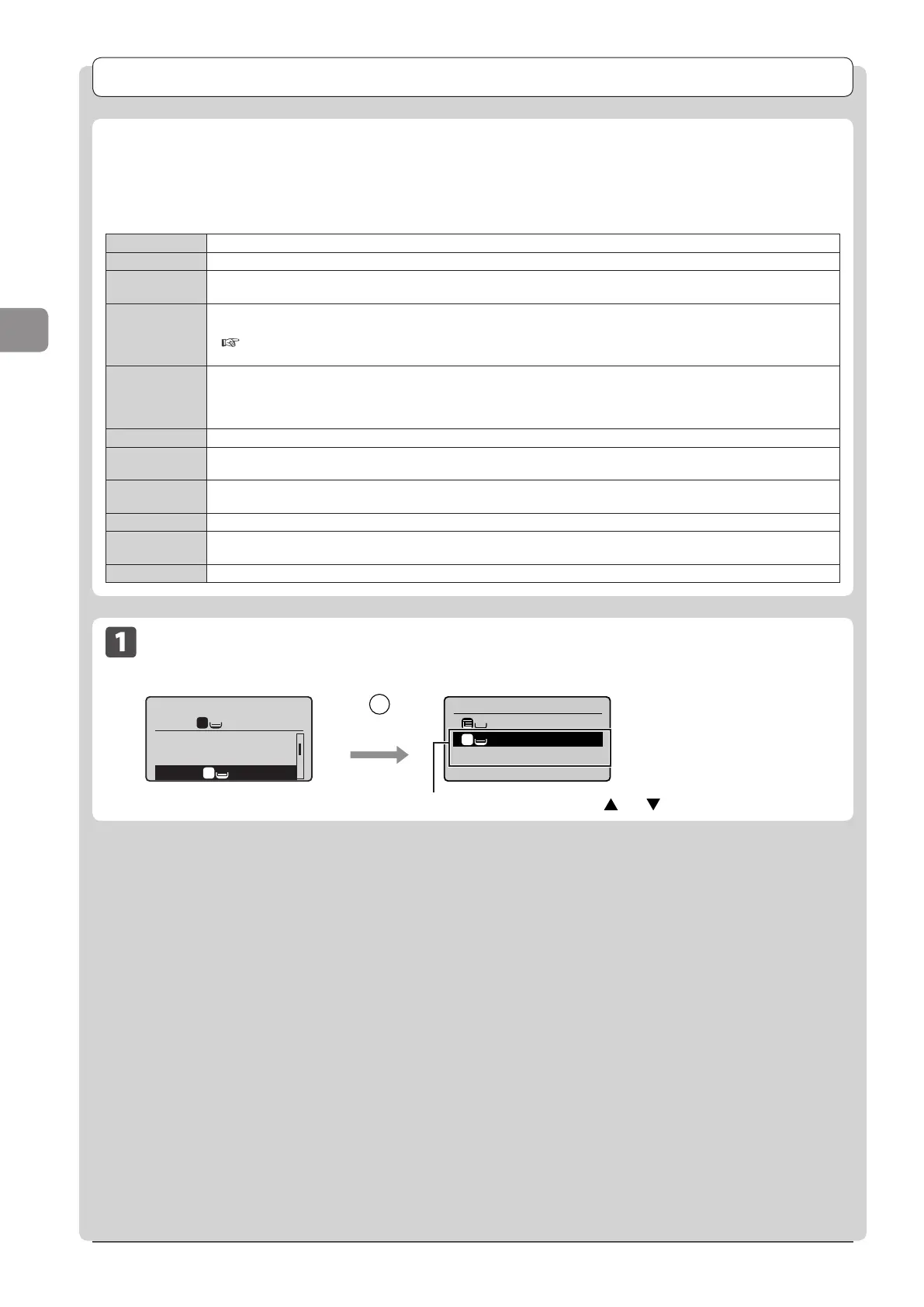
Selecting Copy Papers
Copy mode screen Setting screen*
Copy: Press Start
100% LTR
2-Sided: Off
Copy Ratio: 100% Di
...
Paper: LTR:Plain
1
1
1
Select Paper
LTR:Plain
LTR:Plain
Paper Settings
1
Select the paper drawer using [ ] or [ ] → [OK]
* You can display the setting
screen also by selecting
<Paper> in the copy mode
screen.
Select Paper/
Setting








 To Next Page