Using imagePROGRAF Status Monitor (Windows)
1
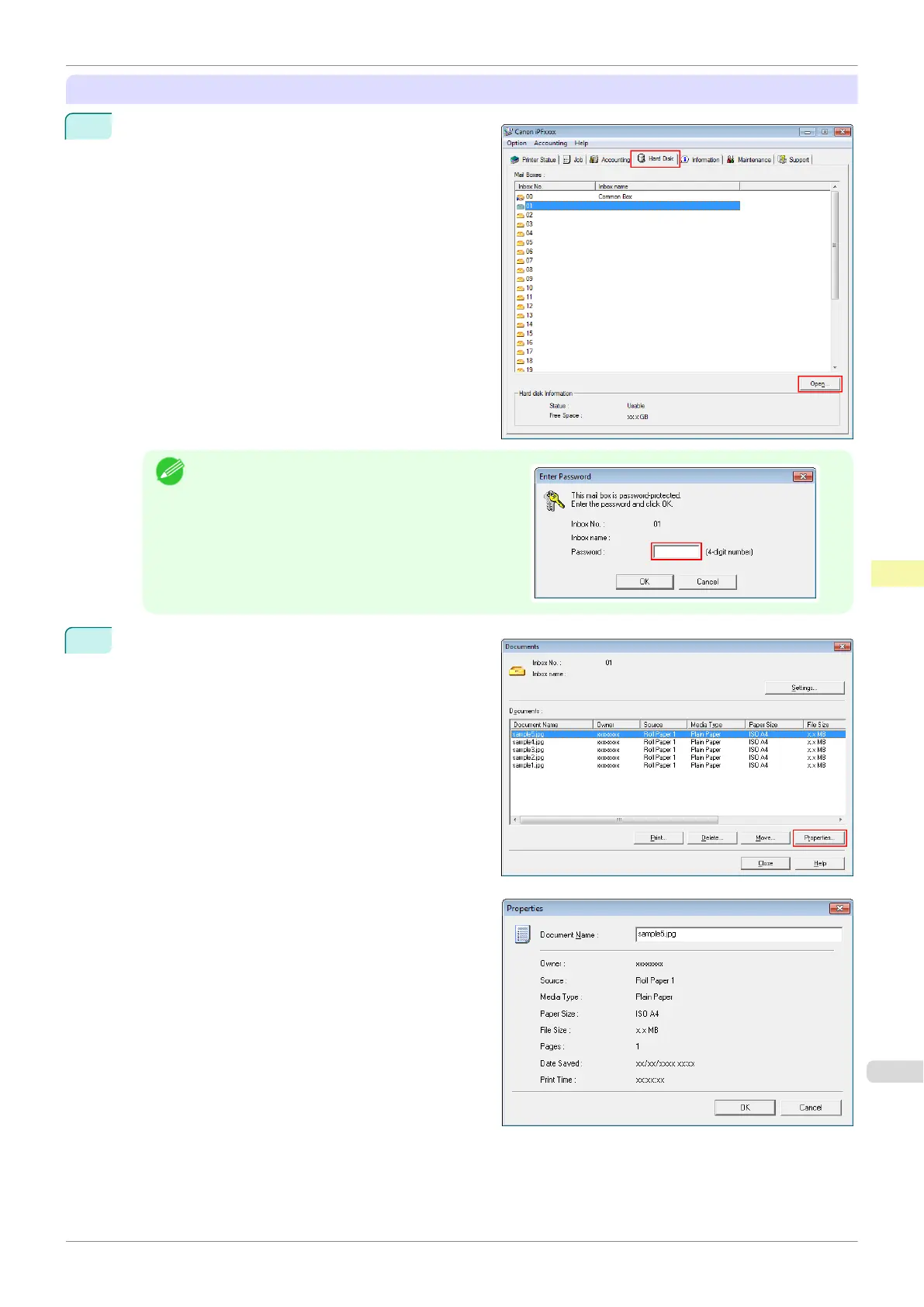
On the Hard Disk sheet, select a box and click
Open.
Note
•
Enter a password if one has been set.
2
In the Documents dialog box, select the print job and
click Properties.
The Properties dialog box is displayed.
For details, refer to the imagePROGRAF Status Monitor help file.
iPF785
Displaying Details of Saved Jobs
User's Guide
Print Job Management Advanced Print Job Operations
513


 To Next Page
 Loading...