60
Selecting a Fader
Available only in the and modes. When recording, set the mode
switch to .
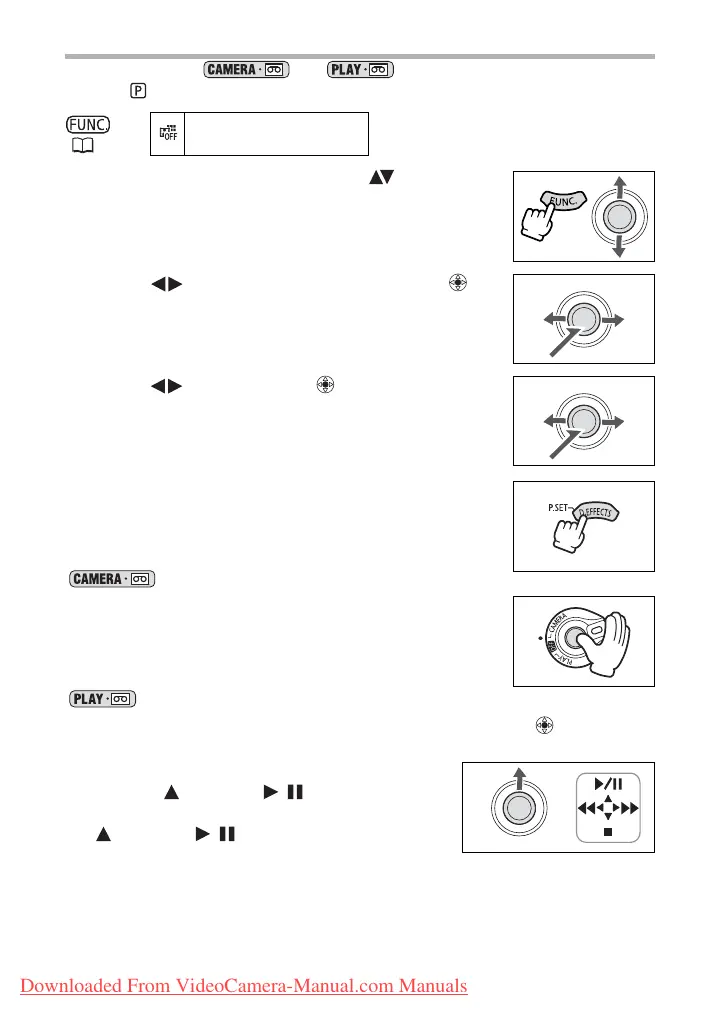
1. Open the FUNC. menu and select ( ) the digital
effects icon.
2. Select ( ) the [FADER] option and press ( ).
3. Select ( ) a fader, press ( ) and close the menu.
• While selecting the fader, it will be demonstrated on the
current screen.
• After closing the menu the symbol of the selected fader will
appear on screen.
4. Press the D.EFFECTS button.
• The symbol changes to green.
• Pressing the D.EFFECTS button again deactivates the fader.
mode:
5. Fade in: Press the start/stop button in record pause
mode.
Fade out: Press the start/stop button in record
mode.
mode:
5. If the joystick guide does not appear on screen, press ( ) to display
it.
6. Fade in: In playback pause mode, push the
joystick ( ) towards / .
Fade out: During playback, push the joystick
( ) towards / .
( 53)
D.EFFECT OFF
Downloaded From VideoCamera-Manual.com Manuals



 To Next Page