- 23 -
Section 4: Operation Panel
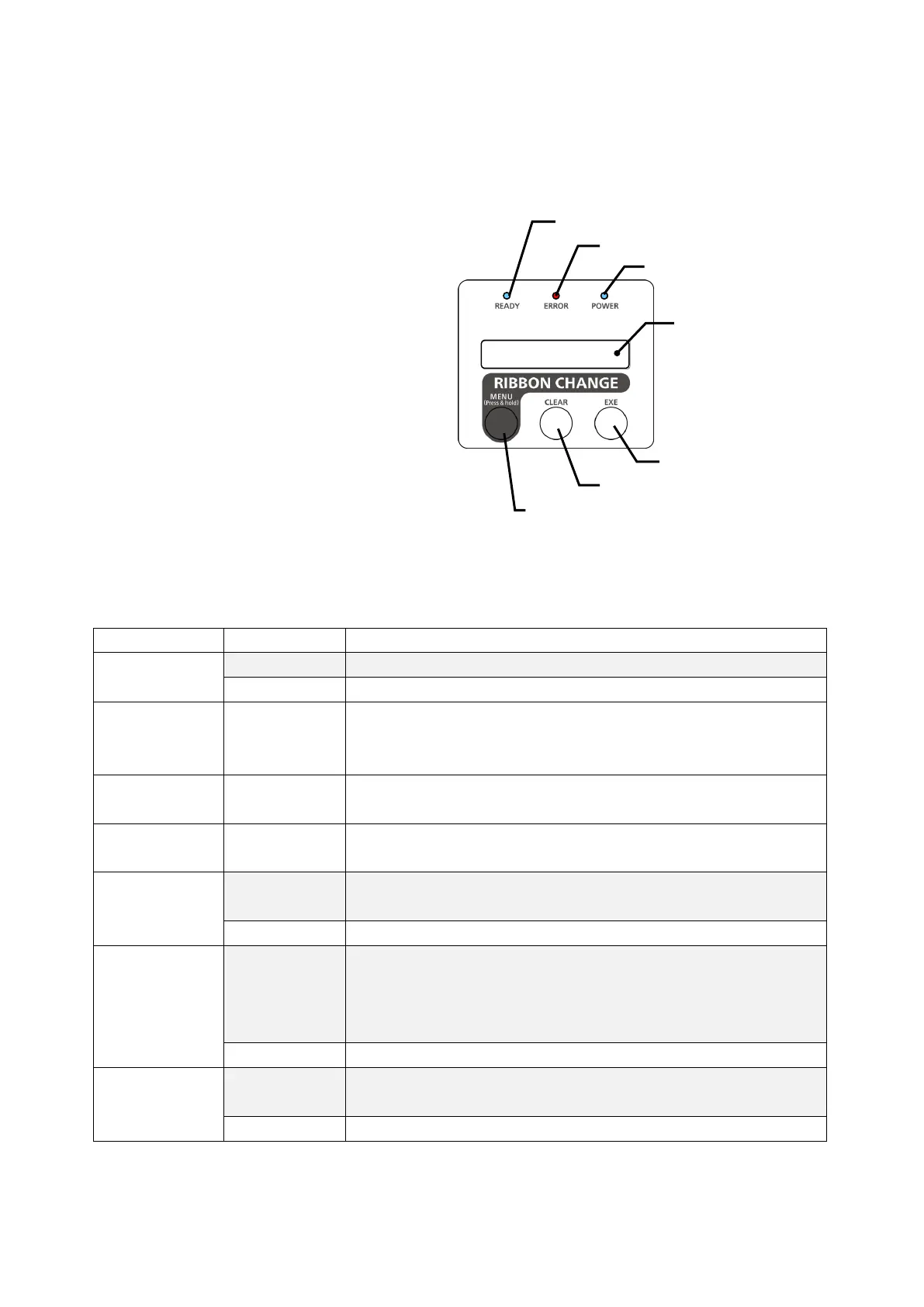
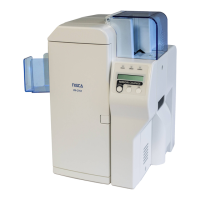
4 - a) Outline of the Operation Panel
Appearance and composition
Function of each part
The functions of LCD and the three keys (Menu, Clear, Exe) are different for
Normal Mode ( after the power is turned ON and before entering the User Mode)
and for the User Mode. In the following table, the functions listed in the
[Normal] column is for Normal Mode and in the [User] column, for the User Mode.
LCD
Normal Shows the printer status.
User Shows the selected menu or set values.
READY LED
(Blue)
The lamp shows the printer is ready. While it is lighted,
communication with the host computer is possible.
Flushes while communicating.
Error LED
Indicates Error. This alarms that the printer is in error.
Power LED
Power ON indicator. This shows the power is ON.
/Menu Key
Use this key when taking out the ribbon cassette before
the ribbon is finished. By pressing for 3 sec or longer, it moves to User Menu.
User Use this key for the menu selection at the User Mode.
Clear Key
Normal
Use for clearing or resuming after releasing error.
By pressing for 3 sec., the printer is reset.
Depending on the system, it is used to stop continuous printing
when the message "Please wait ...Now Printing" is showing.
User In some cases, it is used to change the set values.
EXE Key
Normal
Not used. Depending on the system, it may be used to print the data
which is stored in the memory of the printer
Use to execute the displayed items or to change the set




 To Next Page