- 49 -
Section 10: Trouble and Countermeasure
10 - a) Troubles displayed on the operation panel
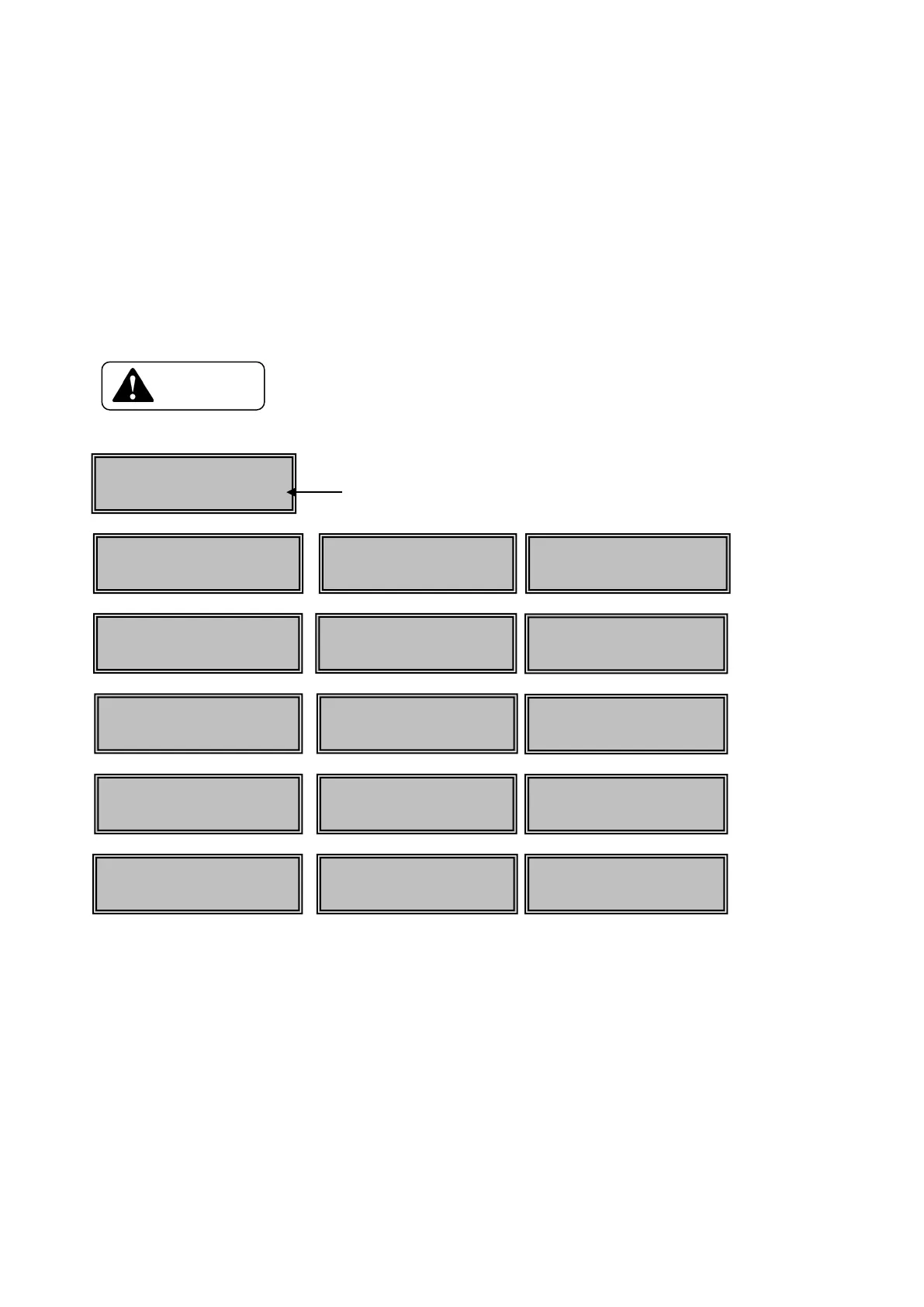
If a trouble occurs, the red lamp on the operation panel turns ON and the nature of the trouble is shown on the LCD panel.
In addition to the indication of ribbon empty and card empty, almost all kinds of troubles such as setting of the ribbon type,
position of card jam, etc., can be checked with the messages on the LCD panel
Display of trouble on the LCD panel
If messages which is not listed below appears or the trouble is not released, please contact the dealer.
□ When contacting the dealer, please inform the error message and the error code which is shown
on the lower right hand of the LCD panel.
Basic operation to release troubles
By pressing the Clear key after releasing the trouble, the printer returns to "Ready to Print".
When there are more than one errors simultaneously, such as "Cover Open" and "Card Empty", the error of higher
priority( "Cover Open" in this case) is displayed on the LCD panel. Close the cover and press Clear key. Then, the display
changes to "Card Empty". Load the cards and press Clear key to return to "Ready to Print". When the message "Cannot
Recover/Please Reset" is displayed, remove
the trouble and press and hold the Clear key for more than 3 second. Release the Clear key after checking the display has been
changed to "Reset". The printer is reset to the status of immediately after the power ON. Take out the ribbon cartridge and
watch the ink ribbon when "Ribbon…" appears on LCD. In this case, the ribbon cartridge can be taken out without Ribbon
Change key pressed.
"Please Check Ink Ribbon" will be appeared on LCD when Clear key pressed without taking out the ribbon cartridge.
Card JAM F. Turn
Area ○ ○○-○○
Card JAM Feeder
Area ○ ○○-○○
Card JAM Print
Area ○ ○○-○○
Area ○ ○○-○○
○○-○○
the Card ○○-○○
Front Cover is Open
○○-○○
Top Cover is Open
○○-○○
Range ○○-○○
Error ○○-○○
Error ○○-○○
Check Ink Ribbon
○○-○○
○○-○○
Incorrect ○○-○○
Miss ○○-○○
○○-○○
Error Code + Additional Code




 To Next Page