- 42 -
6 - g) Cleaning of the card transport roller
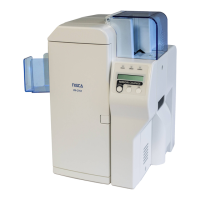
It is able to clean the card transportation roller automatically, by using a specific cleaning card, and carrying out a cleaning mode.
But clean the input roller separately.
Prepare a specific cleaning card, and turn the printer power on.
→ Please tear off protection sheet of the card back side.
The cleaning mode is set in the user mode of the printer.
According to the following procedures, please carry out the cleaning of the card transportation roller.
Button operation / Work contents Liquid crystal display
1 MENU key press and hold User Mode
CLR:Back EXE:Go
2 EXE key User Mode
PUSH MENU KEY
3 MENU key
Indication changes by pressing the MENU key.
Press it till the indication changes as shown on right..
Printer Cleaning
4 EXE key
Remove a blank card for print from the card hopper.
Remove Normal Card
5 EXE key
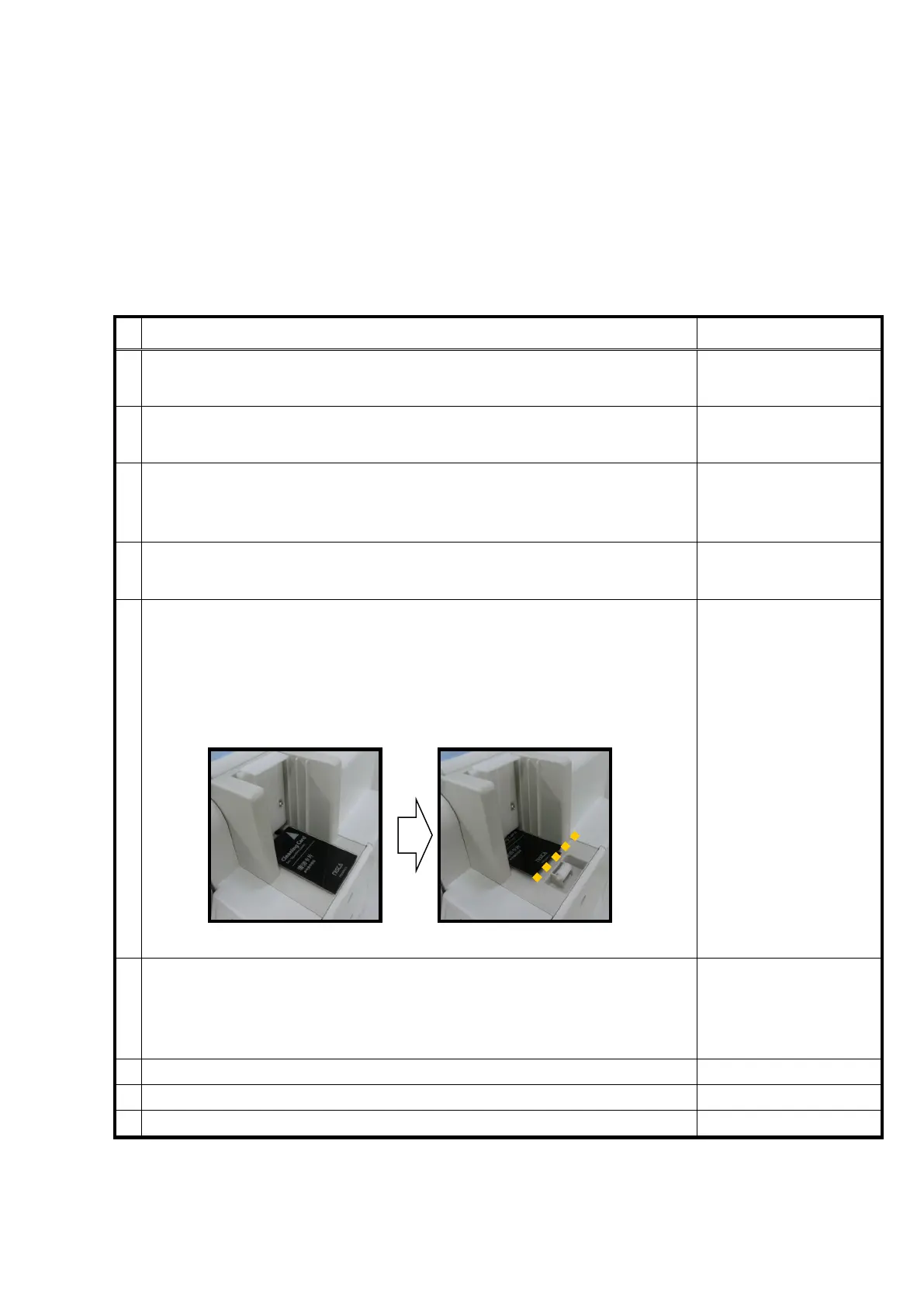
Put the cleaning card on card hopper with printed side up.
Note 1:It may cause trouble when the card set with printed side down
Note 2:Push the card into a printer till at the point the card stops.
The chart below shows rough distance of pushing the card.
Set Cleaning Card
6 EXE key
Carry out cleaning automatically.
A card is come out from a normal exit, when the cleaning has completed
The indication changes as shown on right
Please Wait..
Now Cleaning
↓
8 EXE key Card Empty
Put the cards for print and push the CLEAR key.




 To Next Page