2-21
Log Viewer
VBAdmin Tools
Showing Filtered Logs
You can filter logs by type, code and date & time to show only the necessary information.
How to Set
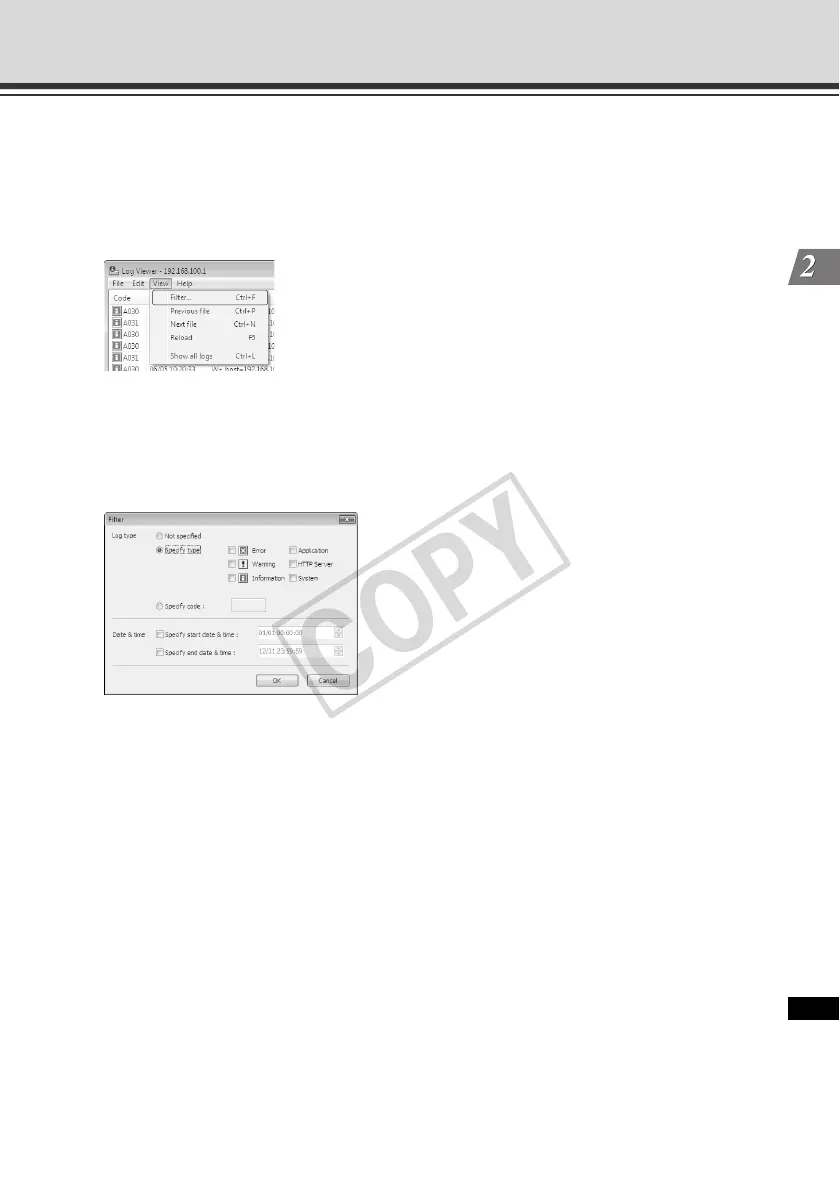
1. Select [Filter] from [View] in the menu bar.
2. The Filter dialog box appears.
Setting the following conditions and clicking [OK] shows only the logs matching the specified
conditions.
To cancel filtering, click [Cancel].
[Log type]
Select the [Specify type] or [Specify code] check box to filter logs by type. If you don't want to
filter logs by type, select [Not specified]. Logs without log code are shown with [Not Specified]
selected, when [Show All Logs] is selected from [View] in the menu bar.
z Specify type
Specify the log level
Select the level of logs to be displayed from among [Error], [Warning] and [Information].
Specify log output module
Select the output source module whose logs will be displayed, from among [Application],
[HTTP Server] and [System].
z Specify code
Specify the log code. The entered characters are compared against all logs and only the
logs matching the code are displayed. If "A0" is entered,for example, logs starting with 'A0"
are displayed.


 To Next Page