Chapter 3 Creating Your Address Book
3-8 Corex Technologies
1
Saving Your Contacts
Before you can close your new file, you must save it.
You must save a CardScan file only once. When you use it again,
CardScan saves your contacts automatically!
To save your file for the first time:
1. Choose File→Save As. The Windows Save As dialog appears. Note that
the extension for your CardScan files is “.cdb”.
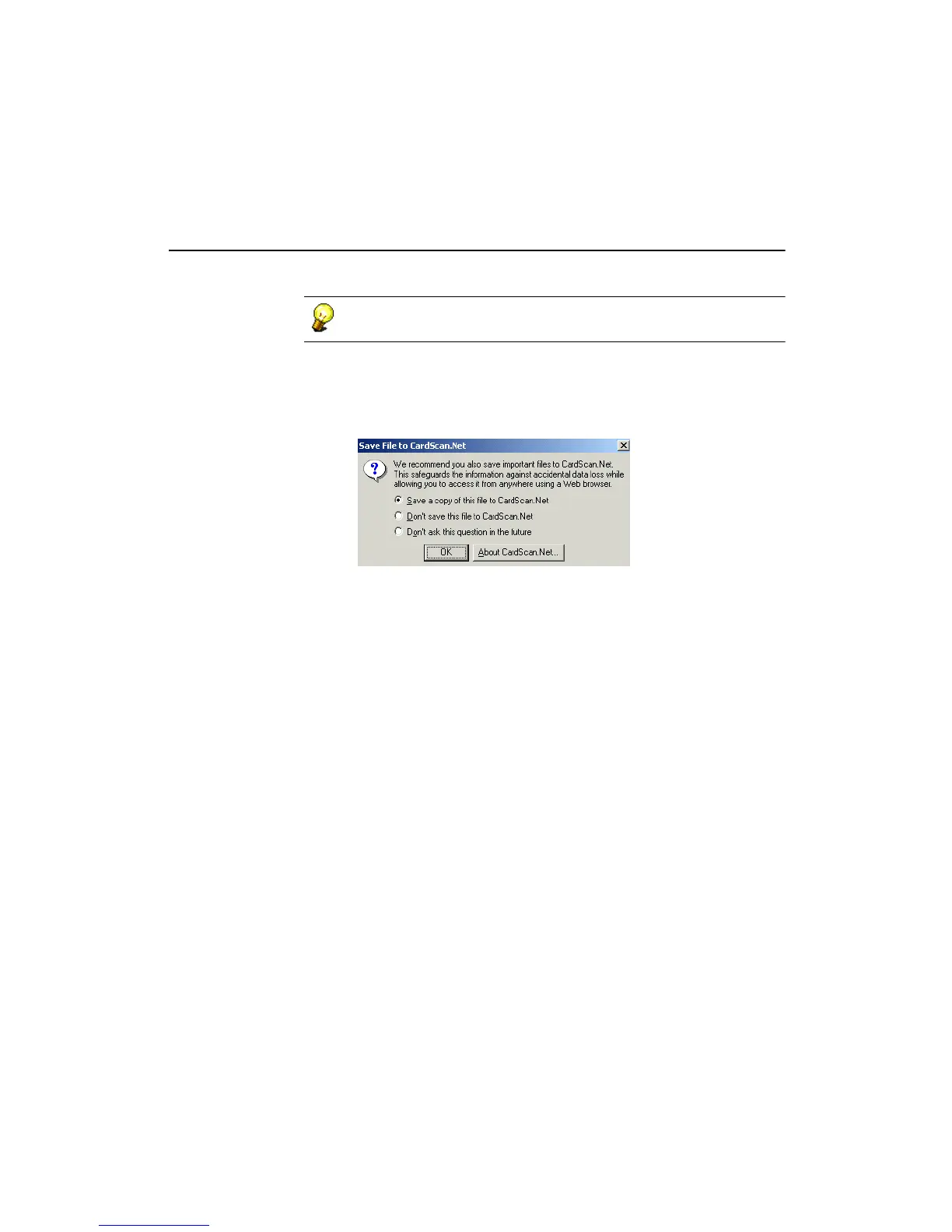
2. Type a name for your file and click OK. This dialog appears:
The default choice in this dialog offers you the benefits of a private,
secure account on CardScan.Net, which only you can access—from
anywhere—with a browser and unique password. This keeps your
contacts at your fingertips, with a guaranteed backup on CardScan.Net.
Click the button About CardScan.Net to open the topic in the Online
Help.
3. Click OK to save your contacts on CardScan.Net, and follow the
instructions in “Maximizing Your Contact Potential with CardScan.Net” on
page 6-1.
OR
Choose one of the two remaining options, and click OK to save the file
only locally (that is, on your PC).



 To Next Page