Chapter 10 Communicating with Your Contacts
10-2 Corex Technologies
1
Using Signature Card
If you have Microsoft Outlook 98 or later, you can include an image of your
business card in all outgoing emails. To use this feature, make sure that:
• Microsoft Outlook is set to send messages in HTML format.
• Your email editor is not set to use Microsoft Word.
With most versions of Outlook, choose Tools
→
Options
→
Mail
Format, and verify the Message Format options.
Enabling Signature Card
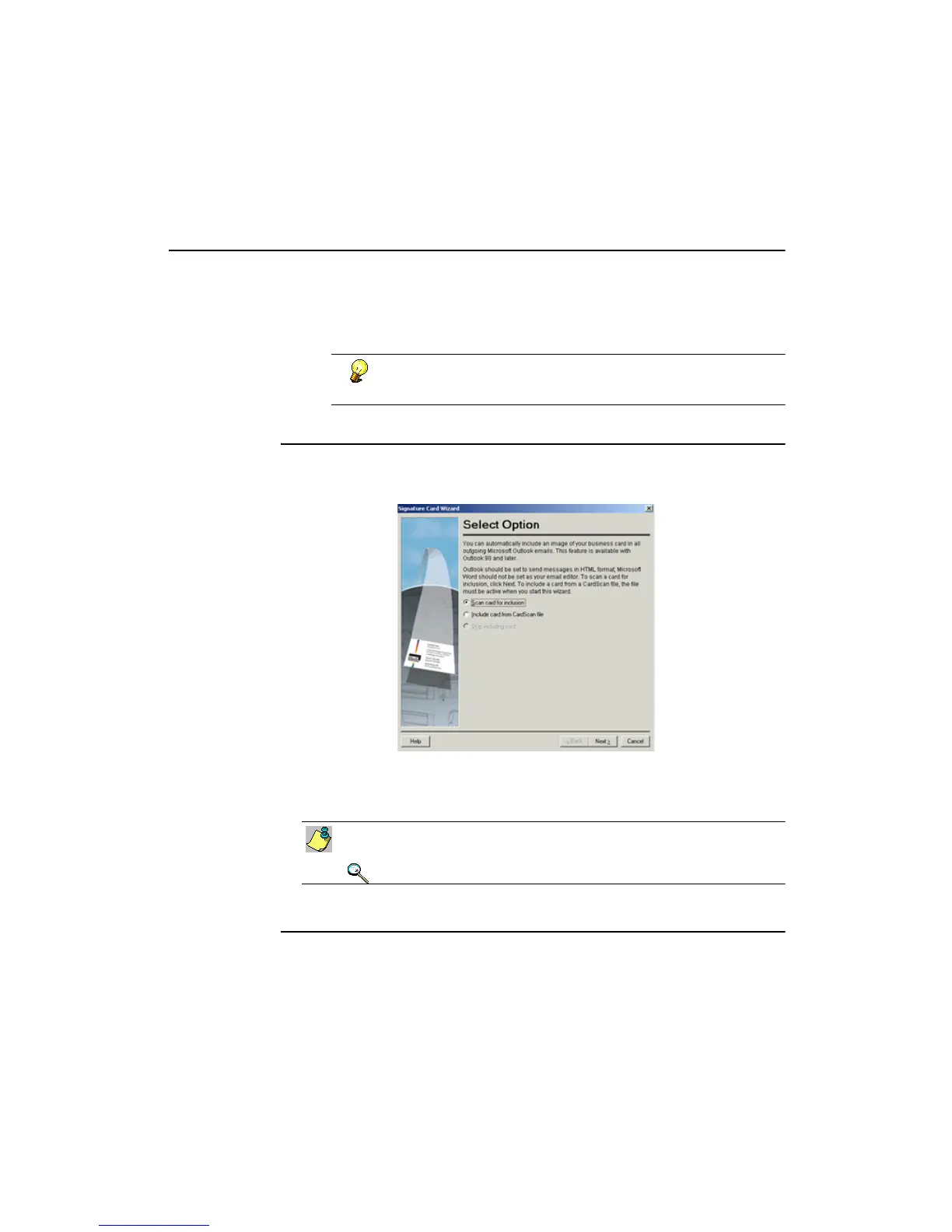
CardScan’s Signature Card Wizard helps you to enable this feature.
1. Choose Tools→Signature Card. This screen appears:
2. Choose to scan your business card or to include an existing image from a
CardScan file, click Next, and follow the Wizard to complete your
Signature Card.
The wizard can include an existing image only from an active CardScan
file. Therefore, activate the CardScan file first, and then start the wizard.
Keywords: “signature”.
Disabling Signature Card
1. In CardScan, choose Tools→Signature Card. The Select Options
screen appears.
2. Choose Stop including card, and click Next.



 To Next Page