Automatic Synchronization
CardScan User’s Guide 6-5
Automatic Synchronization
Automatic synchronization synchronizes changes to either copy of a
CardScan.Net-enabled file whenever CardScan is running and your PC is
connected to the Internet. Also, once enabled, automatic synchronization
signs you in to CardScan.Net whenever you open CardScan.
You can avoid being prompted to enter your password every time
automatic synchronization signs you in. To do so, choose Remember
my password on the Sign In dialog.
You can always disable or enable Automatic Synchronization, as follows:
1. Sign in to your account.
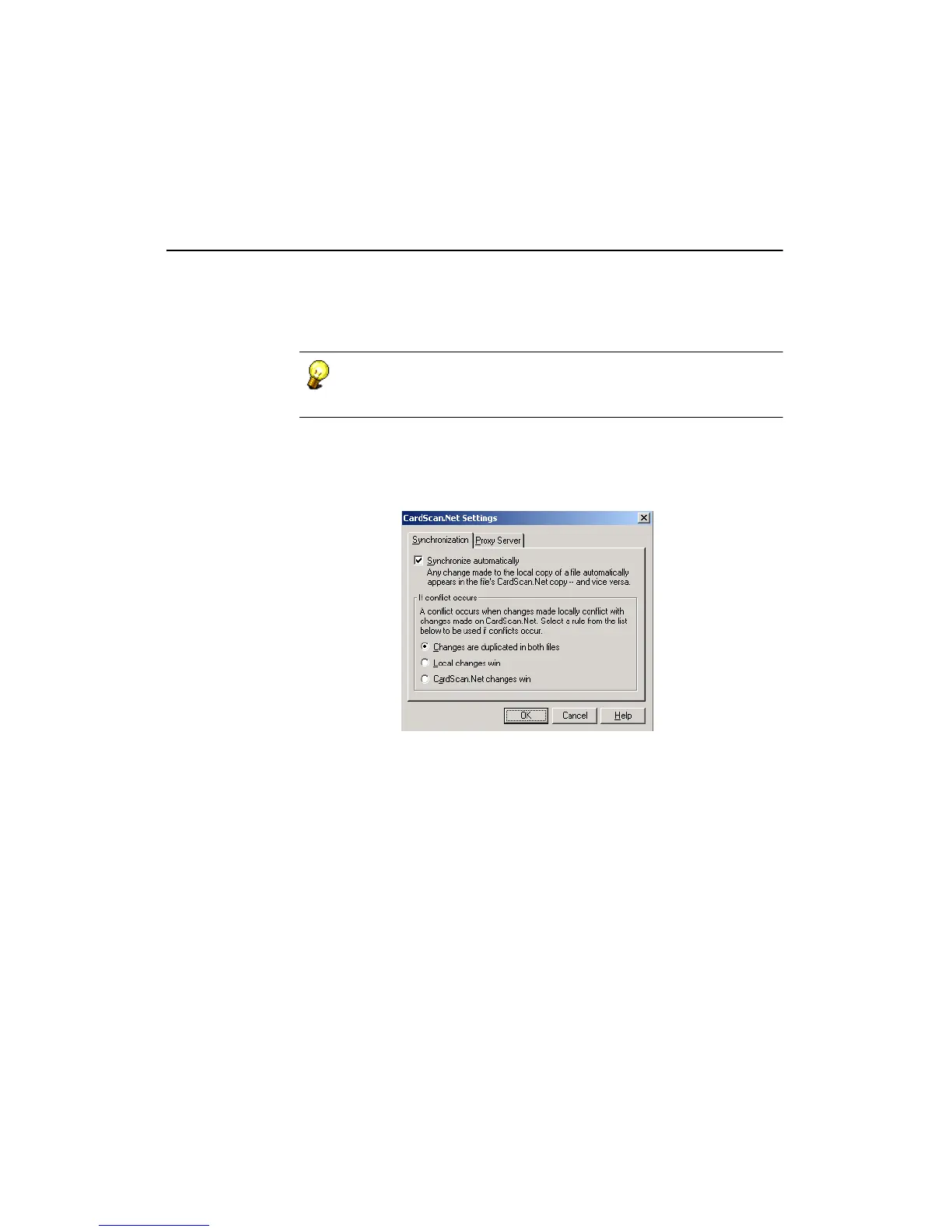
2. Choose CardScan.Net→Settings. This dialog appears:
3. Click the respective checkbox to disable or enable automatic
synchronization.
4. If Automatic Synchronization is enabled, you can choose a different
conflict-resolution option.
5. Click OK.



 To Next Page