Troubleshooting
Zone Ctrl II and
VAV Zone II Secondary Duct Installation and Start-up Guide CARRIER CORPORATION ©2019
Error! No text of specified style in document.
44 All rights reserved
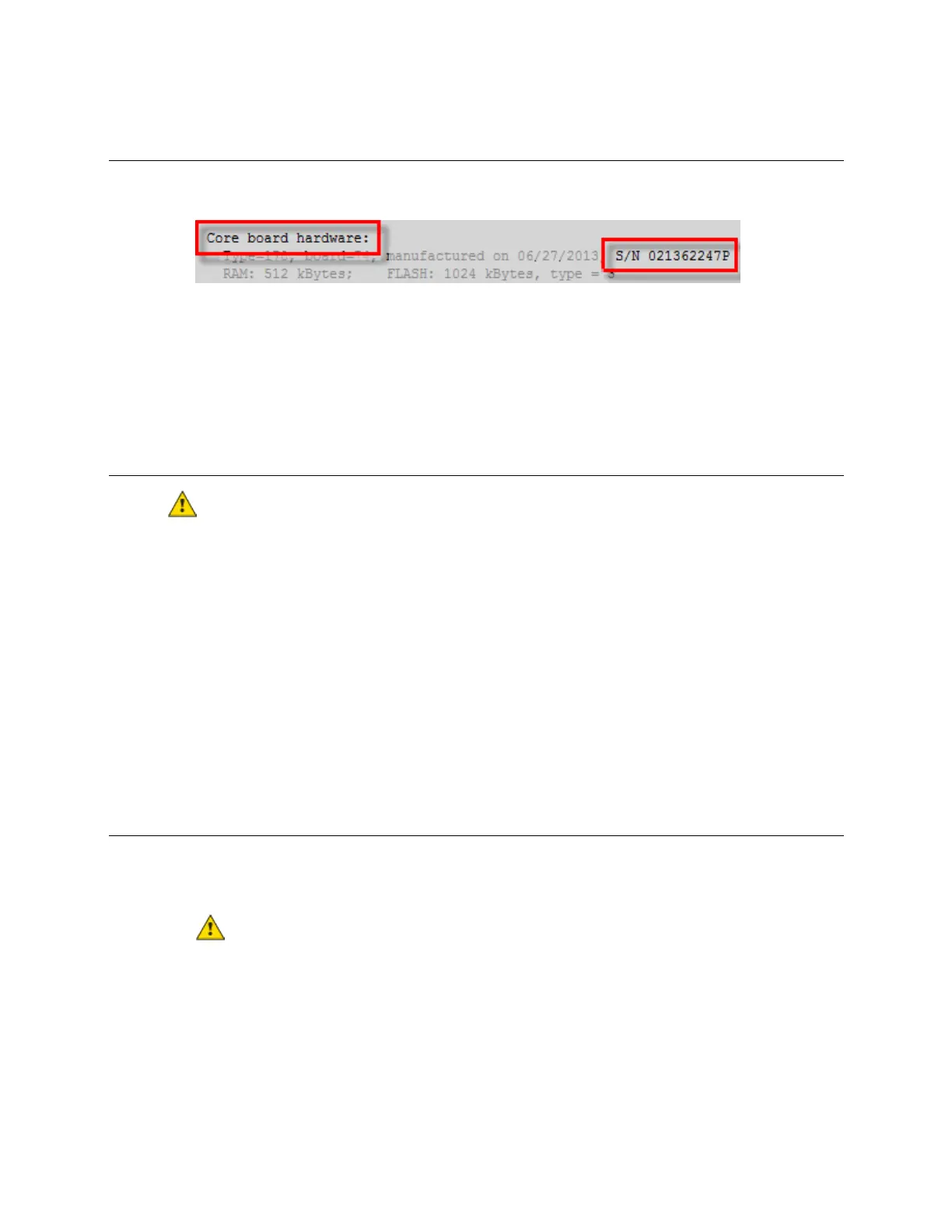
If you need the Zone Ctrl II's serial number when troubleshooting, the number is on a Module Status report
(Modstat) under
(or
)
To obtain a modstat in the i-Vu® interface:
1 Select the Zone Ctrl II in the navigation tree.
2 Right-click and select
.
To restore factory defaults
This erases all archived information and user-configuration settings. You will have to reconfigure
all custom settings. It is recommended to restore the factory defaults only under the guidance of Carrier Control
Systems Support.
To erase volatile memory data and restore factory default configuration settings:
1 Pull the screw terminal connector from the controller's power terminals labeled
and
. Make sure
the address switches are not set to 0, 0.
2 Short the
jumper’s pins and maintain the short for steps 3 and 4.
3 Insert the power screw terminal connector into the Zone Ctrl II's power terminals.
4 Continue to short the jumper until the
LED flashes three times in sync with the
LED.
5 Remove the short.
If the Zone Ctrl II experiences a power outage and the control program stops functioning, replace the battery.
You need to replace the battery if the voltage measures below 2.9 volts when the controller is not powered.
1 Verify that the Zone Ctrl II's power is on.
If the controller's power is not
when replacing the battery, your date, time, and trend data
will be lost.
2 Remove the Zone Ctrl II's cover.
3 Remove the battery from the controller, making note of the battery's polarity.
4 Insert the new battery, matching the battery's polarity with the polarity indicated on the controller's cover.
5 Replace the Zone Ctrl II's cover.
6 Download the Zone Ctrl II.




 To Next Page