Installing the Zone Ctrl II
Zone Ctrl II and
VAV Zone II Secondary Duct Installation and Start-up Guide CARRIER CORPORATION ©2019
Error! No text of specified style in document.
23 All rights reserved
To wire an Equipment Touch to the Zone Ctrl II
NOTES
• The Equipment Touch requires a 24 Vac power supply. It is not powered by the Rnet.
• If the Equipment Touch will be:
○ Daisy-chained on the Rnet with ZS sensors or a Wireless Adapter, use the standard 4-conductor Rnet
wiring and follow the wiring instructions To wire ZS sensors to the Zone Ctrl II (page 20).
○ The only device on the Rnet, you can use a 2-conductor cable instead of the standard 4-conductor Rnet
cable and follow the instructions below.
• For complete Equipment Touch installation instructions including wiring diagrams, see the Equipment Touch
Installation and Setup Guide.
The Zone Ctrl II can share a power supply with the Carrier controller as long as:
• The power supply is AC power.
• You maintain the same polarity.
• You use the power source only for Carrier controllers.
1 Turn
the Zone Ctrl II's power.
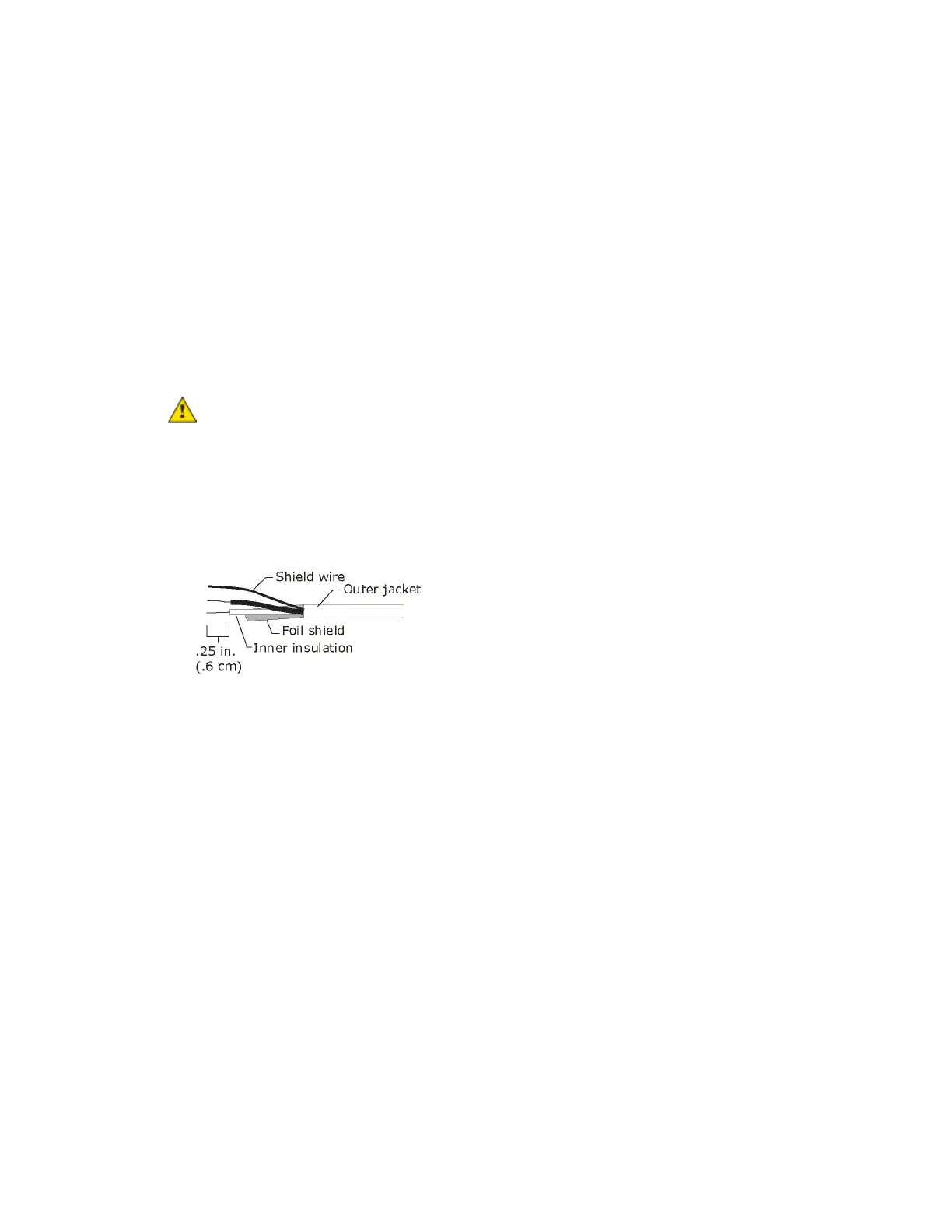
2 Partially cut, then bend and pull off the outer jacket of the cable. Do not nick the inner insulation.
3 Strip about 0.25 inch (0.6 cm) of the inner insulation from each wire.
4 Wire the Zone Ctrl II's
and
terminals to the terminals of the same name on the Equipment
Touch's connector.
If using shielded wire, connect the shield wire and the ground wire to the
terminal.
5 Turn
the Zone Ctrl II's power.
6 Turn on the Equipment Touch.




 To Next Page