Apex2
25
Computer download utility
The Apex 2 data download utility application allows you to download all the data from the
pump, which is automatically loaded into an Excel spreadsheet file. You can then use this
data directly in any reports you need to prepare. The Apex2 Pro includes data graphing
capabilities in the Excel spreadsheet file.
Install the utility
To install the application:
1. In your browser, enter the following URL:
http://www.casellasolutions.com/uk/en/support/apex2.aspx
2. Click Software and Utilities.
3. Click APEX2 Data Download Utility to download the utility.
4. Install the utility EXE file or save it for later installation.
Download data from the pump
To download data from the pump:
1. Connect the charging station to your computer with the supplied USB cable and ensure
the charging station power supply is connected and switched on.
2. Open the Apex2 Download Utility.
3. Turn on the pump and place it on the
charger. If you have a 5-way charger,
place the pump in the socket nearest to
the USB connector.
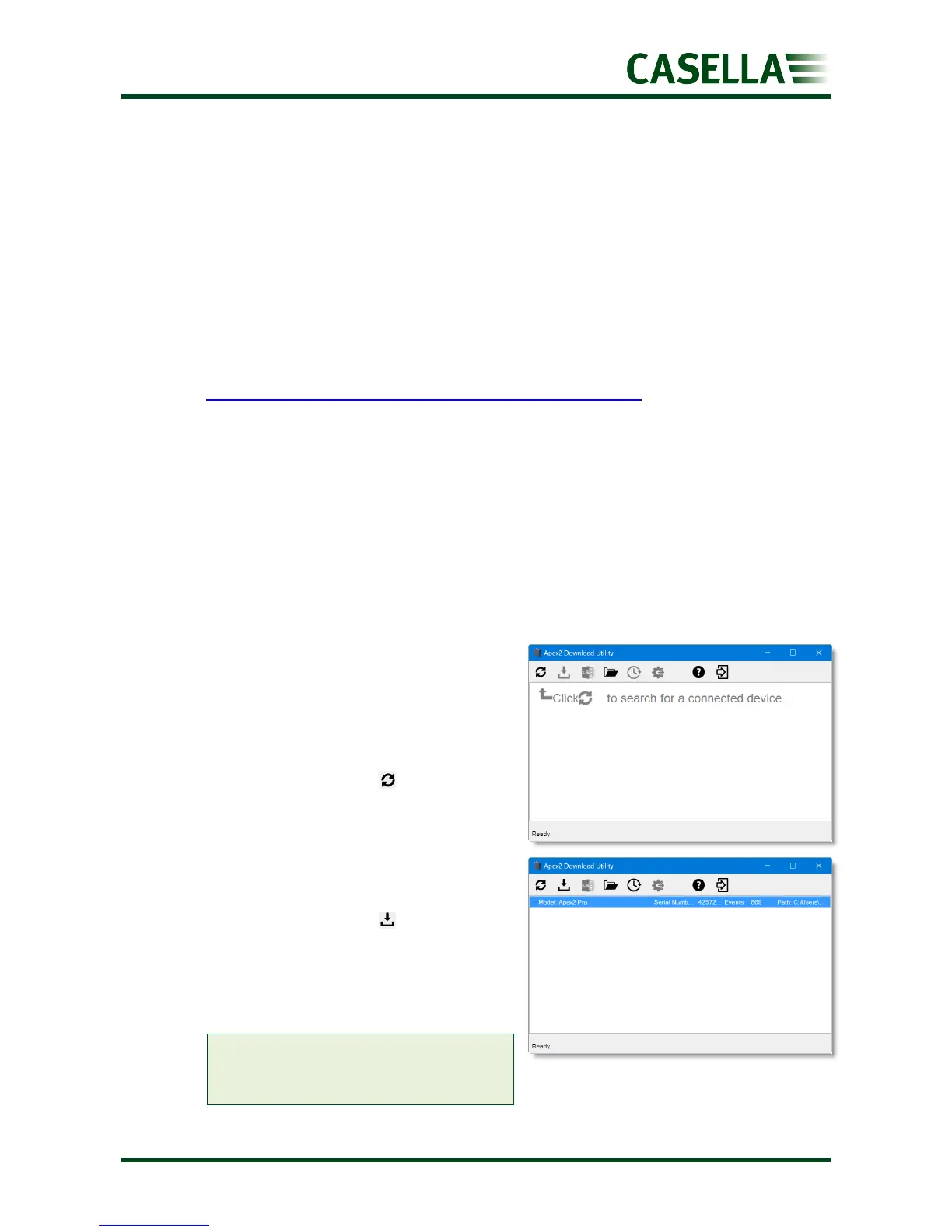
4. On the menu bar, click to scan for
connected devices.
Your pump should be listed as shown in
the example on the right.
5. On the menu bar, click to download
the data. You will be prompted to
navigate to the folder in which you want
to store your Excel file.
6. Navigate to a folder and click OK.
Note: The folder you select is used by
the utility in subsequent downloads
unless you select a different folder.


 To Next Page