EasyManua.ls Logo

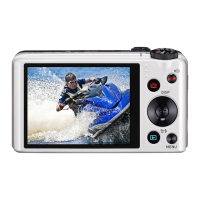
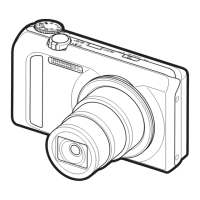
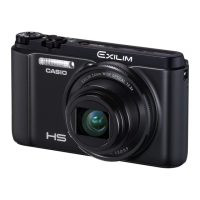
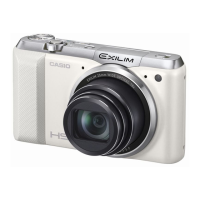
Casio Exilim EX-ZR850 - User Manual

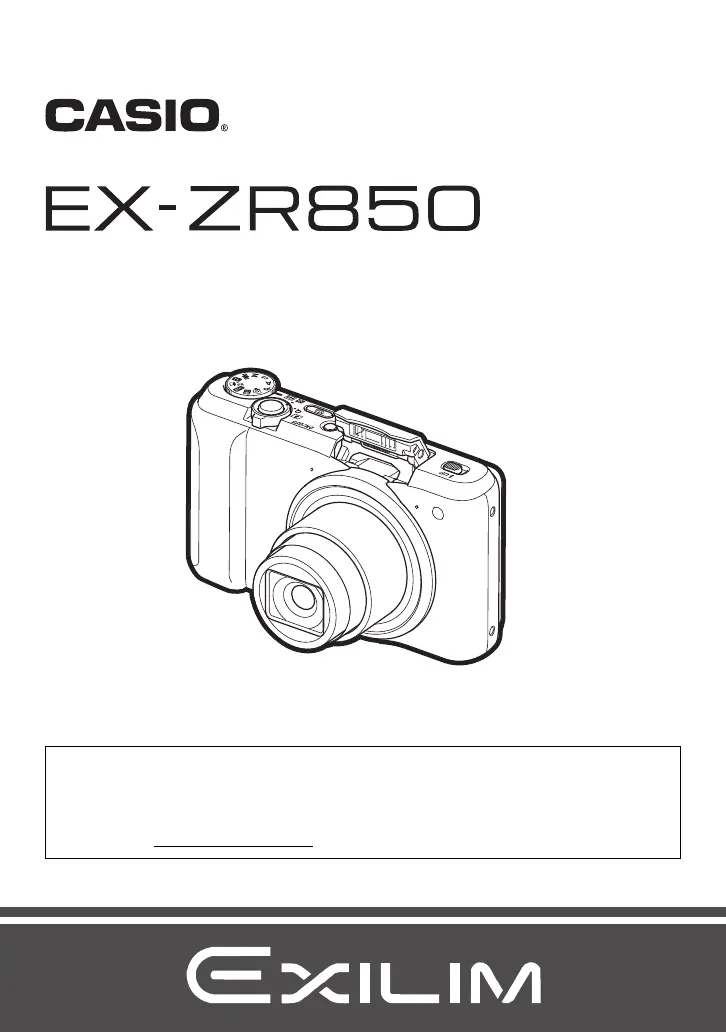
Casio Exilim EX-ZR850
218 pages
Print Icon
To Next Page IconTo Next Page
Loading...
Digital Camera
EN
User’s Guide
Thank you for purchasing this CASIO product.
Before using it, be sure to read the precautions contained in this User’s Guide.
Keep the User’s Guide in a safe place for future reference.
For the most up-to-date information about this product, visit the official EXILIM
Website at http://www.exilim.com/

Table of Contents

Questions and Answers

  • R
    Raymond GarciaAug 18, 2025
    How to turn on Casio Exilim EX-ZR850 if it doesn't power on?
    • V
      victorbushAug 18, 2025
      If your Casio Digital Camera doesn't turn on, it might be due to the battery not being loaded correctly. Ensure the battery is correctly installed and charged. If the battery drains quickly after being charged, it likely needs replacing. Consider purchasing a new CASIO NP-130A rechargeable lithium ion battery.
  • S
    Sharon HancockAug 20, 2025
    Why does my Casio Digital Camera suddenly power down?
    • C
      christopherbrownAug 20, 2025
      If your Casio Digital Camera powers down suddenly, it could be due to several reasons: 1. The Auto Power Off feature may have activated. Simply turn the power back on. 2. The battery may be dead. Charge the battery. 3. The camera's protection function may have activated because the camera temperature is too high. Turn off the camera and wait until it cools down before trying to use it again.
  • D
    davisjosephAug 23, 2025
    Why is the Auto Focus not working properly on my Casio Exilim EX-ZR850 Digital Camera?
    • R
      Rachel RamirezAug 23, 2025
      If the Auto Focus on your Casio Digital Camera isn't working correctly: 1. Check if the lens is dirty and clean it. 2. Ensure the subject is in the center of the focus frame. 3. If the subject is incompatible with Auto Focus, use manual focus. 4. Avoid moving the camera when shooting; try using Anti Shake or a tripod.
  • R
    ramirezerinAug 26, 2025
    What to do if Casio Exilim EX-ZR850 Digital Camera power will not turn off?
    • M
      Michael BakerAug 26, 2025
      What to do if your Casio Digital Camera won't turn off or buttons are not responsive? Remove the battery from the camera and then reload it.
  • S
    sbradleyAug 28, 2025
    What to do if Casio Digital Camera back lamp does not light red and the battery won’t charge?
    • F
      Frank GonzalesAug 28, 2025
      If the back lamp on your Casio Digital Camera doesn't light red and the battery isn't charging, unplug the USB cable from the camera and then plug it back in again. Remove the battery from the camera and then reload it.
  • K
    Kevin BerryAug 30, 2025
    What to do if Casio Exilim EX-ZR850 image is not recorded when pressing the shutter button?
    • T
      Tyler JonesAug 30, 2025
      If your Casio Digital Camera isn't recording images when you press the shutter button: * Ensure the camera is in REC mode, not PLAY mode. Press the shutter button to switch to REC mode. * If the flash is charging, wait for it to finish. * If a “Memory Full” message appears, transfer images to your computer, delete unnecessary images, or use a different memory card.
  • S
    Shelly RaymondSep 1, 2025
    Why does the flash not fire on my Casio Exilim EX-ZR850 Digital Camera?
    • N
      ntorresSep 1, 2025
      If the flash on your Casio Digital Camera isn't firing, consider the following: 1. Check if the flash mode is set to Flash Off (?). If so, change to another mode. 2. The battery may be low. Charge the battery. 3. If a BEST SHOT scene that uses Flash Off (?) is selected, change to a different flash mode or select a different BEST SHOT scene.
  • A
    amandapittsSep 4, 2025
    How to fix Casio Exilim EX-ZR850 images not transferring over USB?
    • A
      Aaron DennisSep 4, 2025
      If you're having trouble transferring images from your Casio Digital Camera via USB: 1. Ensure the USB cable is securely connected. 2. Make sure the camera is turned on. 3. Avoid connecting through a USB hub; connect directly to the computer's USB port. 4. If the battery level indicator is low, charge the battery before connecting.
  • A
    Alison PerrySep 6, 2025
    Why can't I delete a file on my Casio Exilim EX-ZR850?
    • J
      James WilsonSep 6, 2025
      If you can't delete a file on your Casio Digital Camera: 1. The file may be protected. Unprotect the file. 2. The “Delete Key” setting may be “Disabled”. Change the setting to “Enabled”.
  • C
    christian23Sep 8, 2025
    Why does the language selection screen appear when my Casio Exilim EX-ZR850 is turned on?
    • J
      justinmcclureSep 8, 2025
      If the language selection screen appears when you turn on your Casio Digital Camera: 1. You may not have configured initial settings after purchasing the camera, or the camera might have been left with a dead battery. Configure the correct settings. 2. There might be an issue with the camera’s memory data. If so, reset the camera to initialize its setup. After that, configure each setting. If the language selection screen reappears after you turn the camera on, contact your retailer or a CASIO authorized service center.

Summary

Quick Start Basics

What you can do with your CASIO camera

Overview of main camera features and functions for easier digital image recording.

Premium Auto Pro

Camera automatically determines subject/scene for higher image quality than standard Auto.

Wireless LAN Connection

Turn smartphone into a remote controller and send images to it.

First, charge the battery prior to use

To load the battery

Step-by-step instructions for inserting the battery into the camera.

Charge the Battery

Methods for charging the camera battery using USB-AC adapter or computer.

To shoot a snapshot

Selecting an Auto Recording Mode

Guide to selecting between Program Auto and Premium Auto Pro modes.

Snapshot Tutorial

Selecting the Recording Mode

Explains various recording modes like Program Auto, BEST SHOT, ART SHOT.

Using the Control Panel

How to use the Control Panel for quick camera setting adjustments.

Shooting with Zoom

Explanation of different zoom types: optical, HD, SR, and digital zoom.

Zooming with Super Resolution (Zoom (SR))

Using Single SR Zoom to expand zoom range while minimizing quality loss.

Expanding the Zoom Range to Shoot Clearer Snapshots (Multi SR Zoom)

Using Multi SR Zoom with CS images for higher quality at higher zoom ratios.

Shooting with Artistic Effects (ART SHOT)

Applying various artistic effects like HDR Art, Toy Camera, Sepia, etc.

Recording Movies

To record a movie

Procedure for recording standard (STD) movies.

Recording a High-definition Movie

Instructions for recording FHD movies with 1920x1080 resolution.

Recording a High Speed Movie

How to record movies at high speeds up to 1000 fps.

Using BEST SHOT

To shoot with BEST SHOT

How to select and use predefined BEST SHOT scenes.

Creating and Using Your Own Setups (CUSTOM SHOT)

Registering and using custom shooting settings as CUSTOM SHOT scenes.

Advanced Settings (REC MENU)

Configuring Recording Settings

Overview of menu operations for configuring camera settings.

Using a Smartphone as a Camera Remote Controller (Remote Capture)

Remotely controlling the camera using a smartphone via EXILIM Remote app.

Reducing the Effects of Camera and Subject Movement (Anti Shake)

Reducing image blur caused by camera or subject movement.

Shooting with Face Detection (Face Detection)

Automatically detecting and focusing on human faces.

Viewing Snapshots and Movies

Other Playback Functions (PLAY MENU)

Sending a Snapshot or Movie File from Camera Memory to a Smartphone (Send to phone)

Sending multiple snapshot/movie files from camera memory to a smartphone.

Viewing Snapshots and Movies in Camera Memory on a Smartphone (View on phone)

Accessing camera images on a smartphone's browser without EXILIM Remote app.

Using the Camera with a Computer

Using the Camera with a Windows Computer

Instructions for connecting and using the camera with Windows.

Other Settings (SETTING)

Formatting Built-in Memory or a Memory Card (Format)

Deleting all contents from built-in memory or a memory card.

Resetting the Camera to Factory Defaults (Reset)

Restoring all camera settings to their factory default values.

Appendix

Safety Precautions

Important safety information regarding handling and usage.

Precautions During Use

Guidelines for operating the camera safely in various environments.

Power Supply

Information about battery charging and power supply requirements.

Battery Precautions

Important precautions for handling and using batteries.

Troubleshooting

Common problems and their recommended solutions.

Display Messages

List of camera display messages and their meanings.

Specifications

Technical details of the camera including file format, media, and dimensions.

Approximate Battery Life

Estimated battery life for shots, movies, and playback.

Casio Exilim EX-ZR850 Specifications

General IconGeneral
BrandCasio
ModelExilim EX-ZR850
CategoryDigital Camera
LanguageEnglish

Related product manuals