7
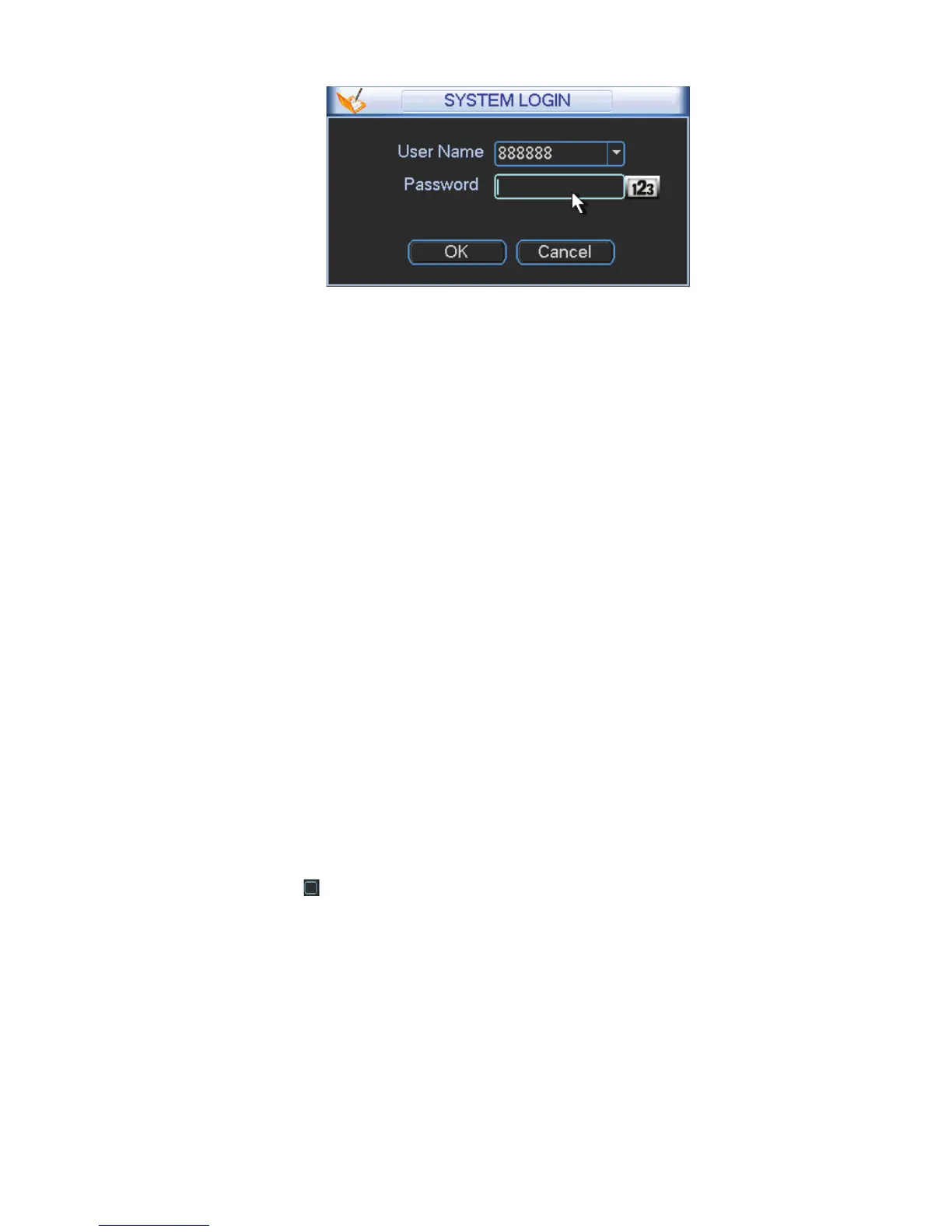
Figure 2-2
Important:
For security reason, please modify password after you first login.
Within 30 minutes, three times login failure will result in system alarm and five times login failure
will result in account lock!
6\VWHP6HWWLQJ6FKHGXOH
After the system booted up, it is in default 24-hour regular mode. You can set record type and time in
schedule interface.
In the main menu, from Setting to Schedule, you can go to schedule menu. See Figure 2-3.
There are total six periods.
z Channel: Please select the channel number first. You can select “all” if you want to set for the whole
channels.
z Week day: There are eight options: ranges from Saturday to Sunday and all.
z Pre-record: System can pre-record the video before the event occurs into the file. The value ranges
from 1 to 30 seconds depending on the bit stream.
z Redundancy: System supports redundancy backup function. It allows you backup recorded file in two
disks. You can highlight Redundancy button to activate this function. Please note, before enable this
function, please set at least one HDD as redundant. (Main menu->Advanced->HDD Management).
Please note this function is null if there is only one HDD.
z Snapshoot: You can enable this function to snapshoot image when alarm occurs.
z Record types: There are four types: regular, motion detection (MD), Alarm, MD & alarm.
z Holiday: Highlight the button here, the holiday settings in General interface (Chapter 5.6.1 in User’s
Manual) becomes activated.
Please highlight icon
to select the corresponding function. After completing all the setups please
click save button, system goes back to the previous menu.
At the bottom of the menu, there are color bars for your reference. Green color stands for regular
recording, yellow color stands for motion detection and red color stands for alarm recording. The white
means the MD and alarm record is valid. Once you have set to record when the MD and alarm occurs,
system will not record neither motion detect occurs nor the alarm occurs.


 To Next Page