8
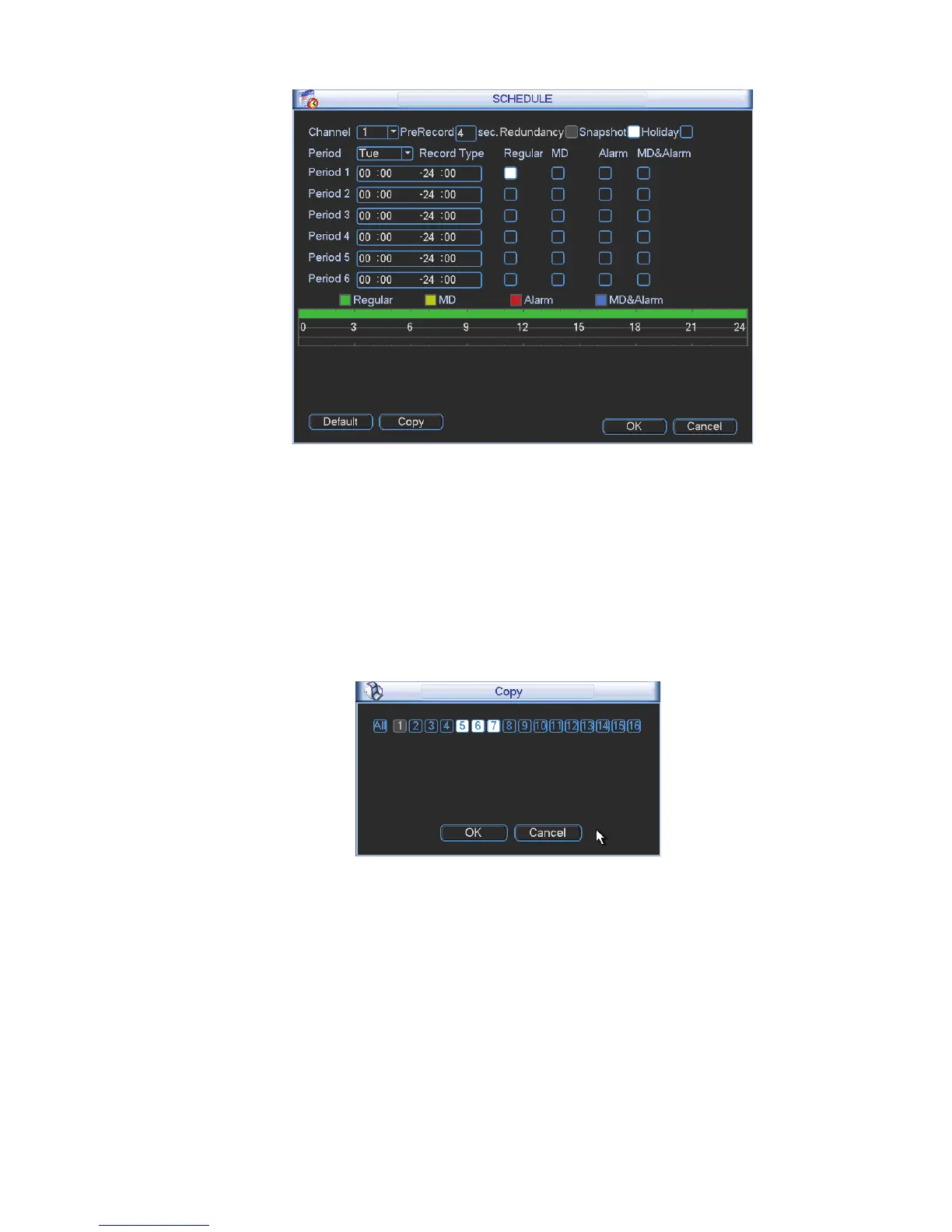
Figure 2-3
Tips
Copy function allows you to copy one channel setup to another. After setting in channel 1, click Copy
button, you can go to interface Figure 2-4. You can see current channel name is grey such as channel 1.
Now you can select the channel you wan to paste such as channel 5/6/7. If you wan to save current setup
of channel 1 to all channels, you can click the first box “ALL”. Click the OK button to save current copy
setup. Click the OK button in the Encode interface, the copy function succeeded.
Please note, if you select ALL in Figure 2-4, the record setup of all channels are the same and the Copy
button becomes hidden.
Figure 2-4
6\VWHP6HWWLQJ1HWZRUN6HWXS
Here is for you to input network information. See Figure 2-5.
z IP Version: There are two options: IPv4 and IPv6. Right now, system supports these two IP address
format and you can access via them.
z MAC address: The host in the LAN can get a unique MAC address. It is for you to access in the LAN. It is
read-only.
z IP address: Here you can use up/down button (
ST) or input the corresponding number to input IP
address. Then you can set the corresponding subnet mask the default gateway.


 To Next Page