15
Please refer to the following sheet for more information.
SN Name Function
1
Display
window
z Here is to display the searched picture or file.
z Support 1/4/9/16-window playback.
2
Search
type
z Here you can select to search the picture or the recorded file.
z You can select to play from the read-write HDD, from peripheral device or from
redundancy HDD.
z Before you select to play from the peripheral device, please connect the
corresponding peripheral device. You can view all record files of the root directory
of the peripheral device. Click the Browse button; you can select the file you want to
play.
Important
Redundancy HDD does not support picture backup function, but it supports picture
playback function. You can select to play from redundancy HDD if there are pictures
on the redundancy HDD.
3 Calendar
z The blue highlighted date means there is picture or file. Otherwise, there is no
picture or file.
z In any play mode, click the date you want to see, you can see the
corresponding record file trace in the time bar.
4
Playback
mode
and
channel
selection
pane.
z Playback mode˖1/4/9/16. (It may vary due to different series.)
In 1-window playback mode: you can select 1-16 channels.
In 4-window playback mode: you can select 4 channels according to your
requirement.
In 9-window playback mode, you can switch between 1-8 and 9-16 channels.
In 16-window playback mode, you can switch between1-16 and 17-32
channels.
z The time bar will change once you modify the playback mode or the channel
option.
5
File list
switch
button
z Double click it, you can view the picture/record file list of current day.
z The file list is to display the first channel of the record file.
z The system can display max 128 files in one time. Use the S/T or the mouse
to view the file. Select one item, and then double click the mouse or click the
ENTER button to playback.
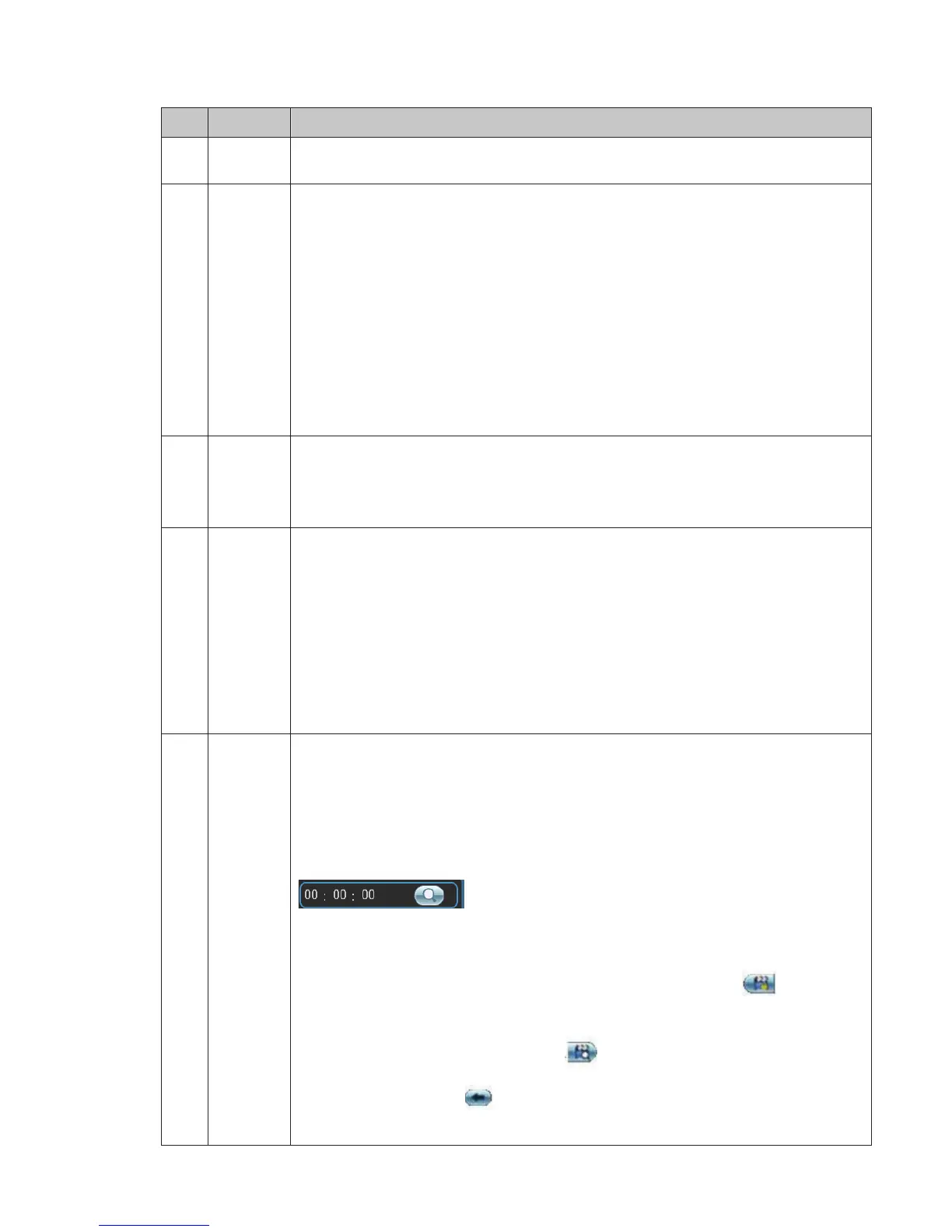
z You can input the period in the following interface to begin accurate search.
z File type˖R—regular record˗ A—external alarm record˗M—Motion detect
record.
z Lock file. Click the file you want to lock and click the button
to lock. The
file you locked will not be overwritten.
z Search locked file: Click the button
to view the locked file.
z Return: Click button
, system goes back to the calendar and channel setup
interface.


 To Next Page