Chapter 2: To get started
98-140012-H To make the first call or data session 28
To start or stop a data connection using the display
By default, you must manually start data connections. However, for some types of connection
you can enable Automatic Context Activation in the web interface. See Automatic Context
Activation (ACA) on page 81.
To start a data connection
Do as follows:
1. Start up the terminal as described in To start up the EXPLORER 710 on page 16.
2. Connect your equipment to the interface you want to use.
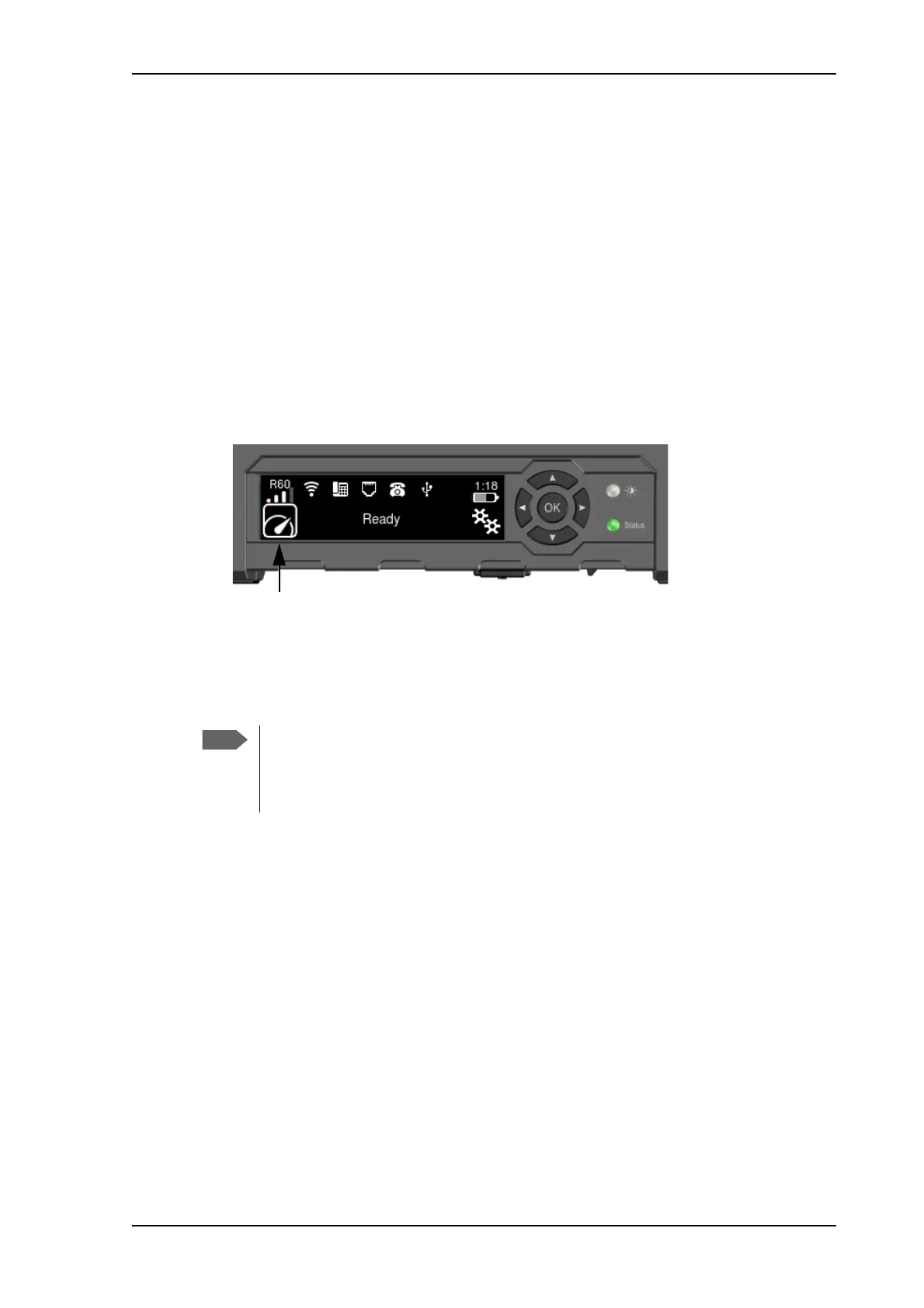
3. Use the arrow keys to highlight the connection icon in the bottom left corner of the
display.
4. Push OK to see the available connection packages.
5. Go to the connection package you want to start or stop.
6. Push OK on the keypad.
7. Push OK again to start the connection.
You should now be able to access the Internet from you connected device.
To stop a data connection
Do as follows:
8. Use the arrow keys to highlight the connection icon in the bottom left corner of the
display.
9. Push OK. The running connection is displayed with Stop highlighted.
10. Push OK on Stop to stop the connection.
For information on how to start and stop data connections with the web interface, see To
control data connections from web interface (BGAN) on page 55.
For information on how to configure the data connections, see To set up your data
connection packages on page 79.
It may take some time to start up the connection. The display shows the status while
the connection is being established and the number on the connection icon changes
from 0 to 1 when the connection package is up and running. If the connection fails,
the display shows an error message.



 To Next Page