Chapter 4: To use the web interface
98-140012-H To manage connected devices (Traffic control) 66
To manage connected devices (Traffic control)
By default, traffic control is disabled, which means that all traffic is allowed.
With the Traffic control function you can get an overview of devices connected to your
EXPLORER 710 and control which devices you want to connect. You can also select whether or
not they should be allowed to use BGAN or cellular network. Note that the available settings
depend on whether or not you are logged in as administrator.
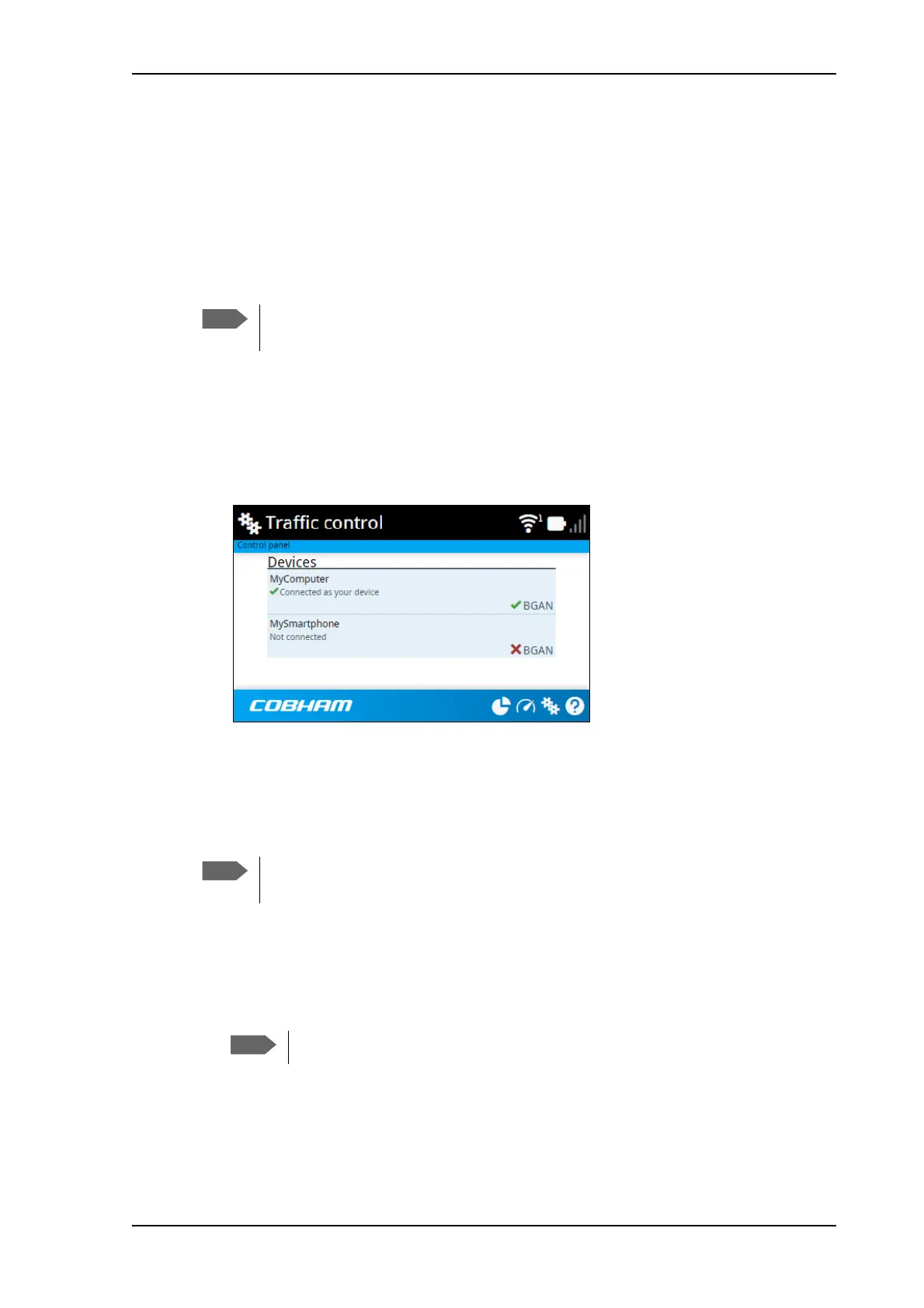
Traffic control (Non-administrator user)
To set up traffic control, do as follows:
1. In the Control panel
, click Traffic control.
A list of connected and added devices appears.
2. Click your connected device to see MAC address and IP address and to change the name
or block/allow the use of BGAN or Cellular network. See the next section.
To block BGAN or cellular traffic or edit the name for your device
1. In the Traffic control page, click your connected device.
The page shows the name, MAC address, IP address and traffic rule for the device.
2. Select Block BGAN traffic or Block Cellular traffic (if available), if you want to deny
access to BGAN or cellular network for your device.
3. At Name, type in the name you want for your device.
4. Click Save.
The cellular modem setting is only available if an EXPLORER Cellular Modem is
inserted in the EXPLORER 710.
You can only change these settings if traffic control is enabled. If the administrator
has disabled traffic control, all traffic is allowed.
If it is already blocked by the administrator, this setting is not editable.



 To Next Page