Chapter 2: To get started
98-140012-H To connect to the WLAN interface 20
3. Turn and tilt the antenna slowly as described in the previous sections until you have
obtained the highest possible signal strength.
4. Tap Accept. The terminal will now try to register on the BGAN network.
To connect to the WLAN interface
To connect to the WLAN interface, do as follows:
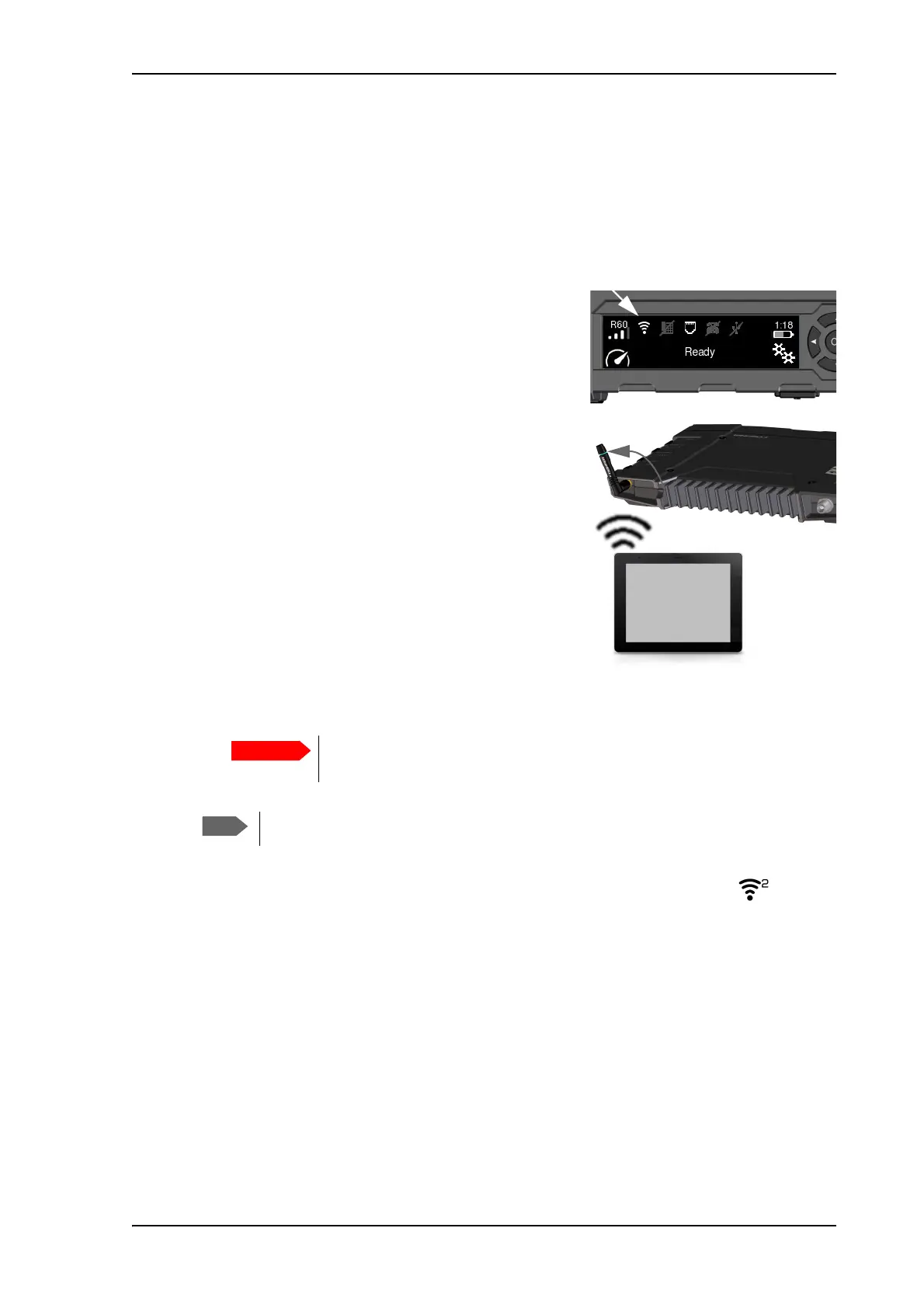
1. Check that WLAN is enabled in your EXPLORER 710.
The top line of the display shows which interfaces
are enabled.
2. If your device is not close to the EXPLORER 710,
turn the WLAN antenna of the transceiver into an
upright position.
3. Place your WLAN-enabled device (computer, tablet
or smartphone) close to the EXPLORER 710, but not
in front of the antenna.
4. On your device, search for available WLAN networks.
5. Select the EXPLORER 710 WLAN access point when
it appears in your list of available wireless networks.
The default name is EXPLORER710.
6. You may have to enter a password.
By default, the password is the serial number of
your EXPLORER 710 and the encoding type is WPA2. You can find the serial number in the
display menu under Properties > Hardware > Unit serial number.
Your device should now be connected to the EXPLORER 710. The WLAN icon in the display and
in the web interface shows the number of WLAN-connected devices (example: ). If you
want to connect to the Internet, you must start a data connection, see To start or stop a data
connection using the display on page 28. The status text in the display shows when there is an
active data connection.
You are now ready to browse the Internet, check e-mails, send files etc.
Calls: If you want to use WLAN to make calls over the BGAN network, you must have a SIP
client installed on your smartphone. See To connect a phone using LAN or WLAN on page 22.
For information on how to configure the WLAN interface, see WLAN interface setup on
page 63.
Remember to change the password (Encryption key) after first connection!
See WLAN interface setup on page 63.
The EXPLORER 710 supports maximum 10 units connected to the WLAN interface.



 To Next Page