Chapter 3: To use the EXPLORER 710
98-140012-H Data connection with computer, smartphone or tablet 32
3. When the web interface opens, click (Control panel) from the bottom right corner of
the page.
4. Locate the icon with the interface you want to enable or disable.
• If the icon is gray with a line across, the interface is disabled.
• If the icon is blue, the interface is enabled.
5. To enable or disable the interface, click the icon for the interface and select or clear
Enable.
6. Click Save.
Data connection with computer, smartphone or tablet
Overview
The following interfaces are available for connecting computers, smartphones or tablets:
•WLAN
•LAN
To choose an interface for data connection
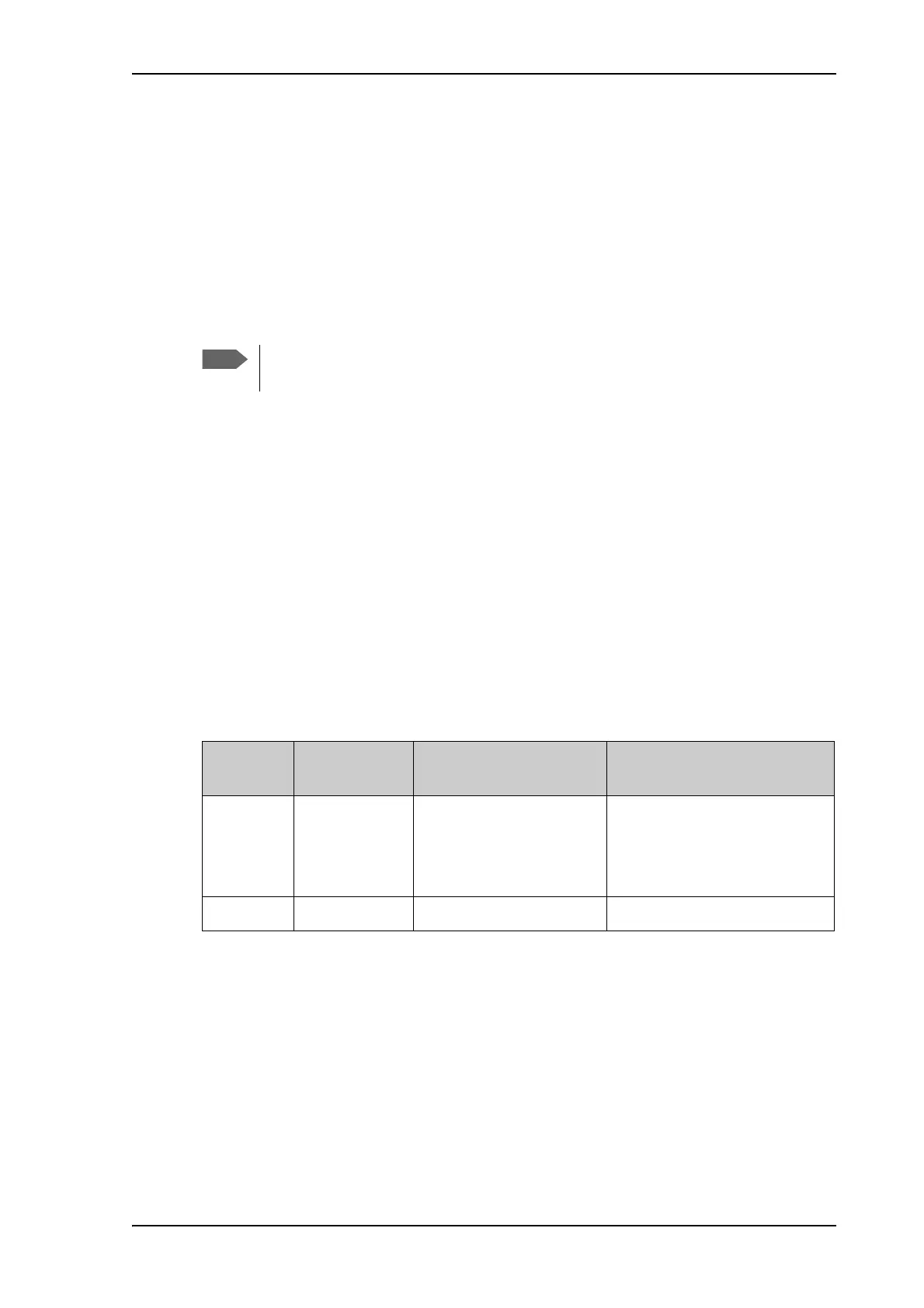
The following table shows some characteristics of each interface to help you choose the right
interface for your application. For information on how to connect your equipment, see To
connect to the WLAN interface on page 20 and To connect to the LAN interface on page 21.
Router function
The terminal has a router function which routes traffic between the local network connected
to the terminal and up to 11 BGAN network connections (also called PDP contexts on the
BGAN network).
The router contains NAT (Network Address Translation) which allows sharing of a public IP
address between a number of local network users.
It may take some seconds to enable the interface. When the icon changes to the
enabled (blue) icon, the interface is enabled.
Interface
Power
consumption
Amount of setup Range
WLAN High Some setup necessary on
your WLAN device and in
the web interface of the
EXPLORER 710
Wireless connection.
Up to 100 m depending on the
transmitter in the computer and
on the transmission conditions.
LAN High None (or very little) Up to 100 m of cable



 To Next Page