Chapter 4: To use the web interface
98-140012-H To manage connected devices (Traffic control) 67
Traffic control (Administrator)
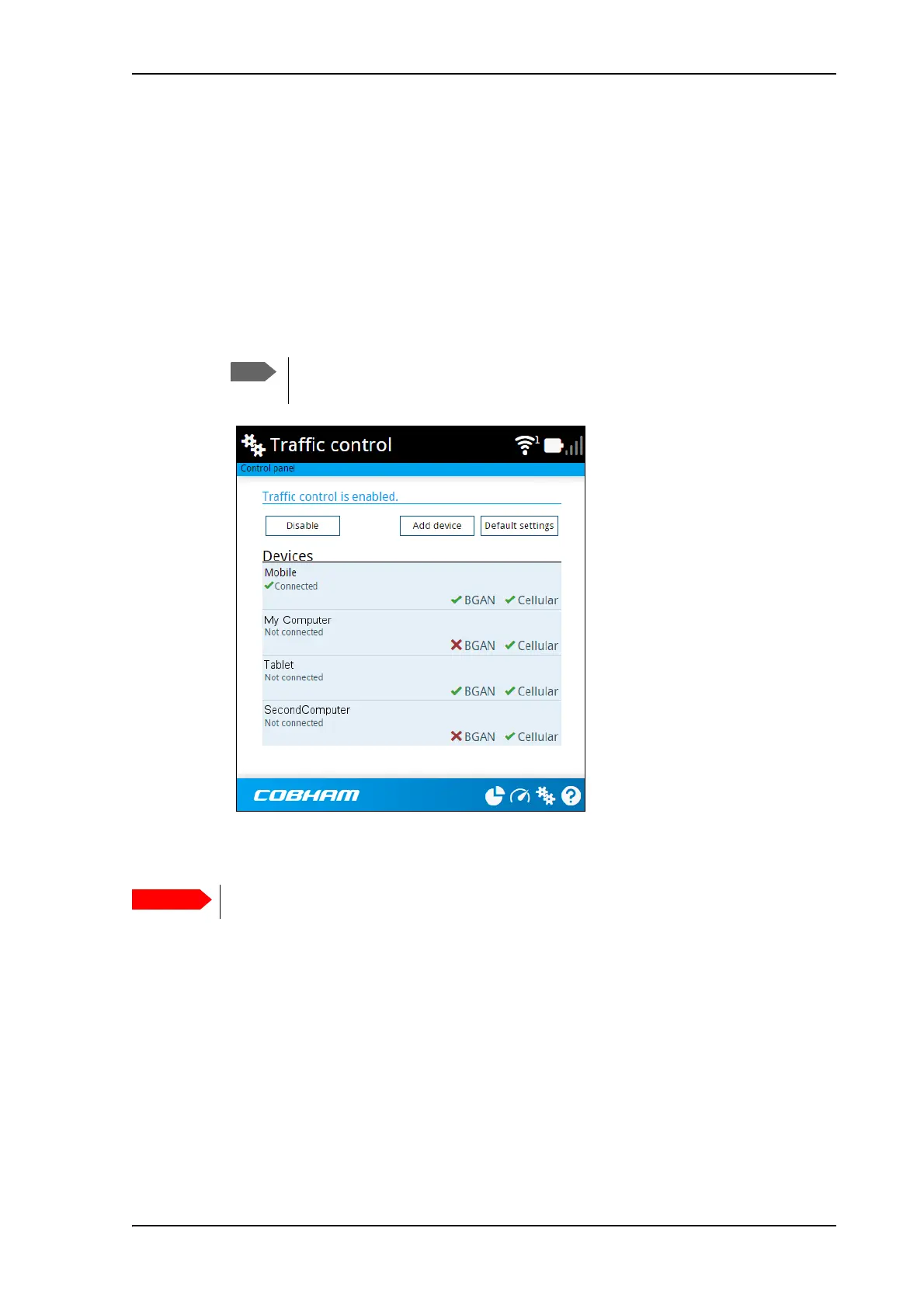
When you are logged in as administrator (or administrator password is disabled), the Traffic
control setup offers more options. To set up traffic control as administrator, do as follows:
1. Log in as administrator (or make sure administrator password is disabled).
2. In the Control panel
, click Traffic control.
A list of connected and added devices appears.
3. Click the Enable button to enable Traffic control.
By default Traffic control is disabled, which means all devices are allowed access.
To change the default settings for all devices
1. Click the button Default settings.
2. Select Block BGAN traffic or Block Cellular traffic (if available) if you want to deny
access to BGAN or cellular network for all devices. With this option selected, only the
administrator will be able to allow access for selected or all devices.
3. Click Save.
All devices in the list will now have the new default settings.
When you enable traffic control, BGAN is blocked by default for all new devices.
To change the default settings, see the next section.
All devices in the list are updated with the default settings when you click Save.



 To Next Page