2-16 Setting Up the Imager
4. Select the
$GGUHVVHV
option, then press the key.
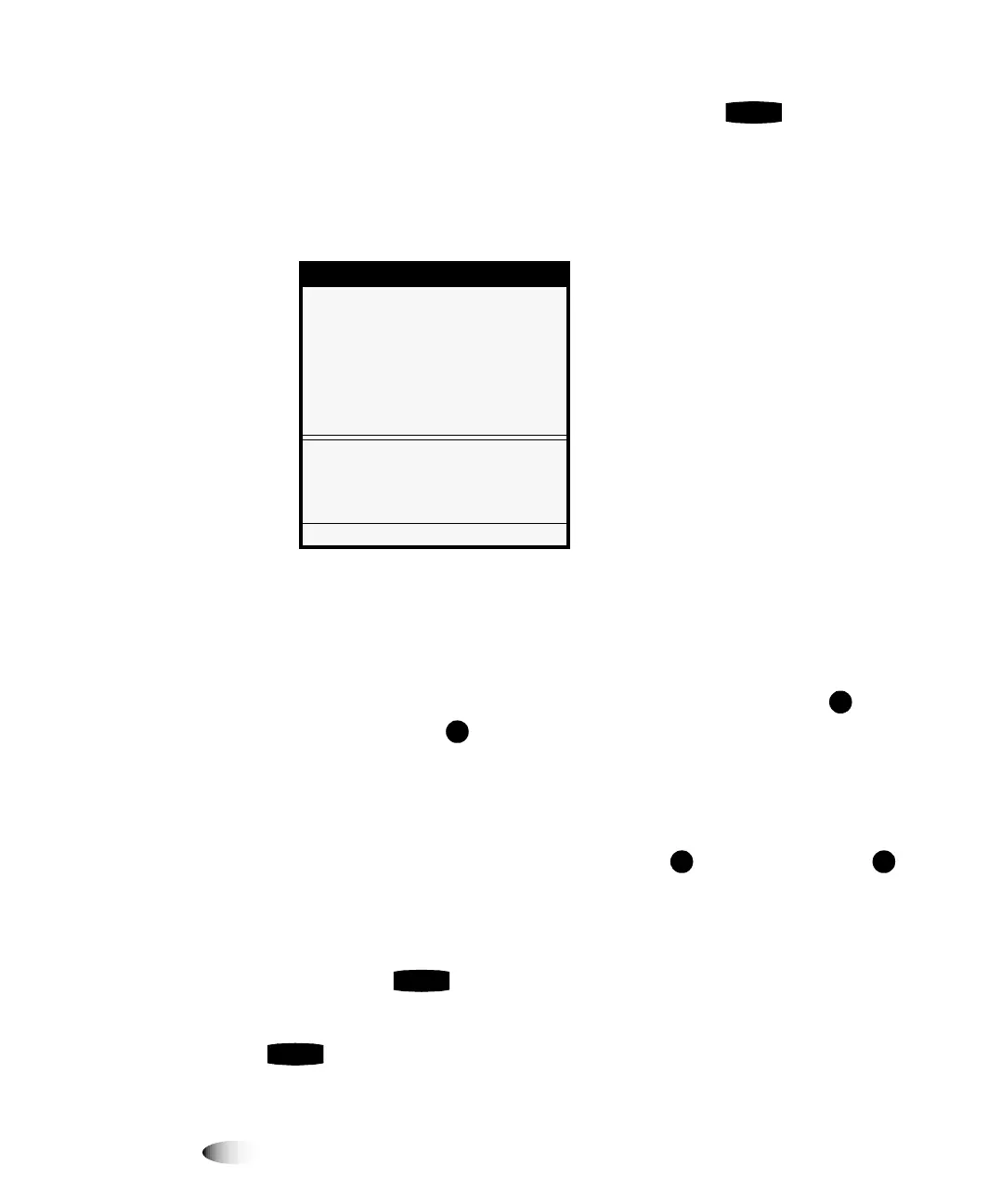
The Network Addresses menu displays. Note that bold square
change
brackets are displayed around the first IP address octet
value of the Base IP Address. The bracketed portion of the
address is the portion that can currently be changed.
127(
7KH+RUL]RQLPDJHUFDQKDYHPRUHWKDQRQH,3DGGUHVVDVVLJQHGWRLW)RUDVLPSOH
QHWZRUNLWLVDVVXPHGWKDW\RXDUHDVVLJQLQJRQO\RQH,3DGGUHVV,IVR\RXHQWHULWDVWKH
%DVH,3$GGUHVVYDOXH)RUPRUHLQIRUPDWLRQDERXWFRPSOH[QHWZRUNVDQGDVVLJQLQJ
PXOWLSOH,3DGGUHVVHVWRWKHLPDJHUUHIHUWRWKH+RUL]RQ,PDJHU7HFKQLFDO0DQXDO
5. To change the values in the Base IP Address, press the
(increment) or (decrement) key until the address value you
want is displayed.
Note that you can hold these keys to rapidly cycle through
values.
6. To select the next value field, press the key. (Pressing the
key moves the change brackets to the left.)
7. Repeat steps 5 and 6 until all four positions in the Base IP
Address have been defined. To save what you have entered,
press the key.
127(
7RH[LWWKH1HWZRUN$GGUHVVHVPHQXZLWKRXWVDYLQJ\RXUFKDQJHVSUHVVWKH
NH\7KHSUHYLRXVPHQXXSLQWKHKLHUDUFK\GLVSOD\V
1HWZRUN$GGUHVVHV
%DVH,3$GGUHVV
>@
*DWHZD\
6XEQHW0DVN
1XPEHURI,3$GGUHVVHV
6HWEDVH,3DGGUHVV
2OGYDOXH
83'2:1WRDOWHURFWHW/()75,*+7
WRFKDQJHRFWHWV
3UHVV0(18WRH[LWPHQXV
(17(5
3
(17(5
3
&$1&(/


 To Next Page