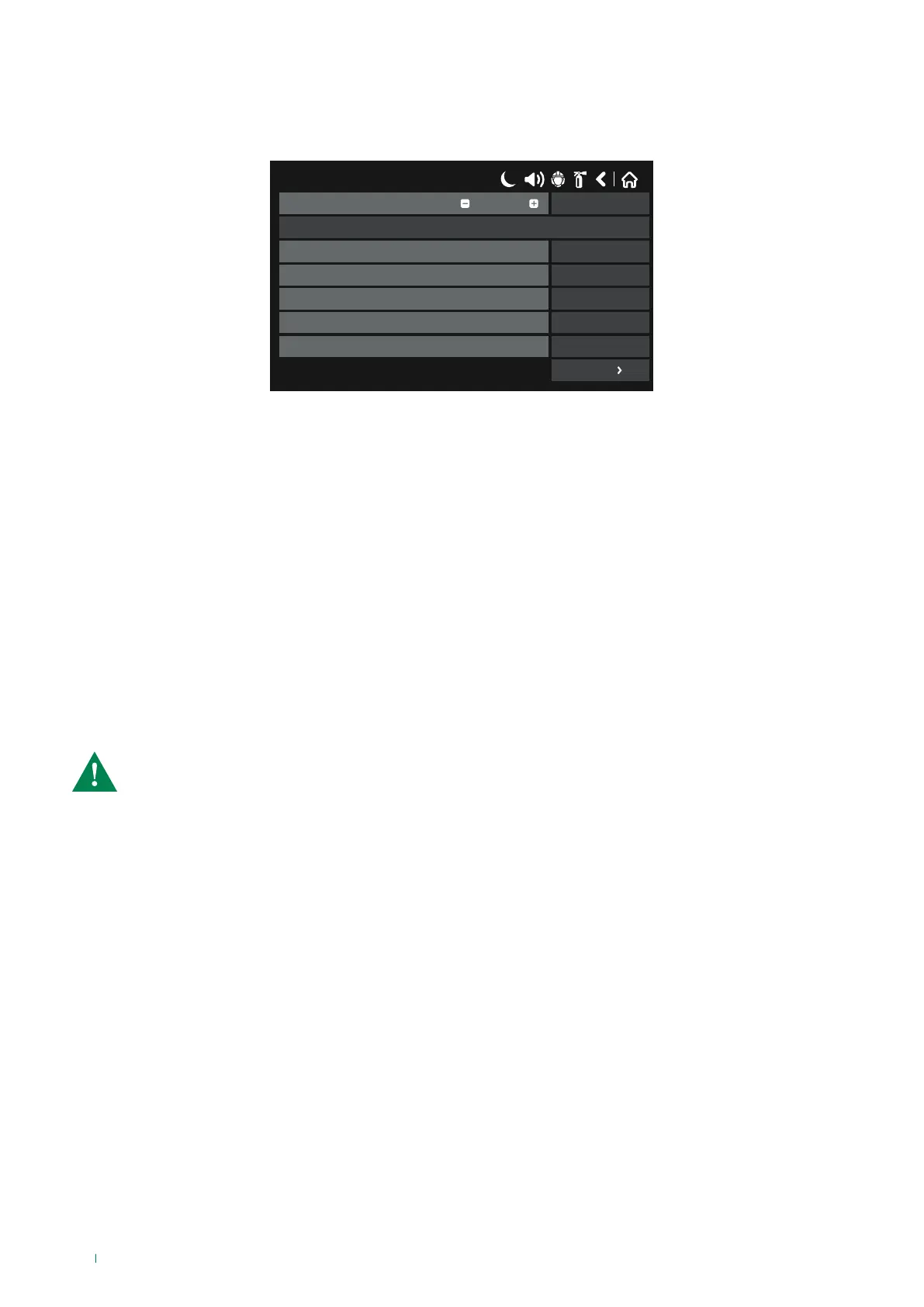
Description of the Inputs menu buttons:
Once the desired input type has been selected, you need to set the parameters relating to that specific input; the general
screen with parameters common to all inputs is shown below:
17/06/2020 14:06
SAVEInput Number
Name
UnlatchedBehaviour
NORMALPolarity
0Input Delay
ActionType
RESETFunction
1
More
• Logic Input Number: use the + & - buttons or enter the number directly to select an input between 1 and 250. The screen
content may vary depending on the settings for the selected Input Type. All inputs are pre-set to NONE by default.
• Name: field used to enter a name or description for the input being programmed.
• Behaviour: field used to enter the input behaviour type:
◊ Auto Reset – the input status remains enabled until it is physically disabled
◊ Manual Reset – the input status is only disabled after a Reset event
• Polarity: field used to enter the input polarity:
◊ Normal – the input is Enabled when the result of the logic function is TRUE
◊ Inverted – the input is Enabled when the result of the logic function is FALSE
• Input Delay: a delay can be set for input enabling, between 0-600 seconds.
• Type: button used to select the input type as described previously.
• Function: this button is only active for input types (zones, action, general, zone group).
• “More” – Input Group: each input can belong to a logic input group. The group can work in OR or AND logic.
CAUTION: by default, input 1 is linked to input group 1, input 2 is linked to input group 2, etc.
52



 To Next Page