3-10
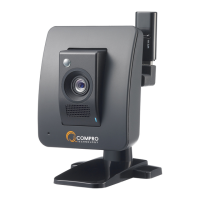
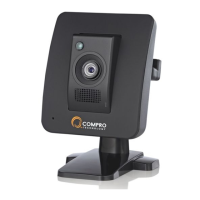
Compro IP55 / 60 / 70 Network Camera
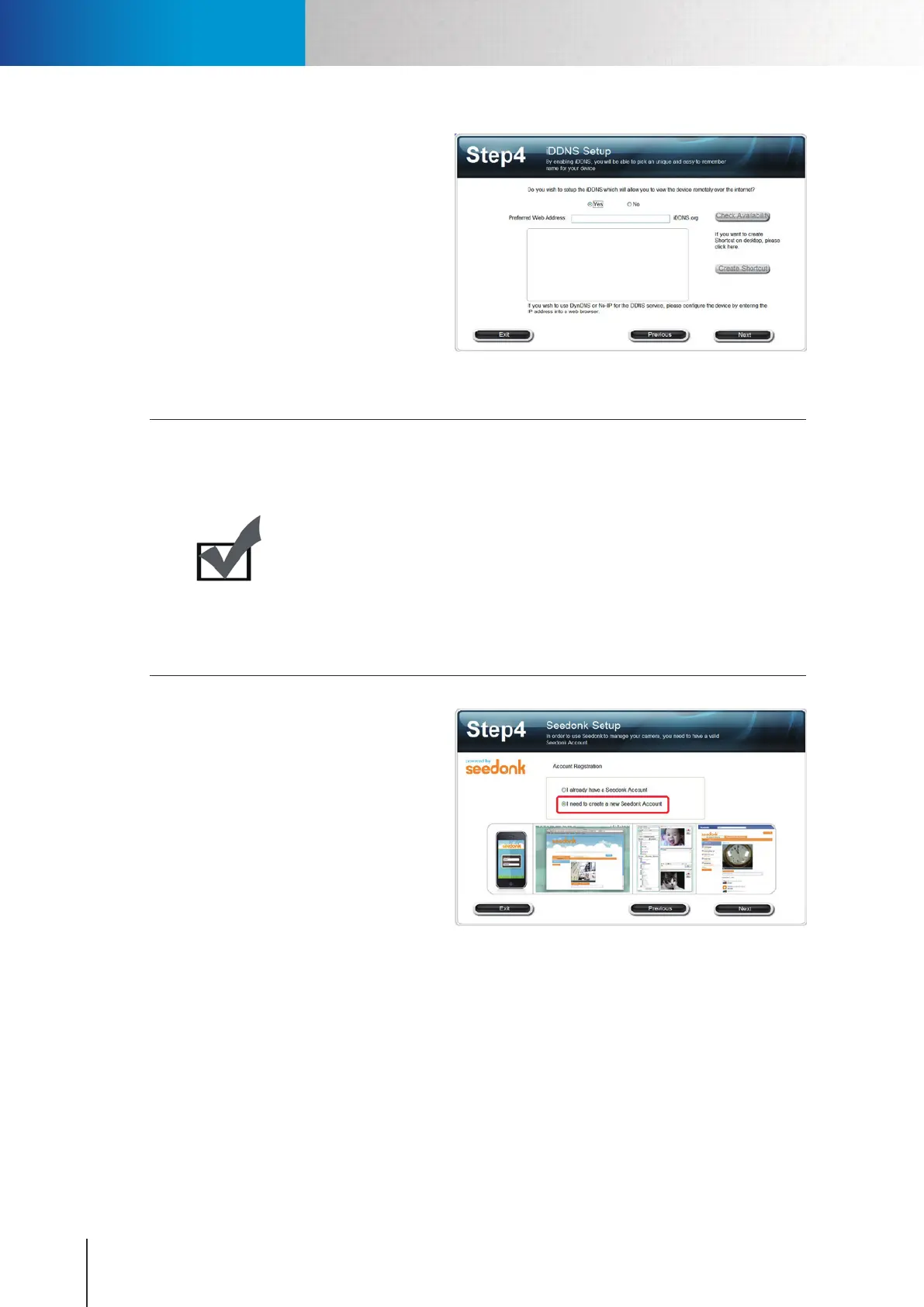
9. (Skip this part if you enabled Seedonk
service) If you didn’t enable Seedonk
service earlier, you can set up iDDNS
service here. To do so, click [Yes] and
input your desired address name. Then
click [Check Availability] button to check
if the entered address name has been
used. When successful, you can click
[Create Shortcut] button to create a
shortcut on your desktop for convenient
access.
Figure 3-17. iDDNS conguration
Note:
The iDDNS is a free DDNS (Dynamic Domain Name Service) service from Compro.
If you are using floating IP, you need to apply for DDNS service to create a
hostname that links to your home or office IP address, which provides easy-
to-remember URL for quick access to your camera anytime, anywhere. After
successfully creating the iDDNS address name, you can then enter http://xxx
(input by yourself).iddns.org in a browser to access your IP camera.
If your local LAN and router have rewall to block attack from outside, you have
to congure the HTTP port on your router. For example, if you set the HTTP port
“2001”foryourIPcamera,yourIPcamera’saddresswillbehttp://xxx (entered by
you).iddns.org:2001.
10. (Skip this part if you didn’t enable
Seedonk service.) You will be asked to
log in to your Seedonk account when
you come to Seedonk setup in step 4. If
you don’t have a Seedonk account yet,
you can choose to create a Seedonk
account and continue with account
registration (You need to read and
accept the Seedonk end user license,
term of service, and privacy statement
in order to open a Seedonk account).
Figure 3-18. Seedonk account setup
Installing Camera Software


 To Next Page